Cyclic Writers
Such writers render repeatedly with or without some movement
Cyclic writers are dynamic writers that can be rendered individually by making a new class instance of a renderable class that implements the IStaticRenderable interface that you can implement in your renderable class. Such writers can either be animated or static, and can be rendered either by calling their individual Render() function one by one or by putting renderable classes to a container and calling that container's WriteContainer() function from the ContainerTools class.
Most of the renderables also support colors, in which you can set with UseColors and their appropriate properties.
The following built-in cyclic writers are available:
Shapes
CircleArcEllipsisParallelogramRectangleSquareTrapezoidTriangleLine
Charts
BreakdownChartBarChartStickChartStemLeafChartLineChartWinsLossesAreaChart(unfinished)
Text
AlignedFigletTextAlignedTextAnimatedTextBoundedTextFigletTextPowerLineTextMarqueeDecorationSyntaxTextTextPath
Artistic
BorderBoxBoxFrameCanvasAnimatedCanvas
Misc
Asciinema(WIP)ProgressBarProgressBarNoTextSimpleProgressSliderSpinnerBuilt-in spinners are available in the
BuiltinSpinnersclass.
TableandCalendarsEraserKeybindingsKeyShortcutListEntryListingEmojiKaomojiNerdFontsSelection
You can define a container by creating a new instance of the Container class and adding some of the renderables that can be identified by their name. You can also set their positions by using the SetRenderablePosition() function. If you don't want to use a container, you can use the RenderRenderable() function or the WriteRenderable() function to render a specific renderable in a specific position and to write the result to the console, respectively.
Some of the renderables may override the position variable for a renderable and may use the values from the renderables' properties.
In addition to that, you can manipulate with a renderable using the following functions:
IsRegistered(): Checks to see if a renderable with this ID is registered or not.RemoveRenderable(): Removes a renderable with this ID.GetRenderable(): Gets a renderable instance from this ID.GetRenderablePosition(): Gets a renderable instance position from this ID.GetRenderableNames(): Gets an array of renderable IDs.
Shapes
You can render the following shapes directly to your console:
Circle
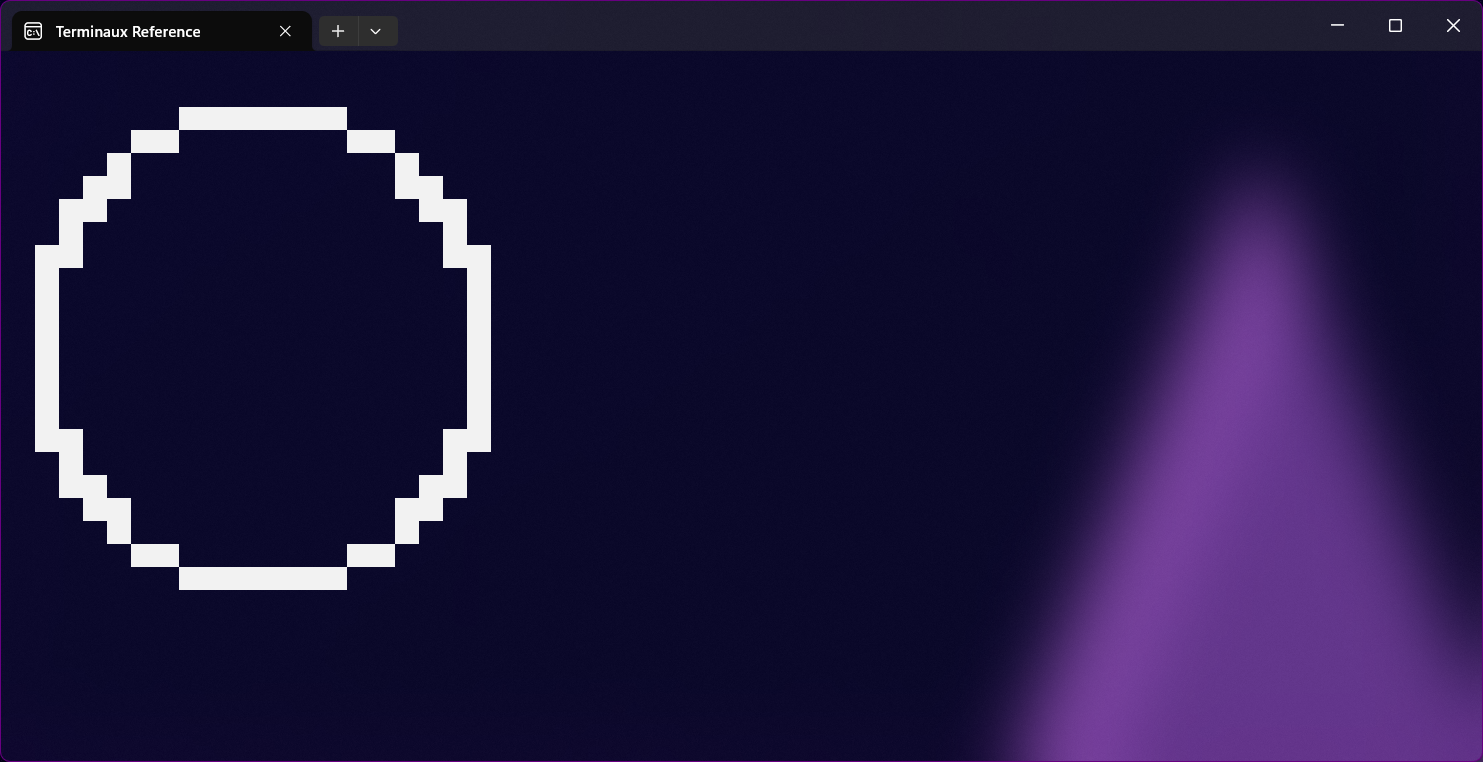
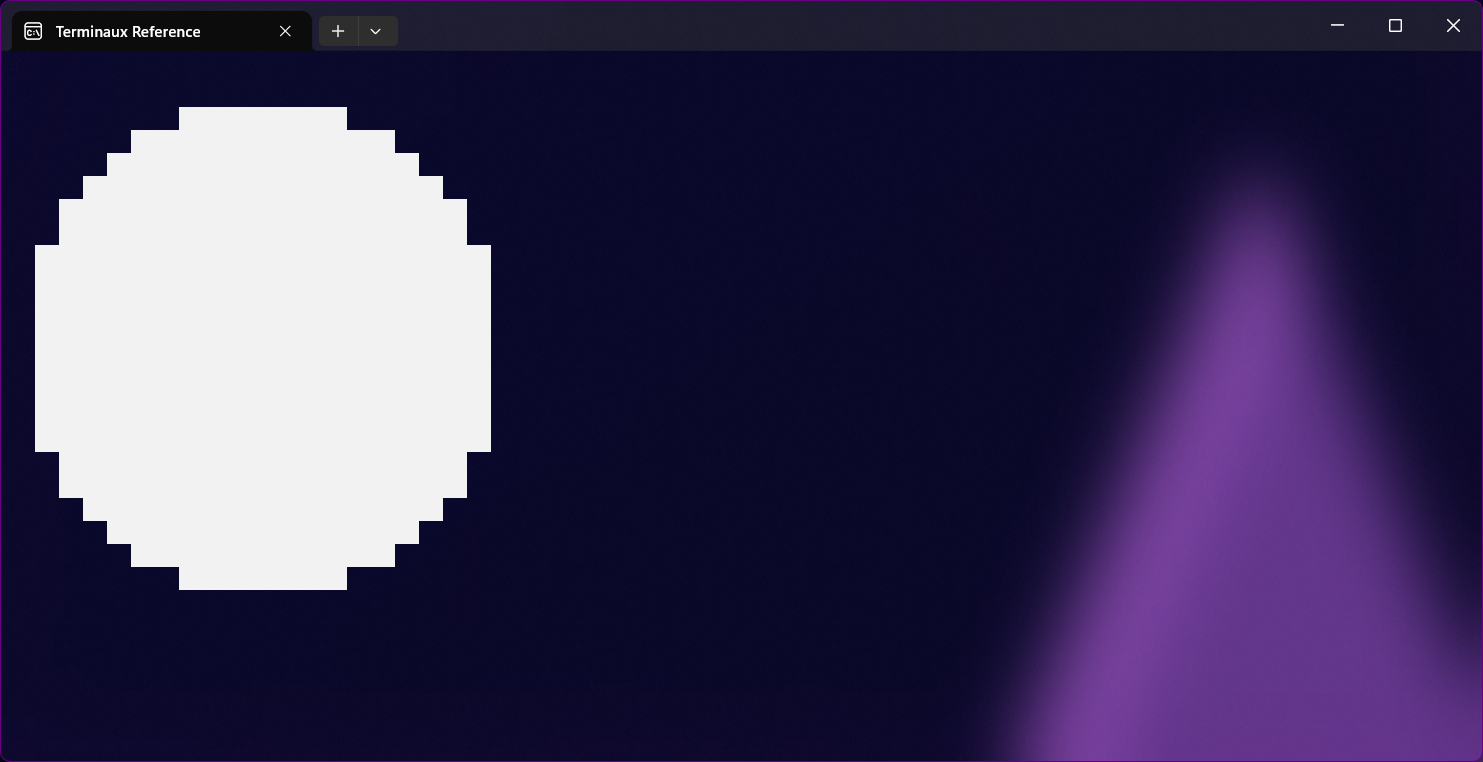
The circle writer allows you to write a circle to the console. It also allows you to either draw just an outline or the whole filled circle.
Arc
This writer allows you to write an arc directly to the console with some parameters, such as custom inner and outer radius, and angle ranges.
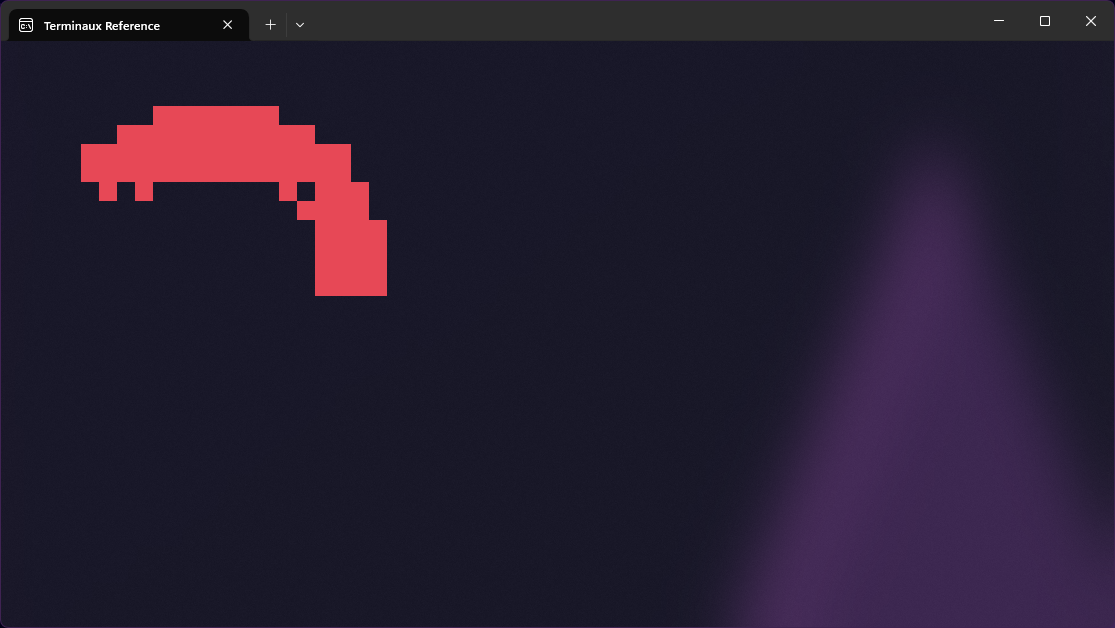
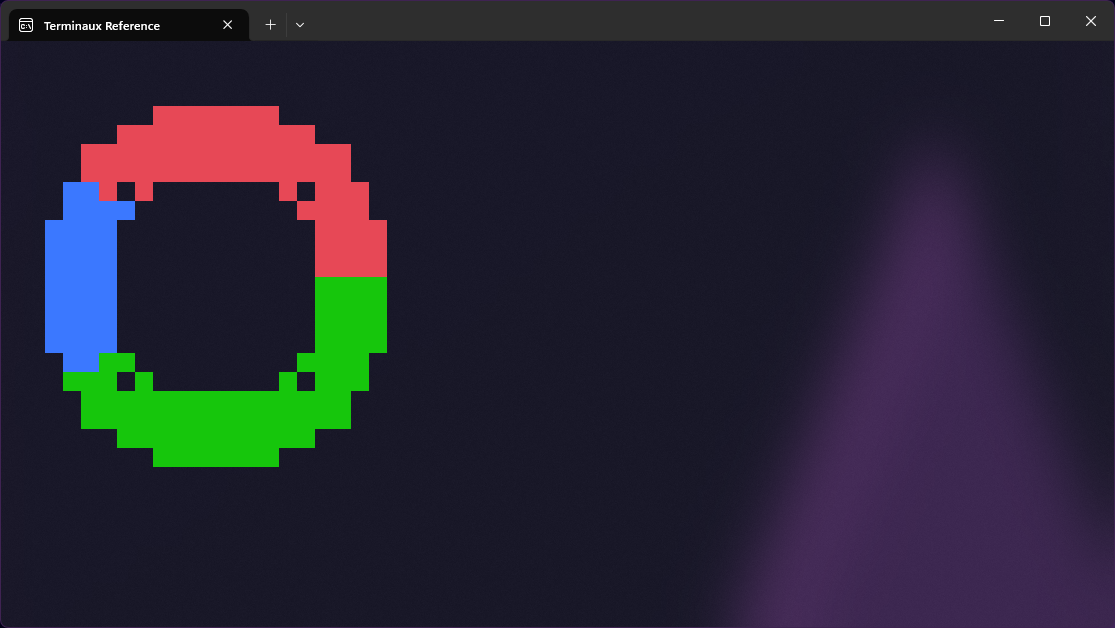
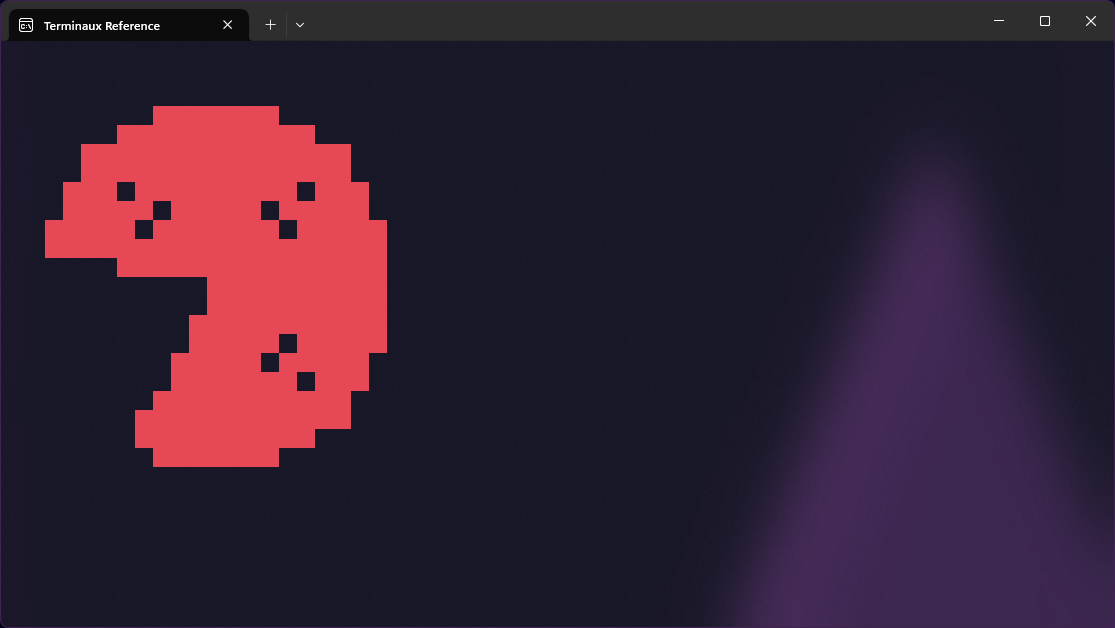
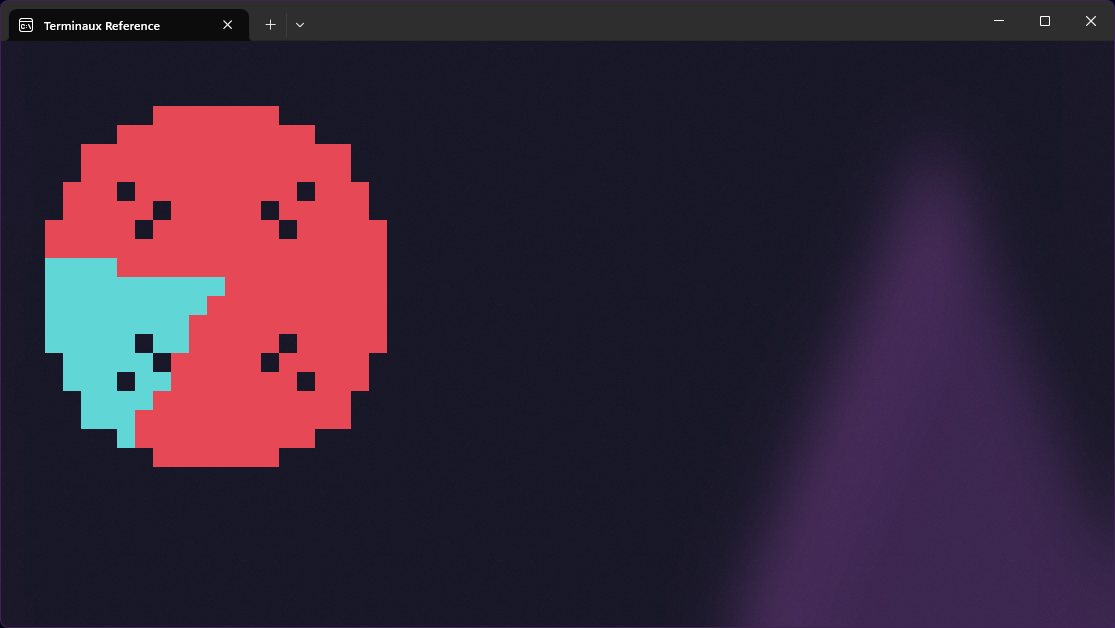
Ellipsis
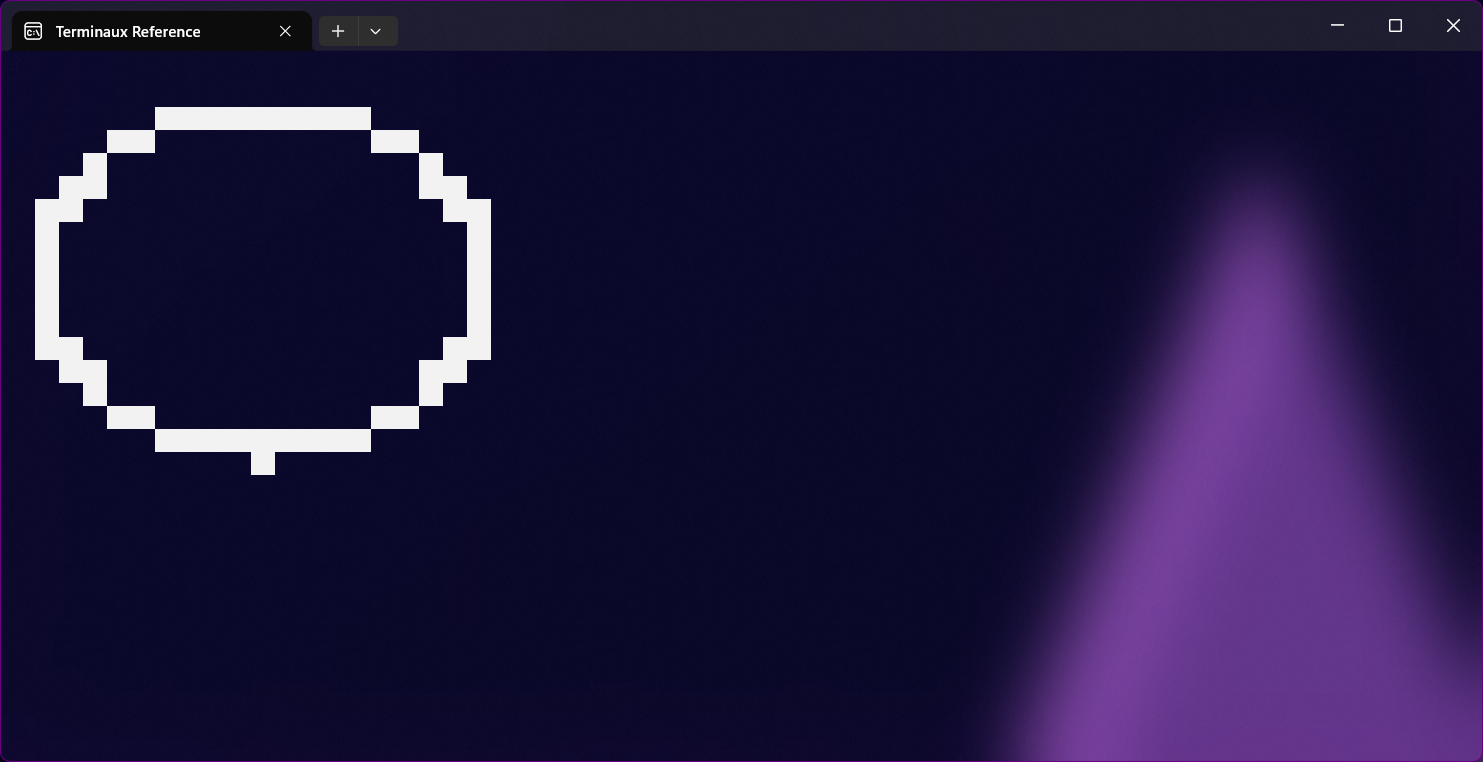
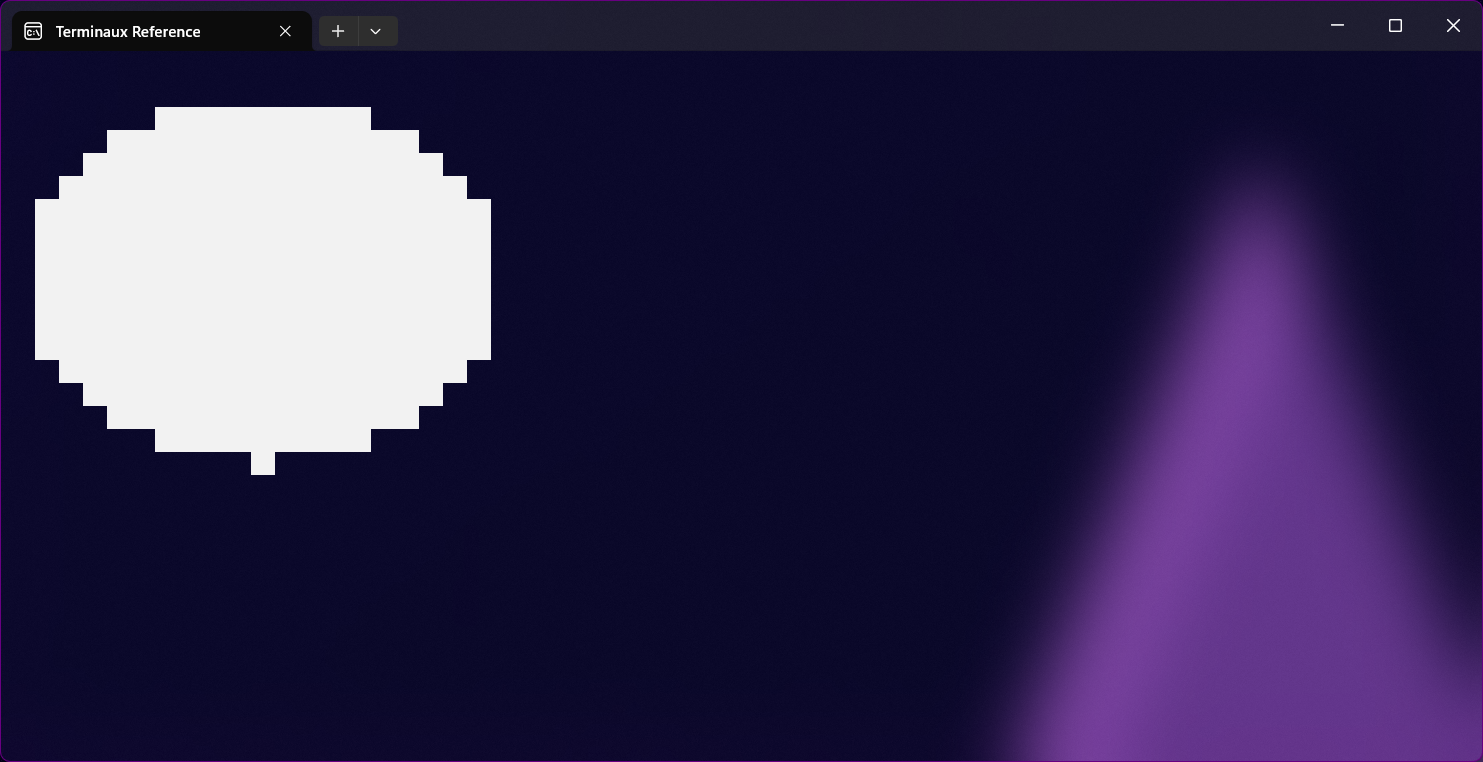
This writer allows you to write an ellipsis directly to the console. It also allows you to either draw just an outline or the whole filled ellipsis.
Parallelogram
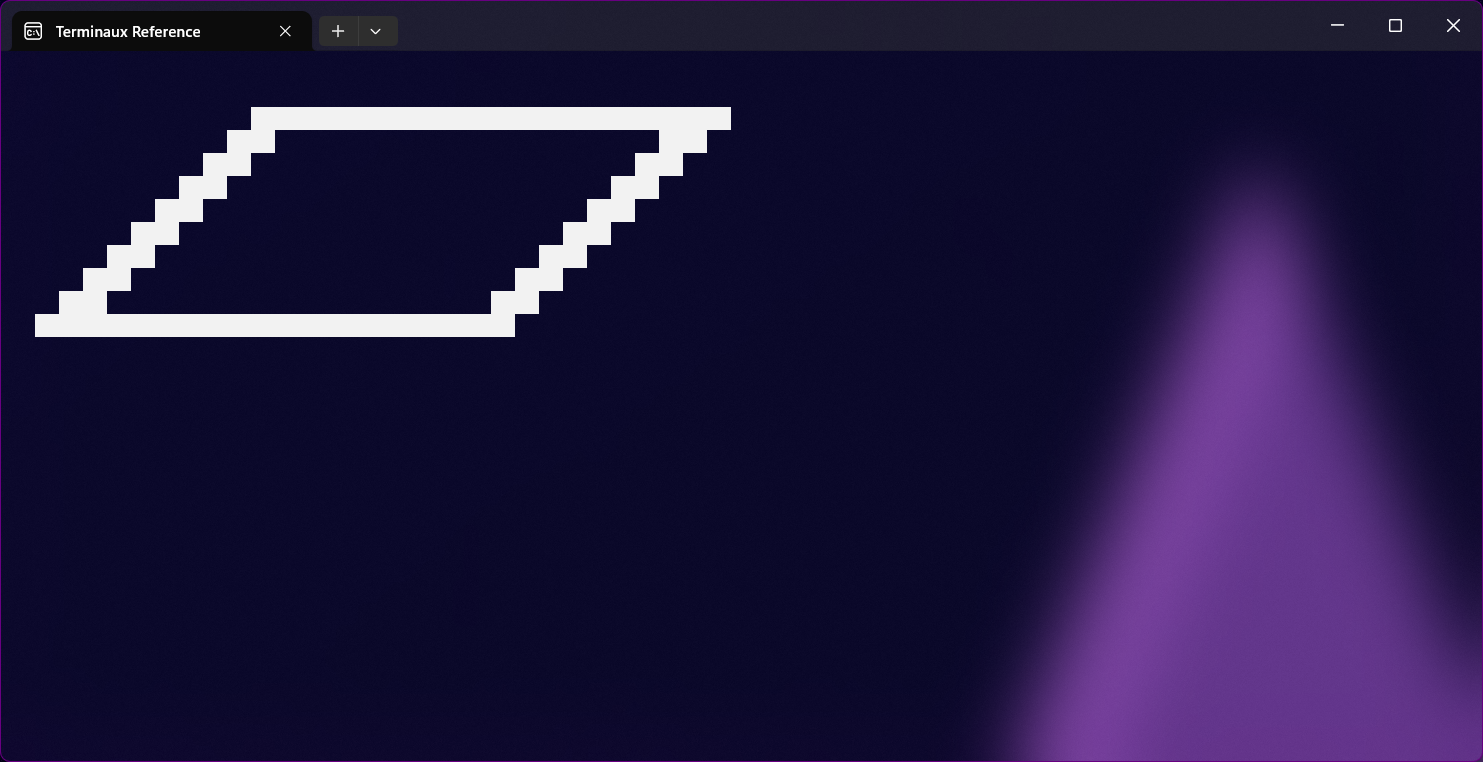
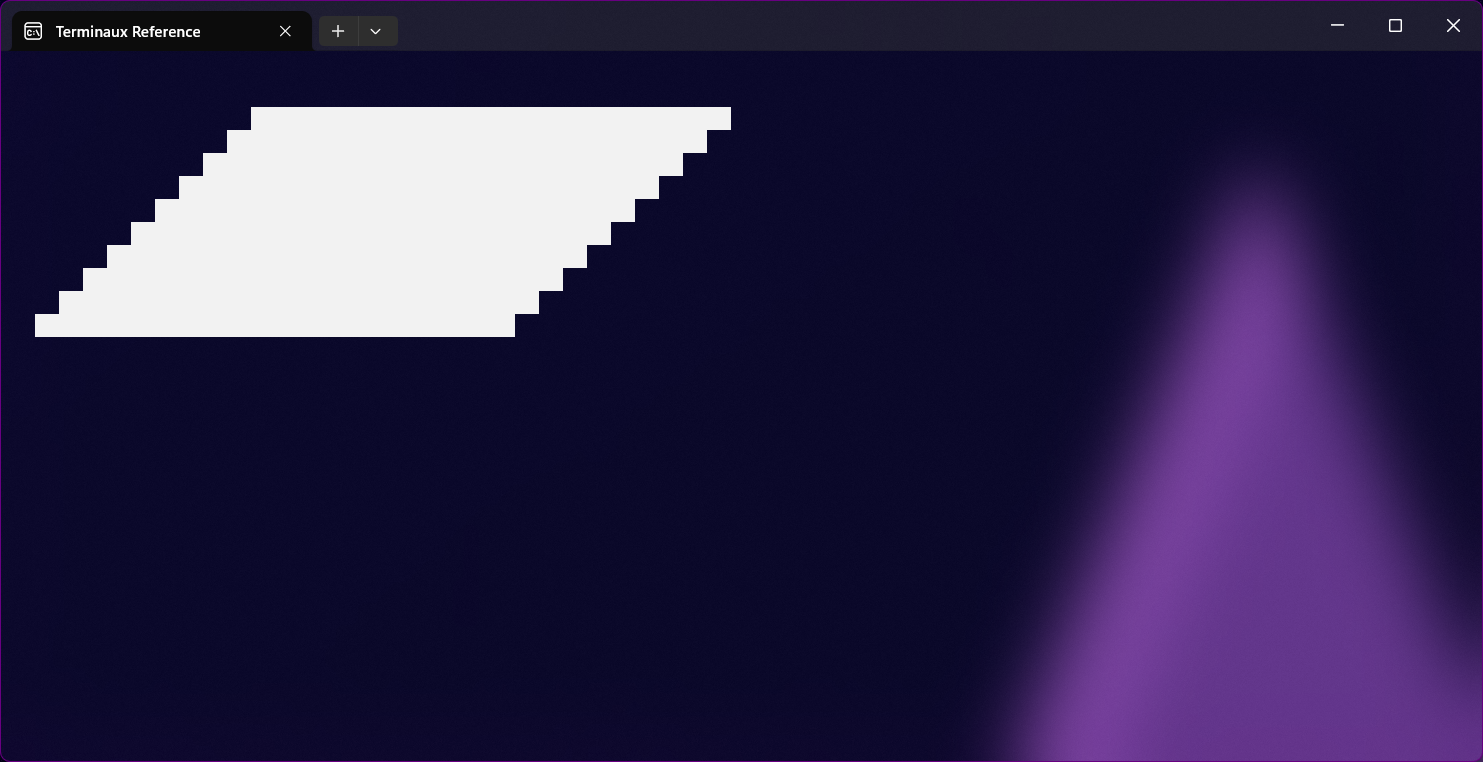
This writer allows you to write a parallelogram to the console directly. You can specify whether to draw just the outline or the whole shape.
Rectangle
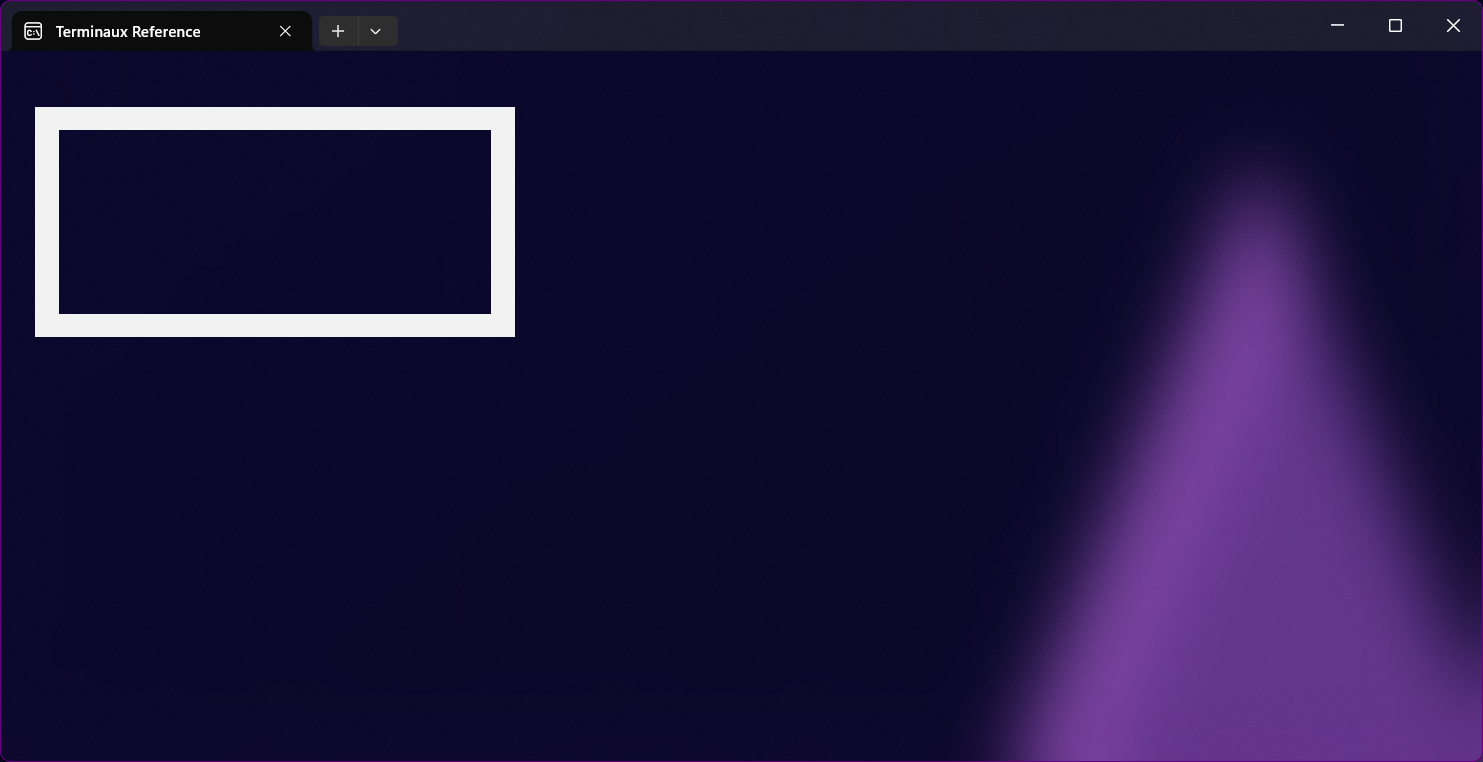
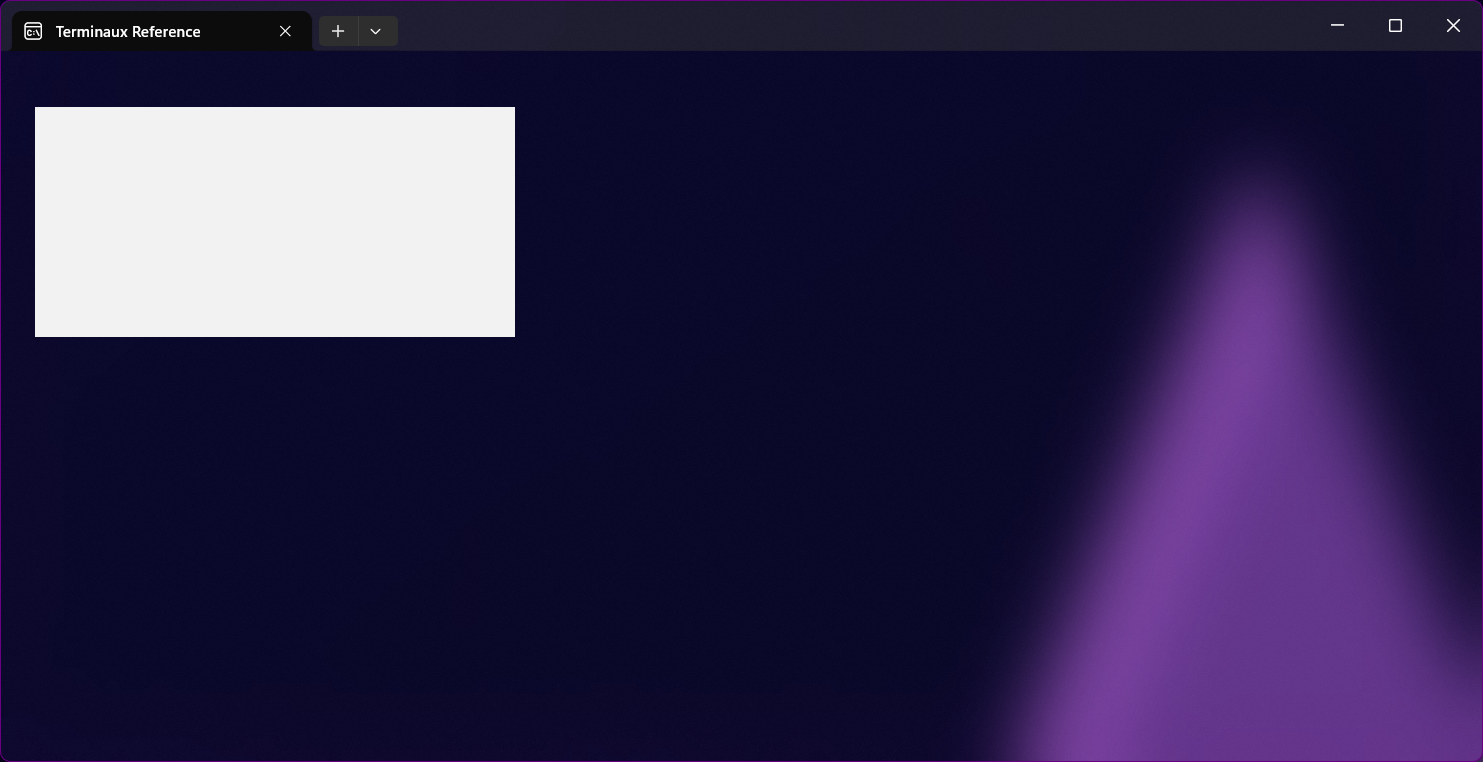
This writer allows you to write a rectangle to the console directly. You can specify whether to print the whole shape or just the edges.
Square
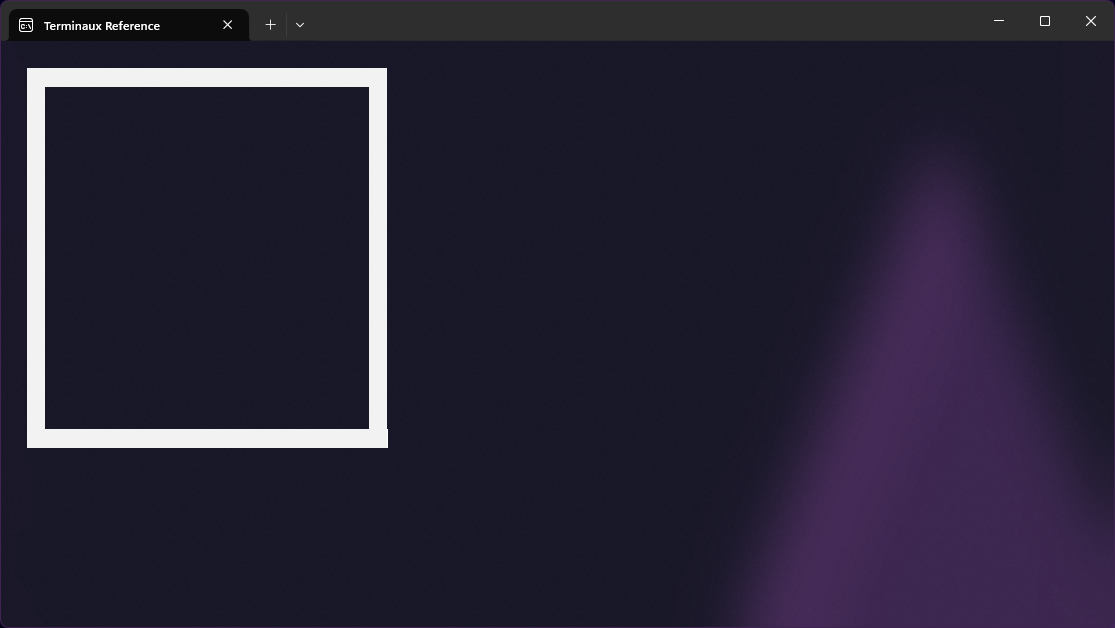
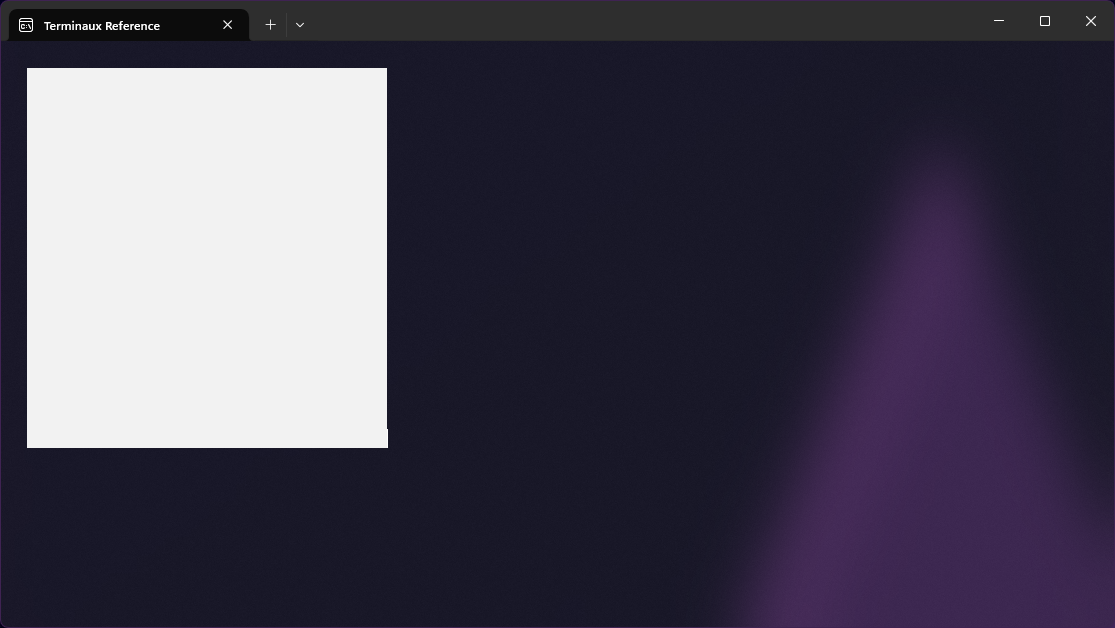
This shape basically renders a rectangle, but with just the height specified. In the console, the width is multiplied by two due to the space widths taking up only one cell. It basically renders a square.
Trapezoid
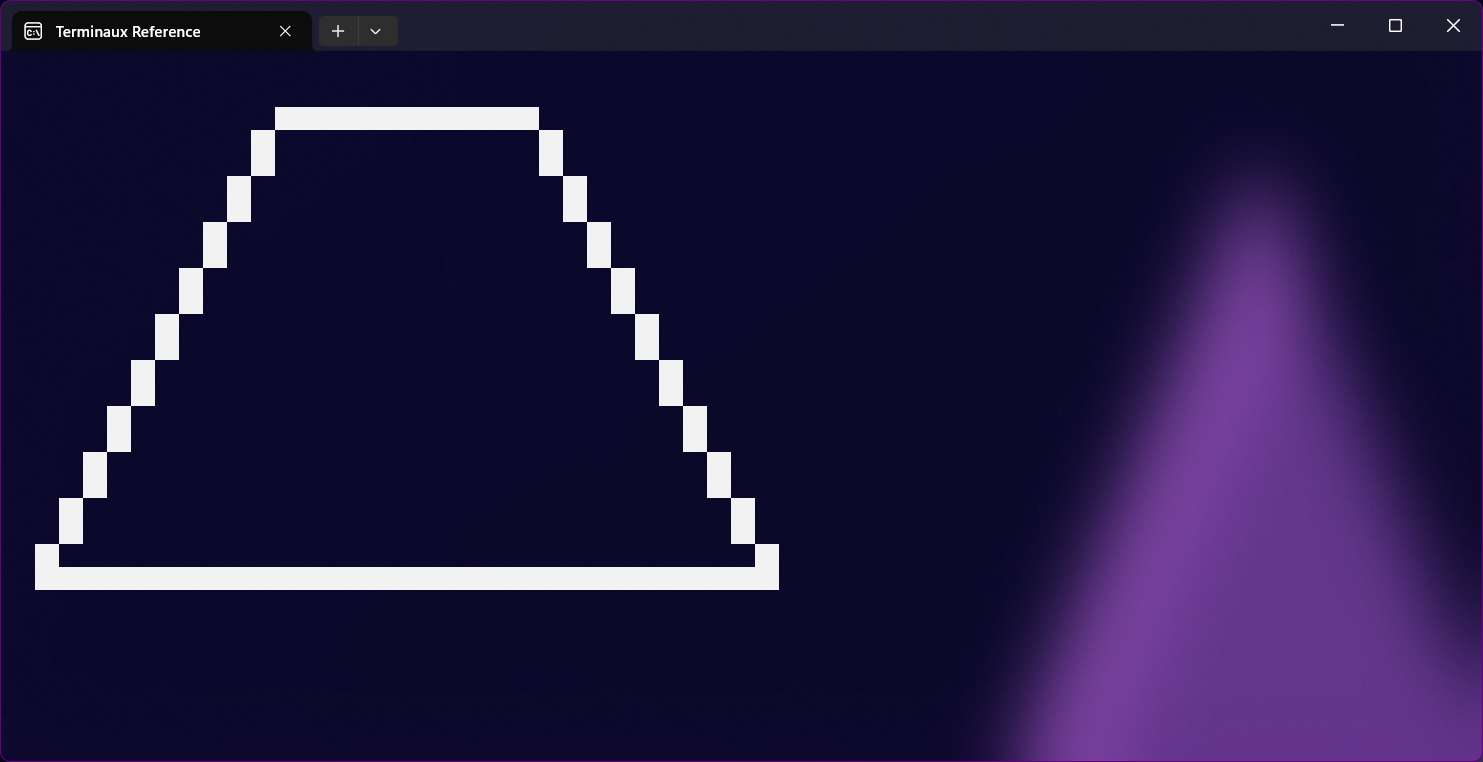
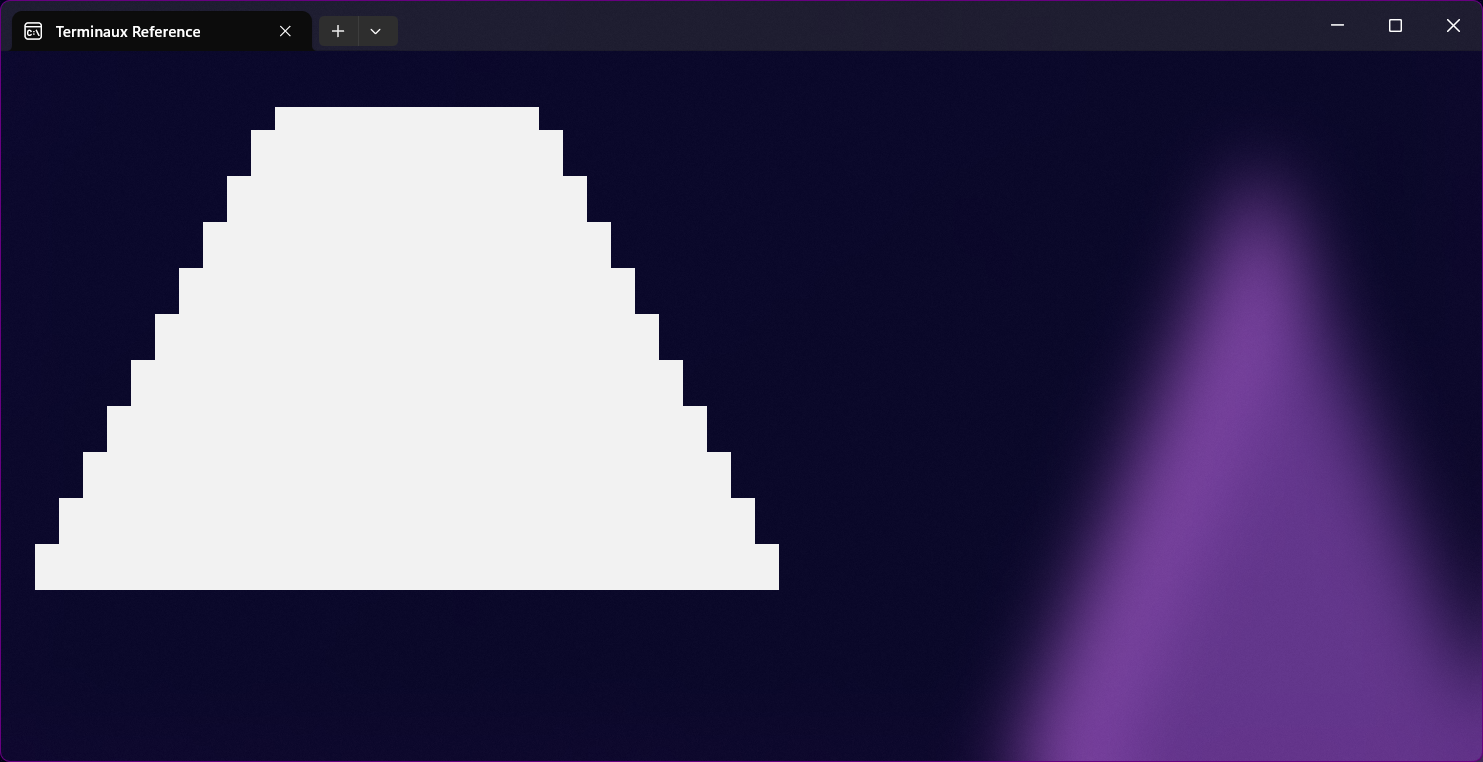
This renders a trapezoid using a specified height, a top edge width, and a bottom edge width. You can also make it either render just the outline or as a full shape.
Triangle
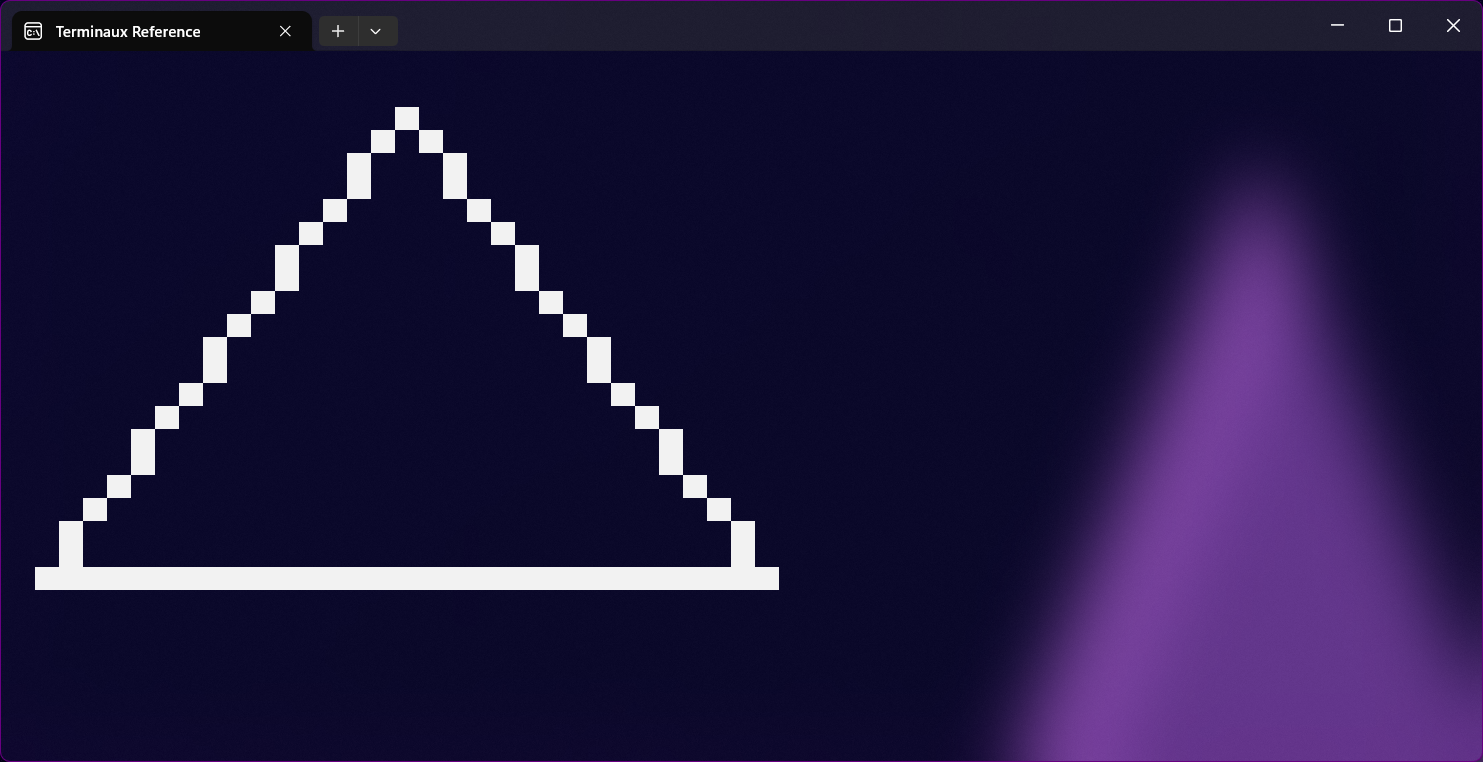
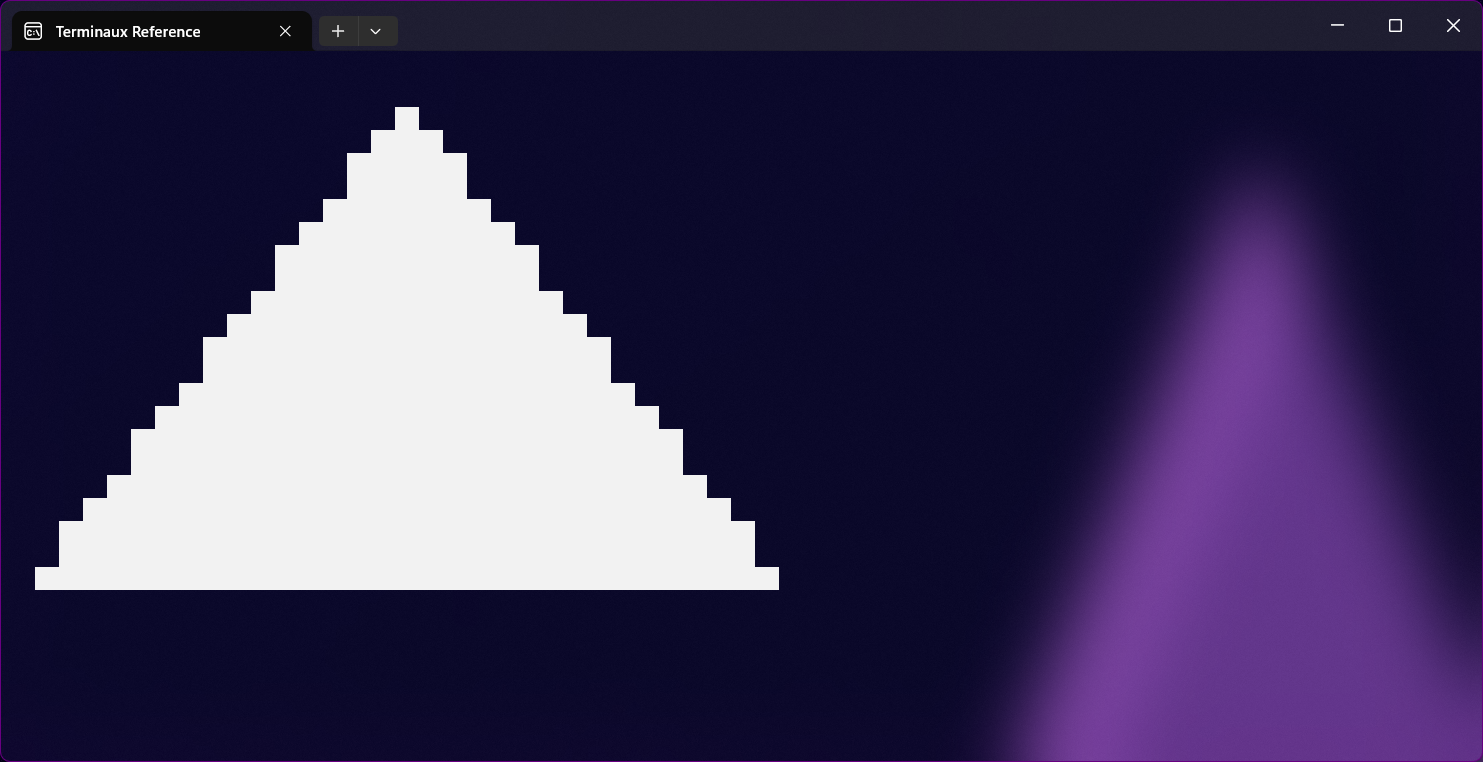
This renders either an equilateral triangle or an isosceles triangle to the console.
Line
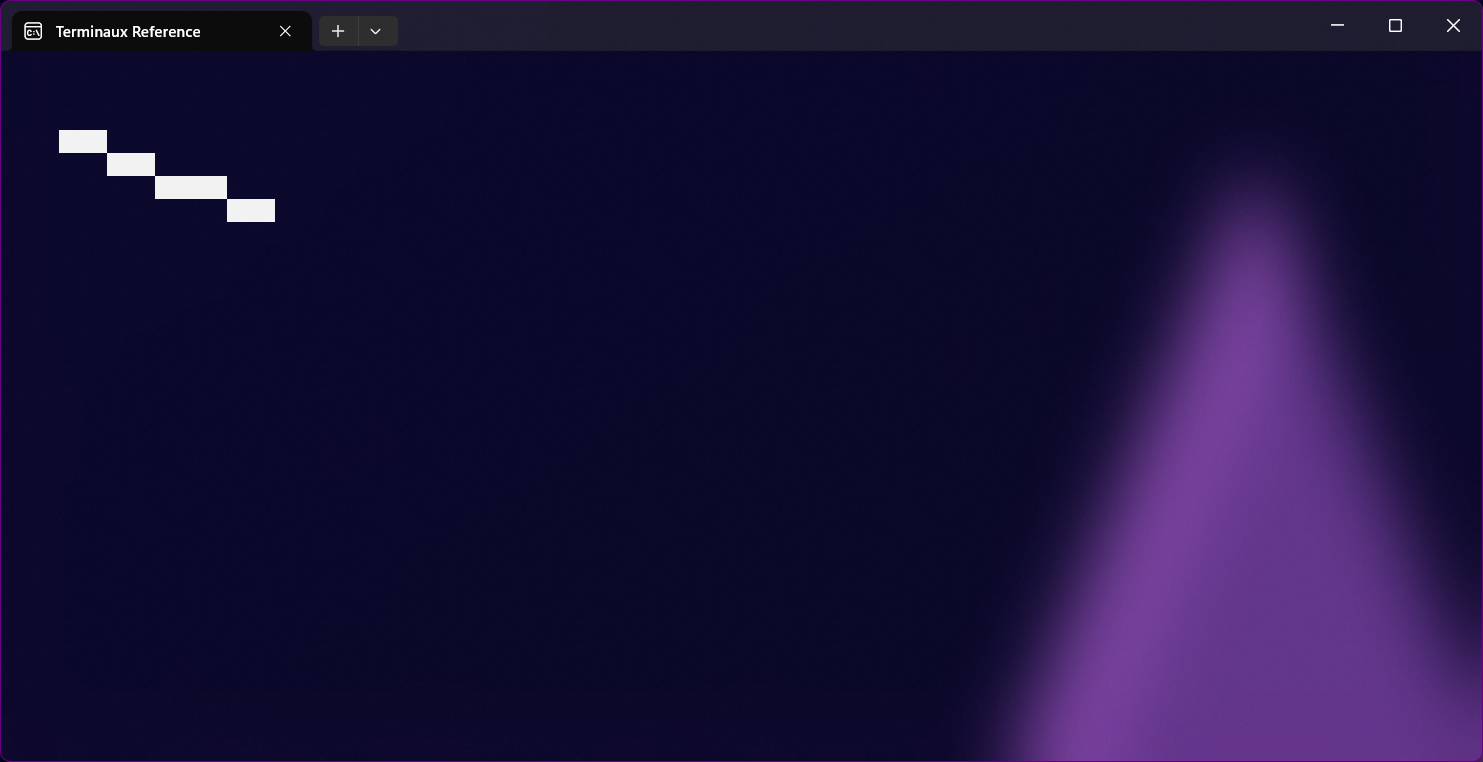
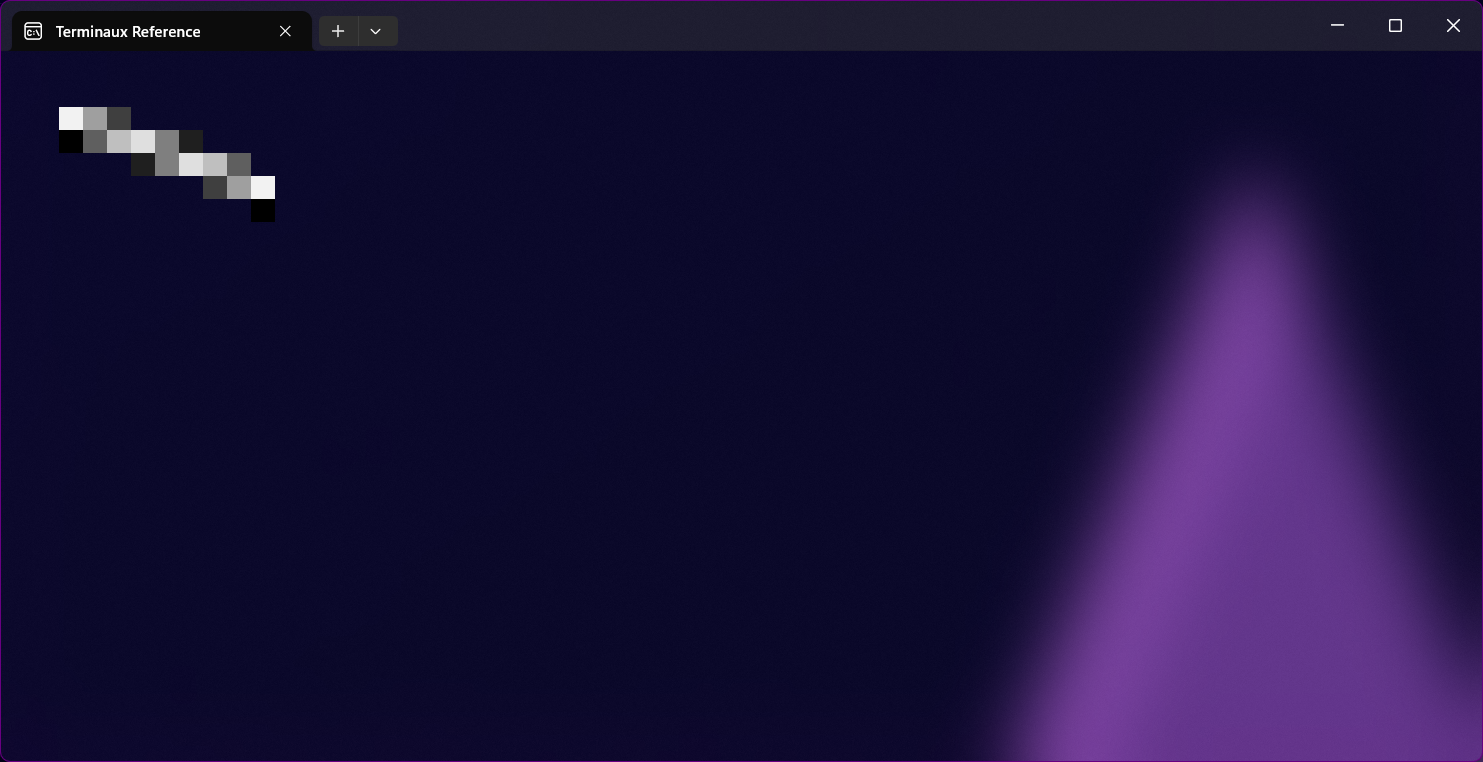
This renders either a rough line or a smooth line, and it can either be half-width or full-width.
Charts
Presenting numbers, especially when comparing device performance benchmark numbers, can sometimes be clearer if you use a chart instead of a table. In order to use charts, you must specify at least the chart elements that can be described as an array of ChartElement class instances, which is usually set in the Elements property. You can create a new element like this:
You must specify at least the name and the value to identify your element. However, elements can either have a random color (if the Color property isn't specified) or a specific color. It can also be hidden from view by enabling the Hidden property.
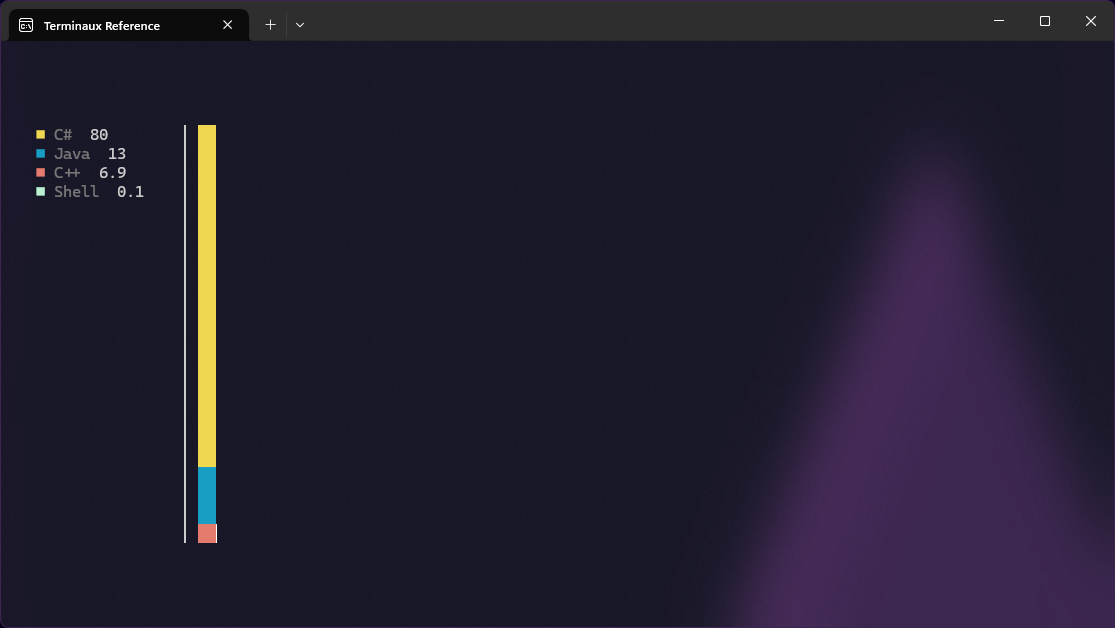
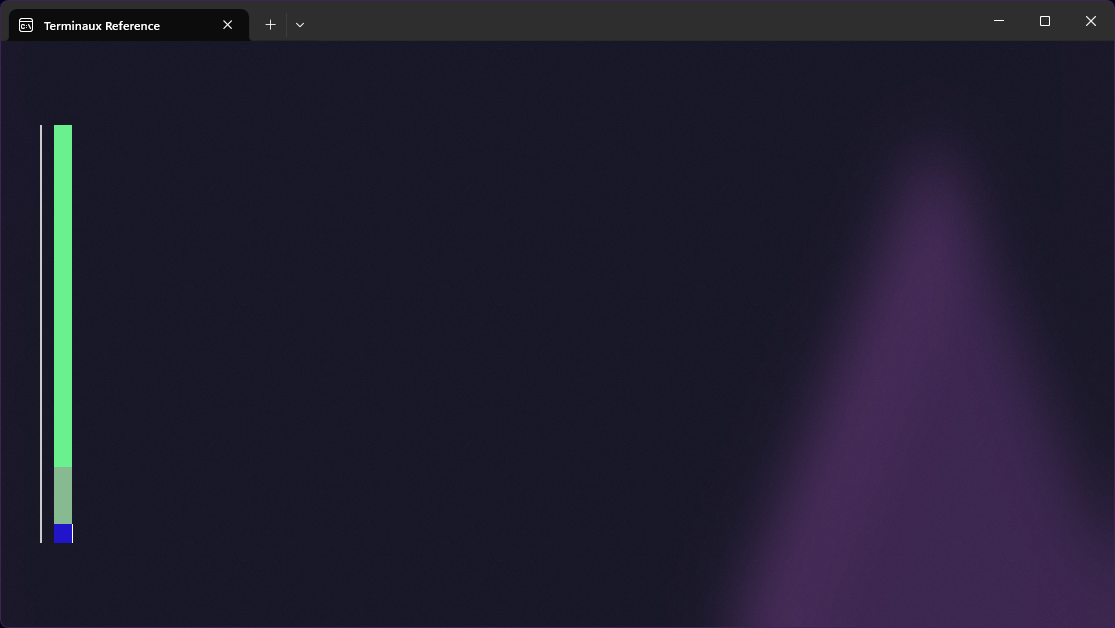
Breakdown chart
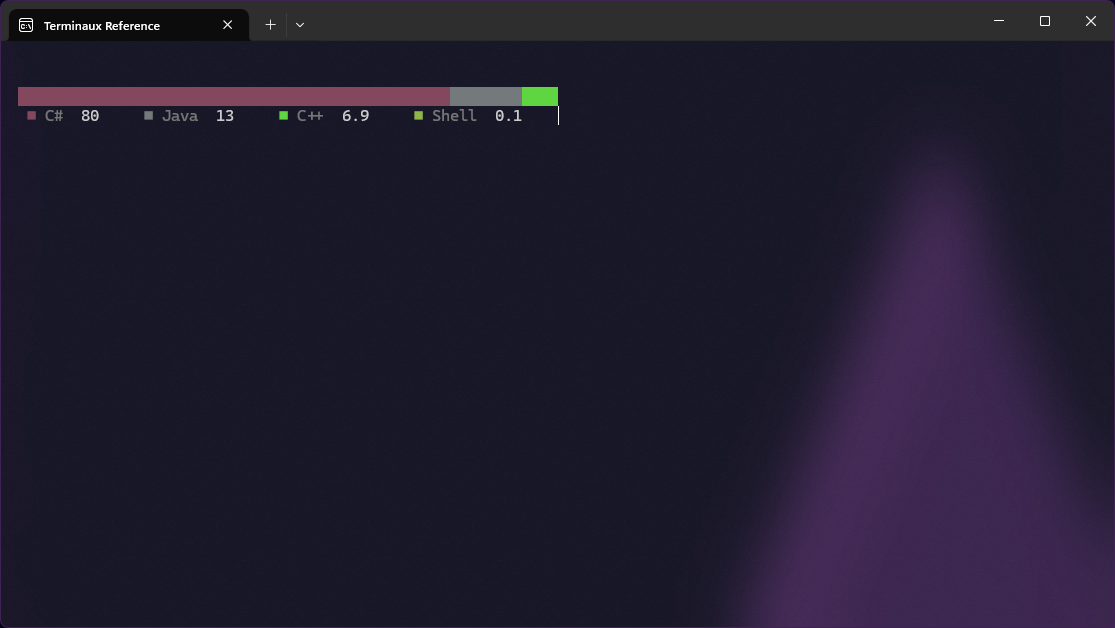
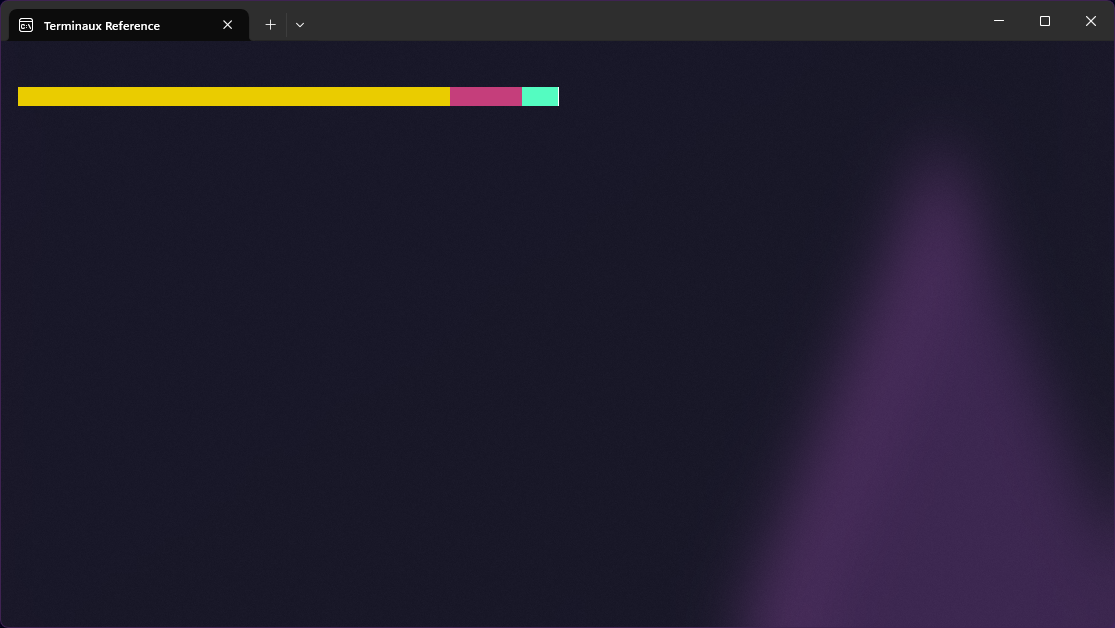
This gives you either a horizontal stick or a vertical stick that describes what part of the whole stick has taken per each item. This describes a breakdown of several items that you want to present.
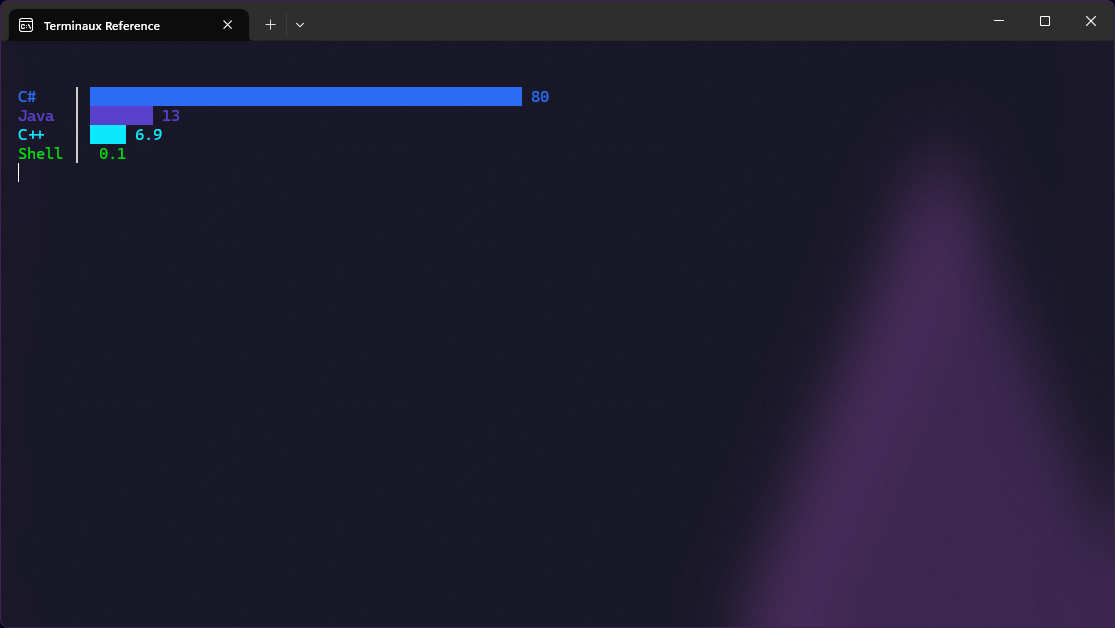
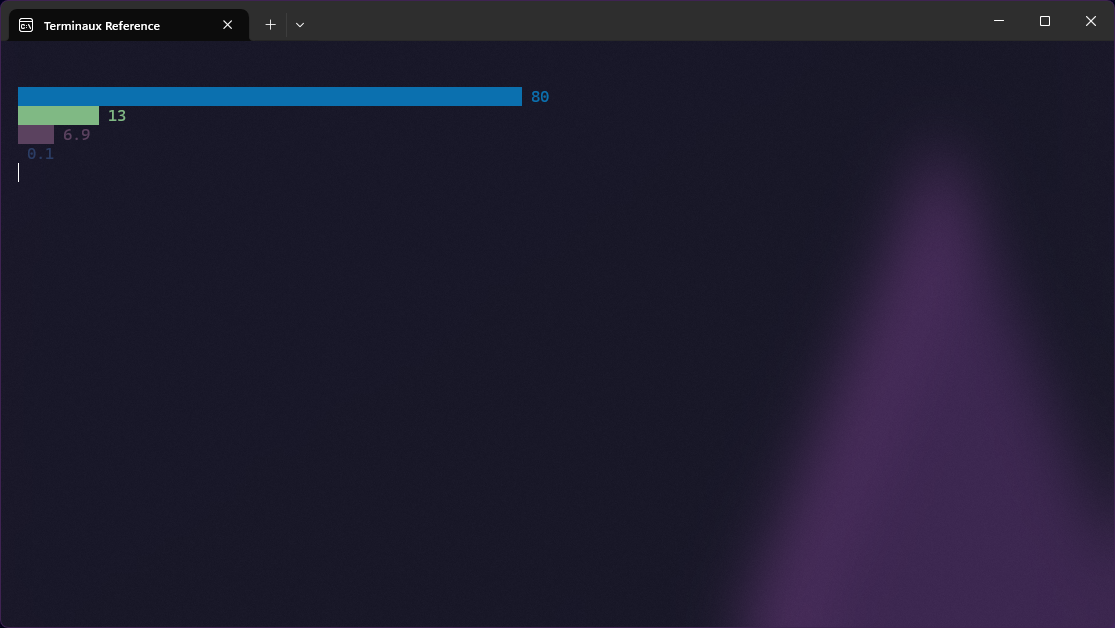
Bar chart
This gives you a horizontal bar chart that allows you to present various numbers in an amazing way for comparison.
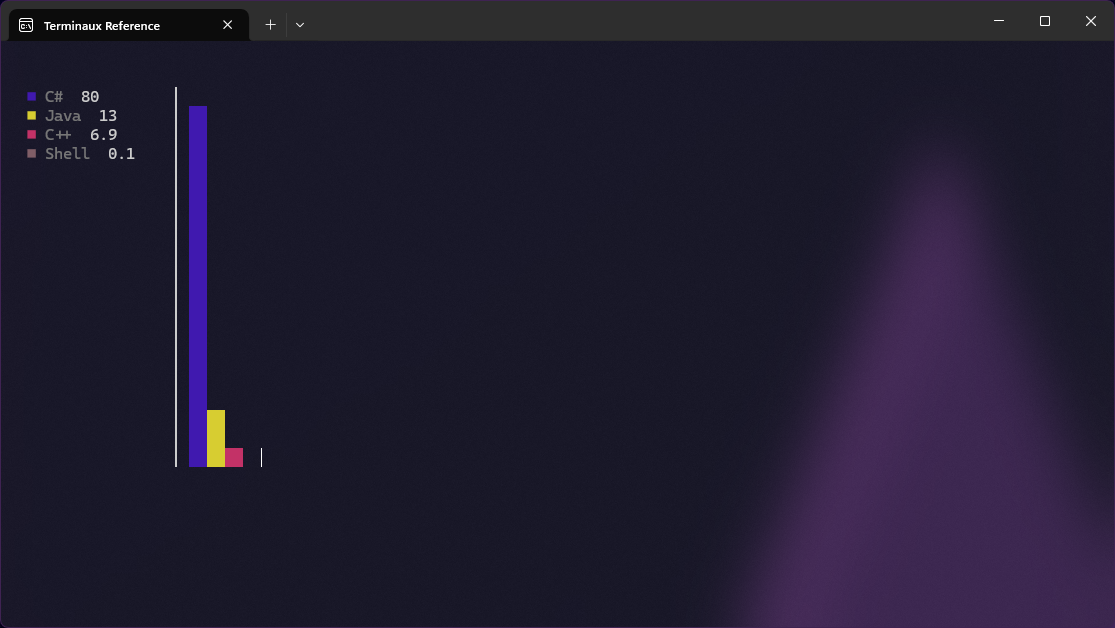
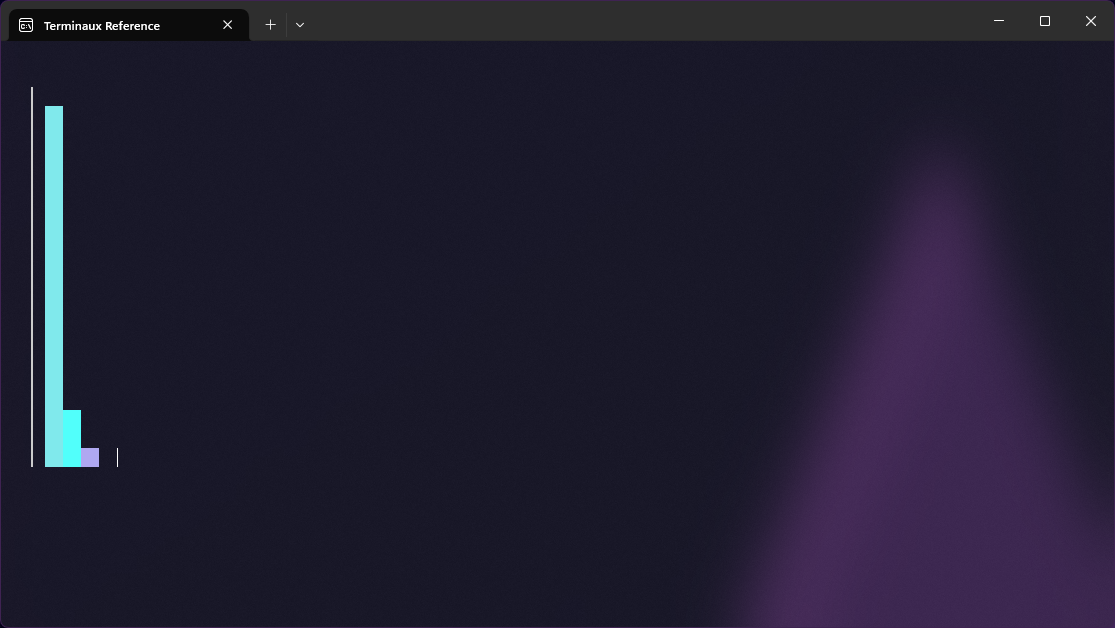
Stick chart
This gives you a vertical bar chart that allows you to present various numbers in an amazing way for comparison.
Stem and Leaf Chart
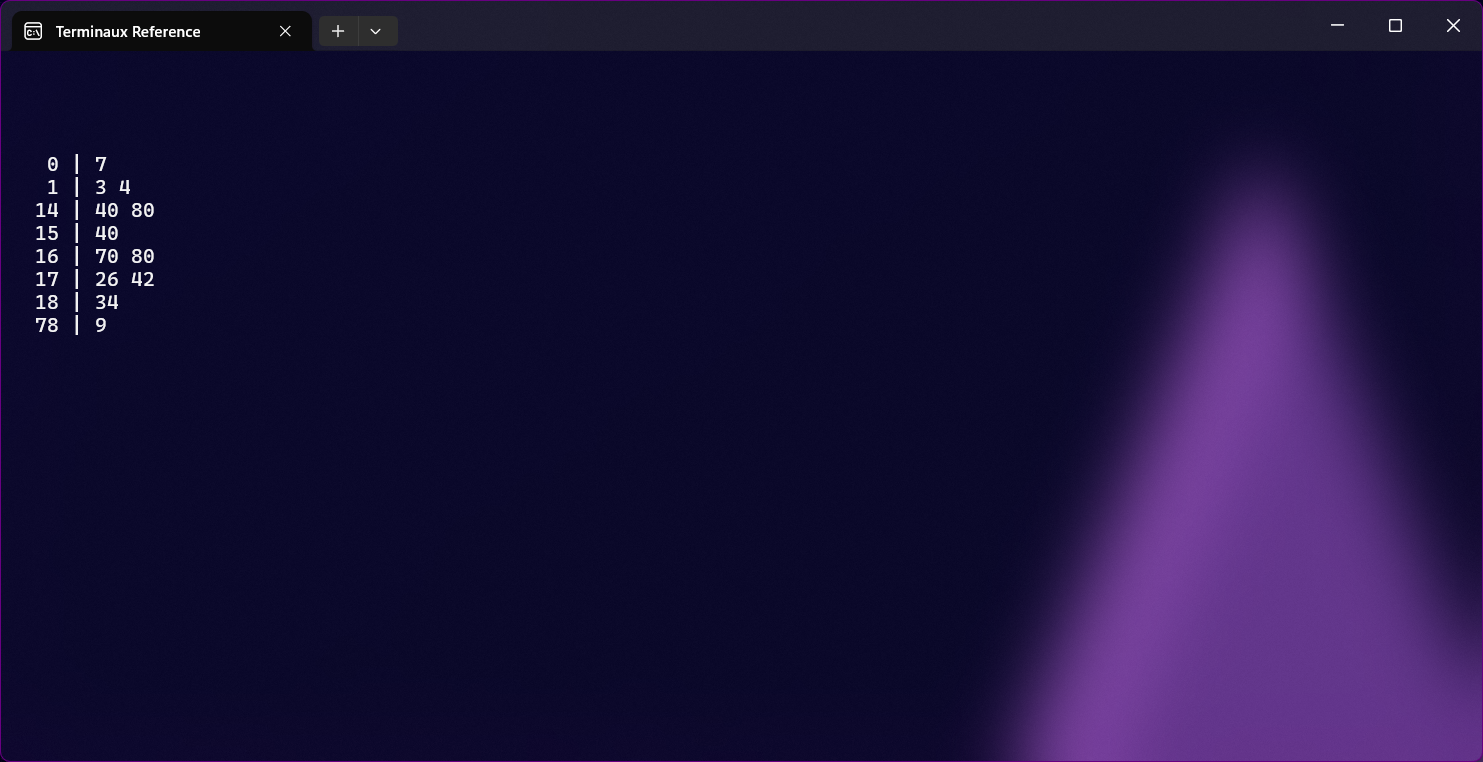
This shows you a stem and leaf chart that describes the breakdown of the numbers, with the following conditions:
The stem either represents the digit of tens and greater (if the number is not a decimal) or the numeric part (if the number is a decimal)
The leaf either represents the digit of ones (if the number is not a decimal) or the decimal part with the precision of two decimal digits (if the number is a decimal)
Line Charts
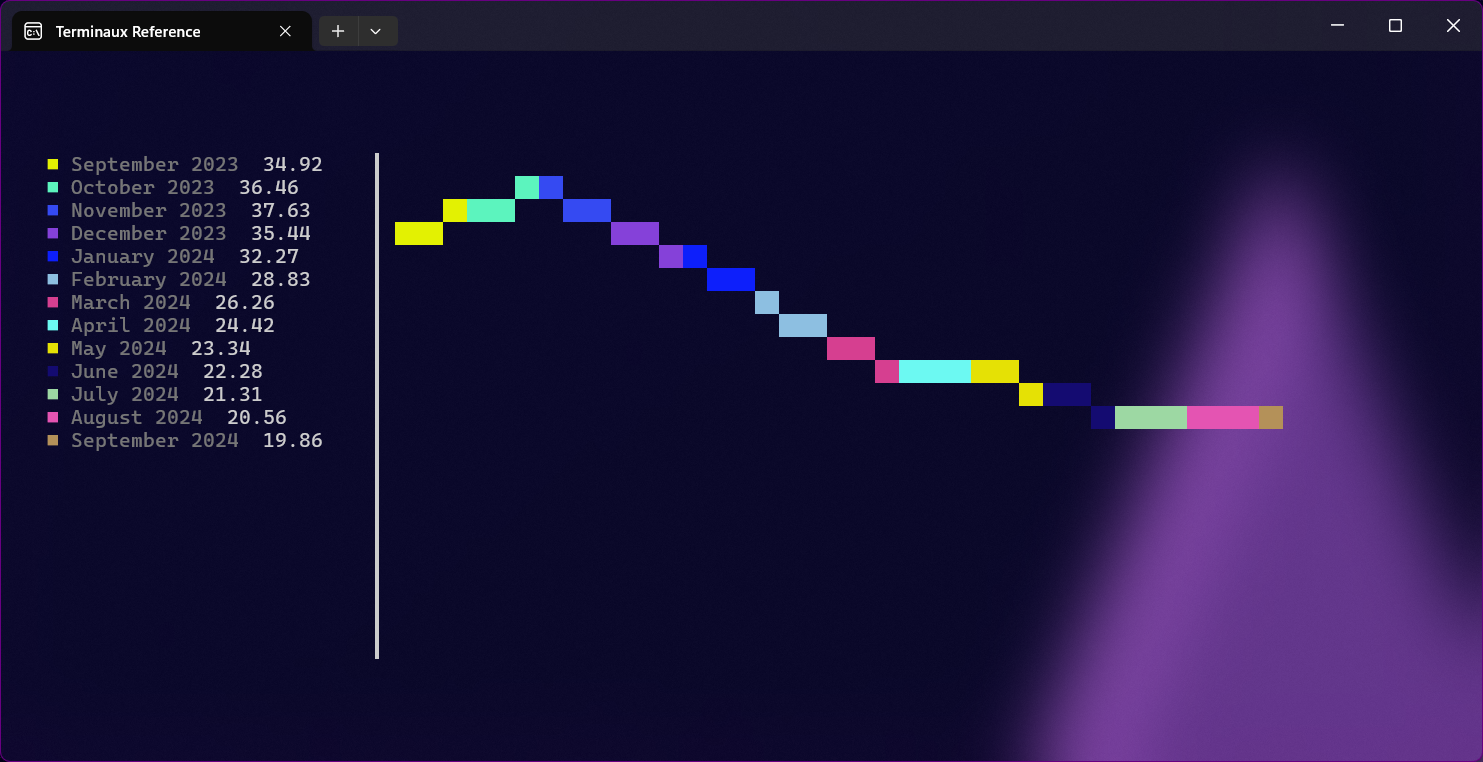
This allows you to render a line chart that shows you rises and falls of a specific data to the console.
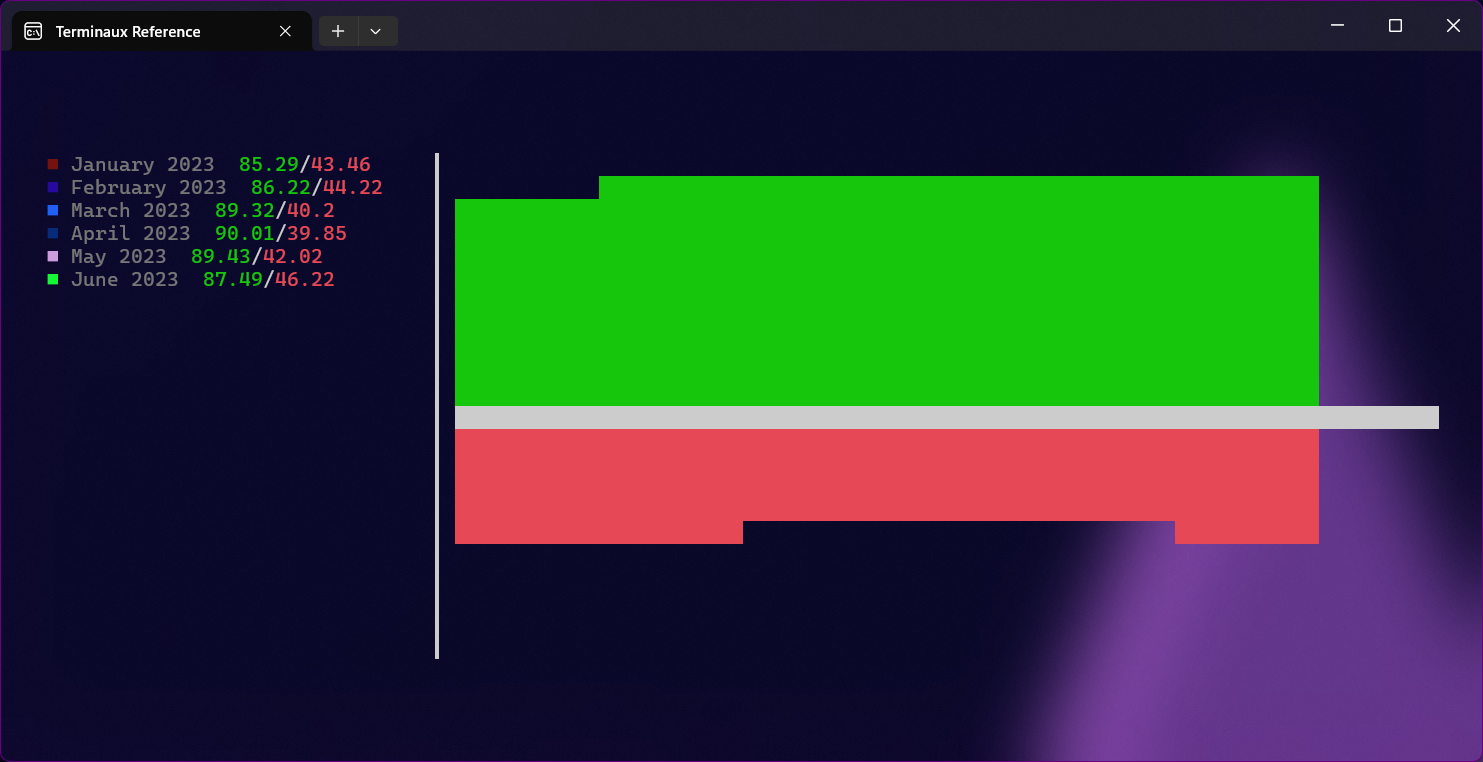
Wins and Losses
This chart allows you to visualize wins and losses for a company or for other things in your console.
Text
The following writers write text in different ways to the console.
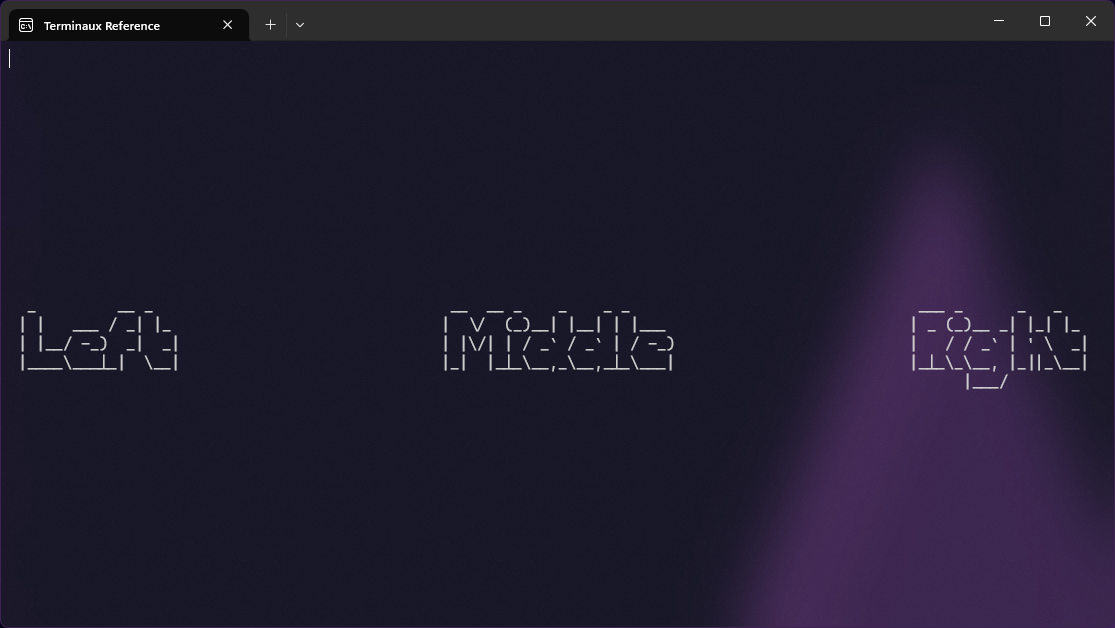
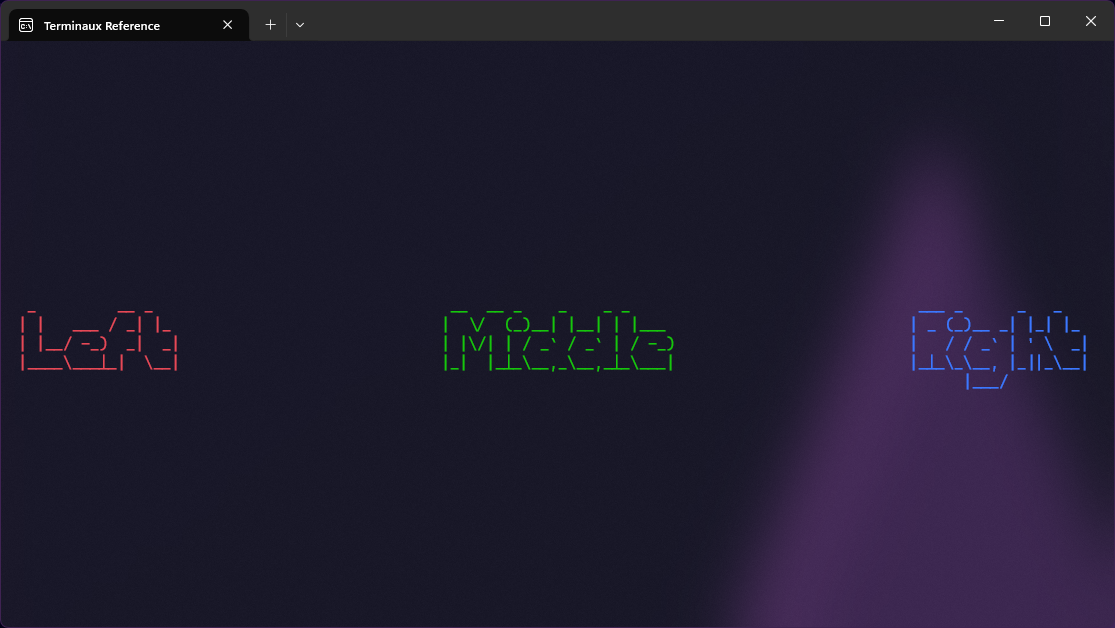
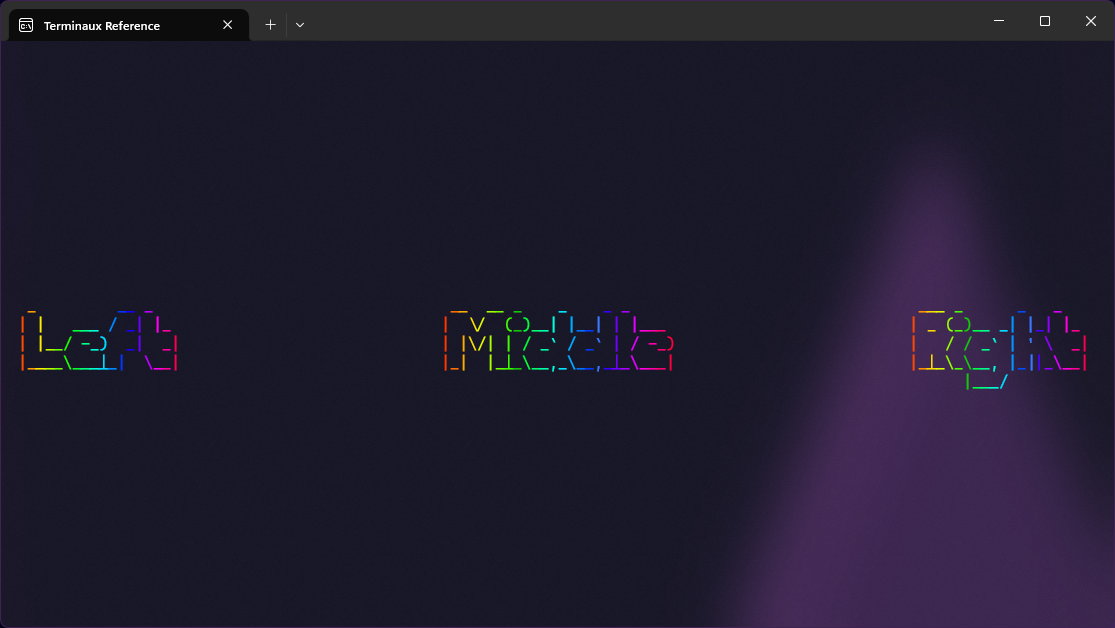
Aligned figlet text
This allows you to write an aligned Figlet text to the console.
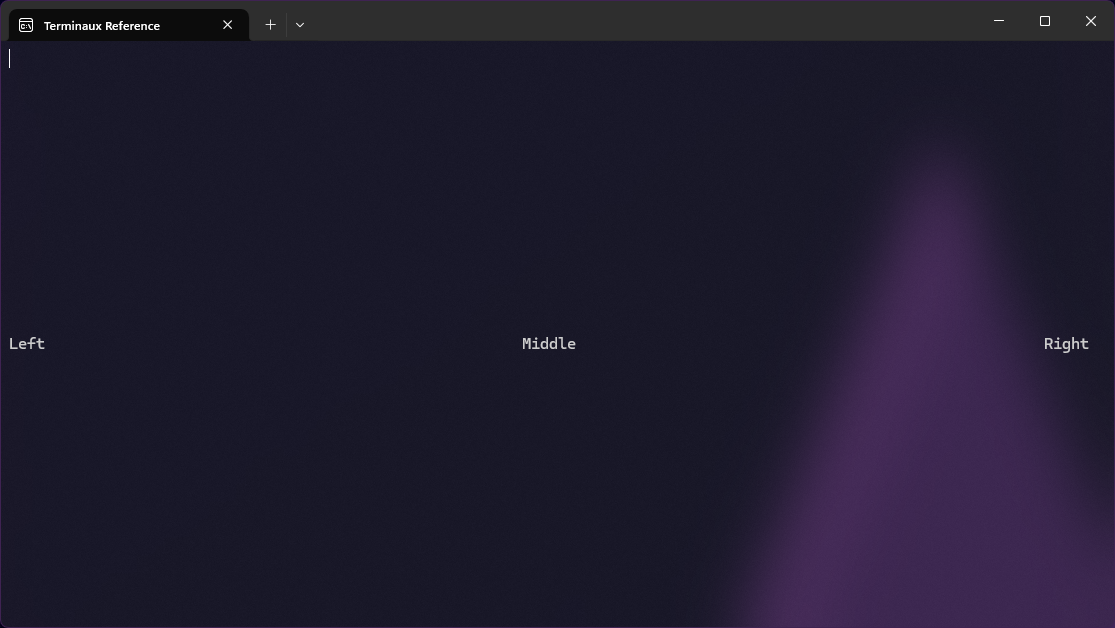
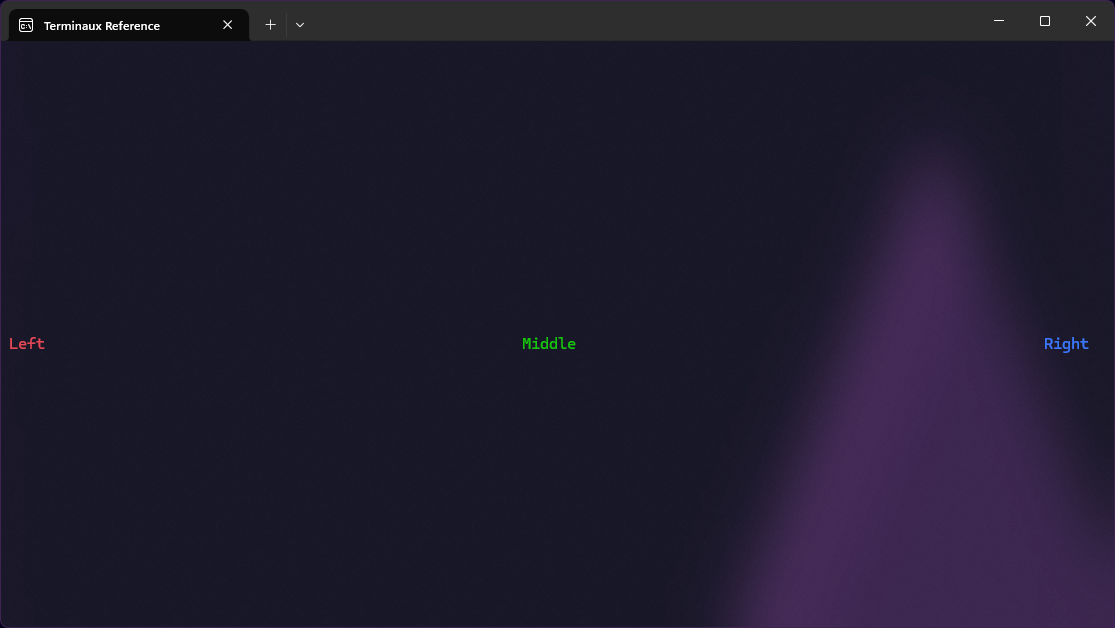
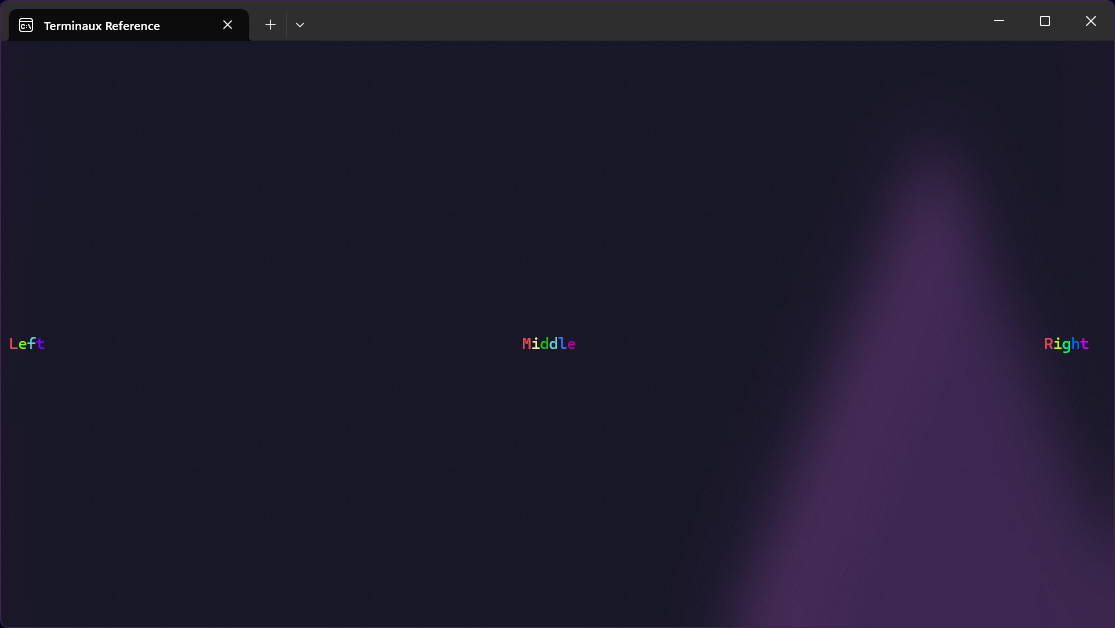
Aligned text
This allows you to write an aligned text to the console.
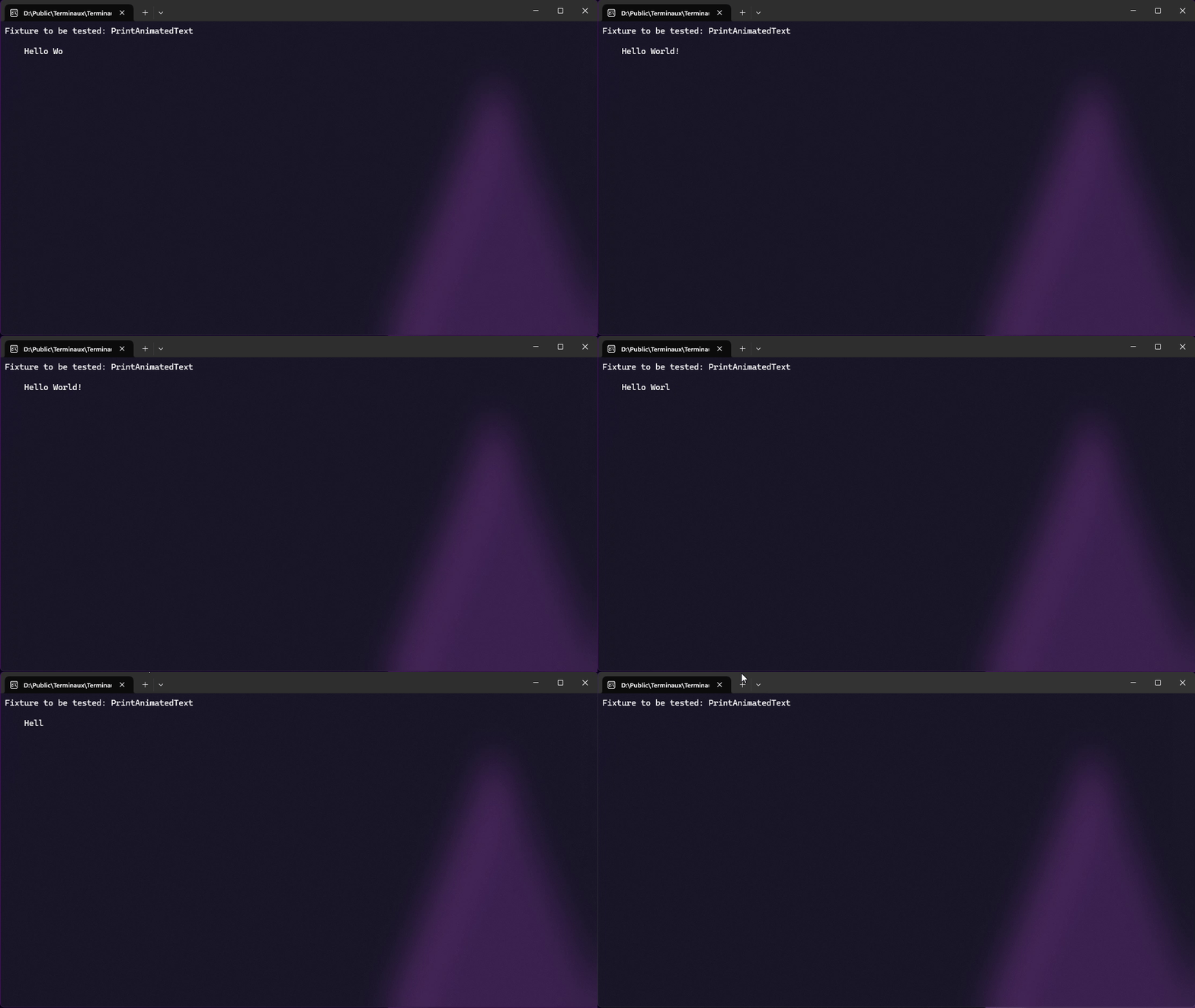
Animated text
This allows you to write text with animations using frames to define how the text is going to move.
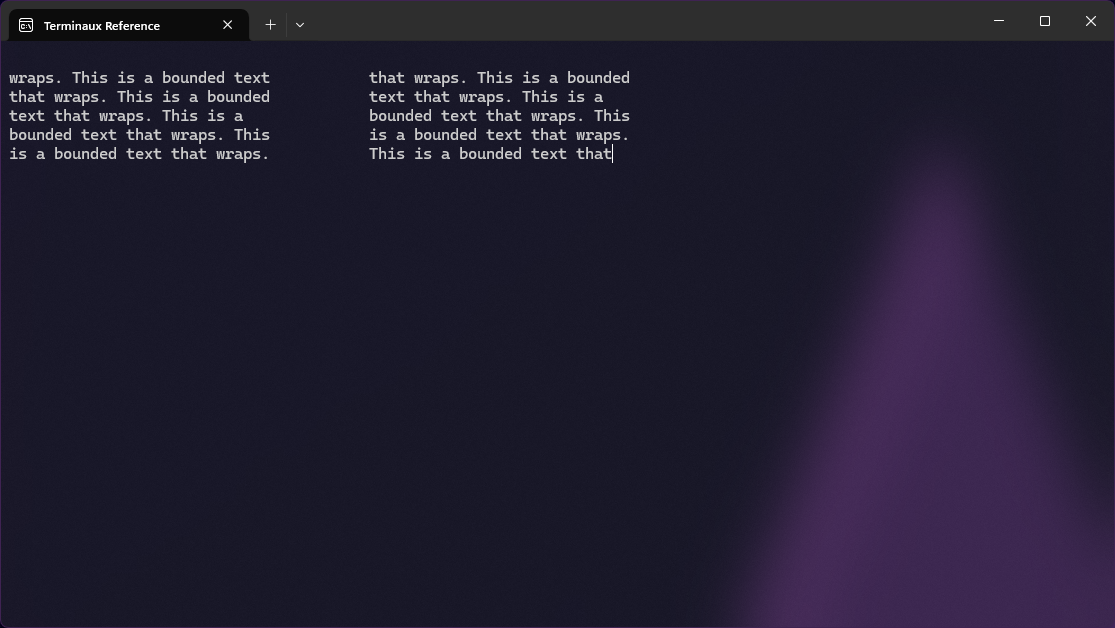
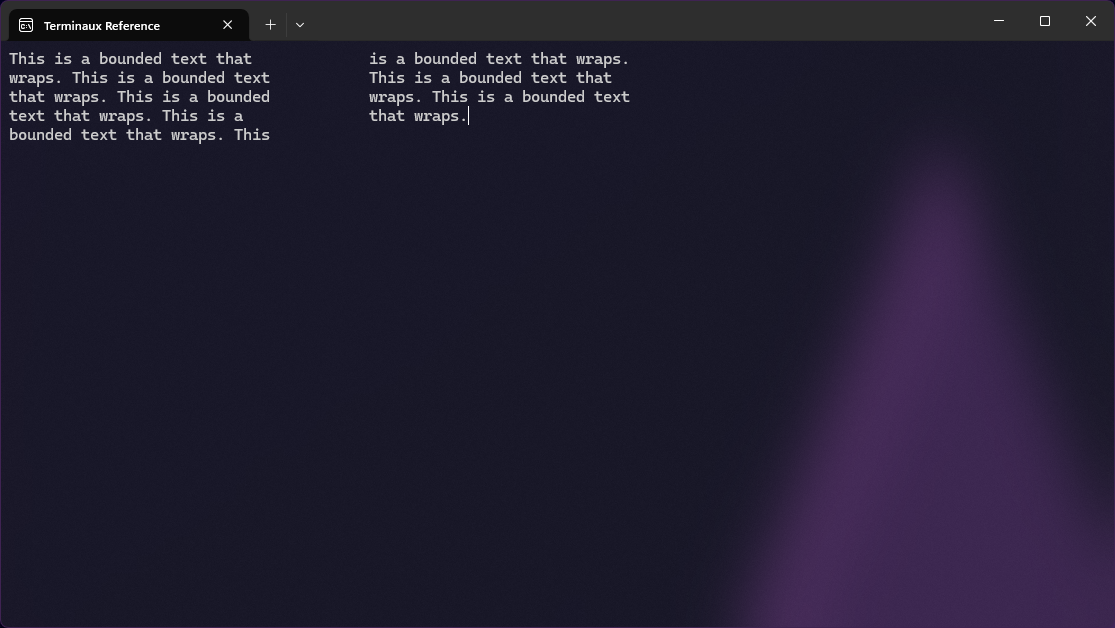
Bounded text
This allows you to write text with boundaries to the console to allow enough information to fit in a specified width and height. This works either according to lines, or according to column and row of the invisible caret.
Figlet text
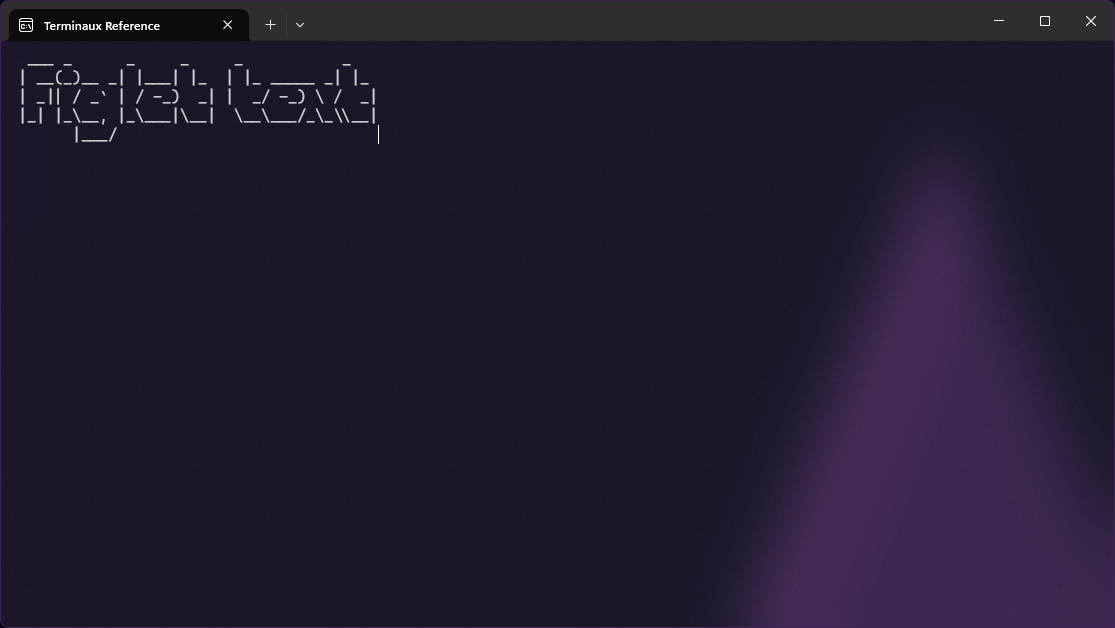
This allows you to write unaligned Figlet text to the console.
Text marquee
This allows you to write an animated text marquee to the console.

Decoration
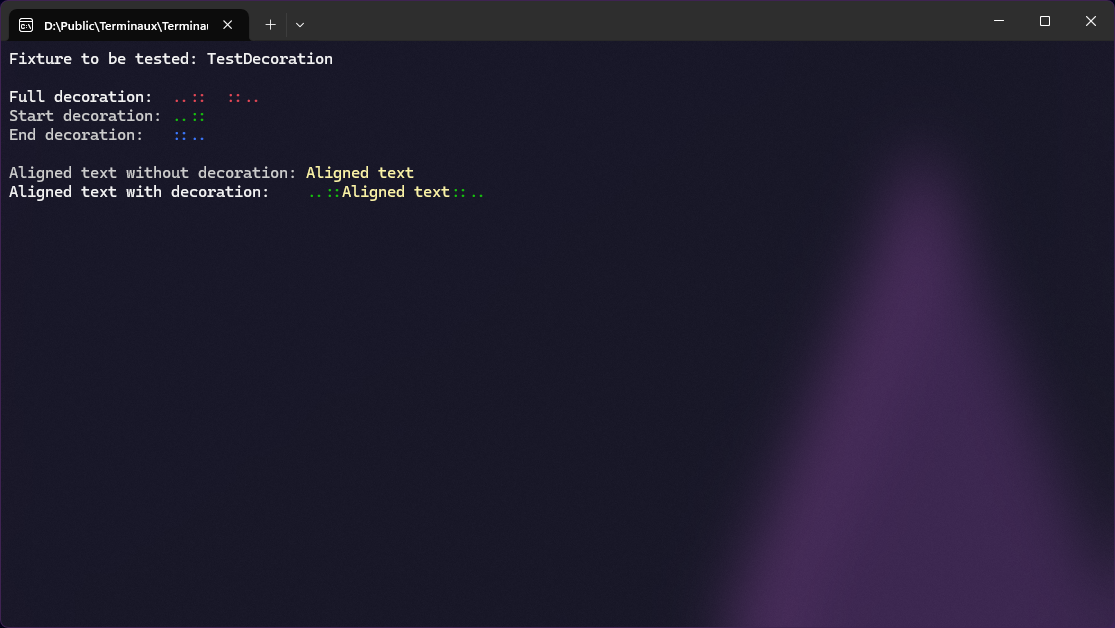
This allows you to create decorative renders for your text, but in a standalone form. You can also use this instance with aligned text instances to decorate your text with prefixes and suffixes.
Syntax text
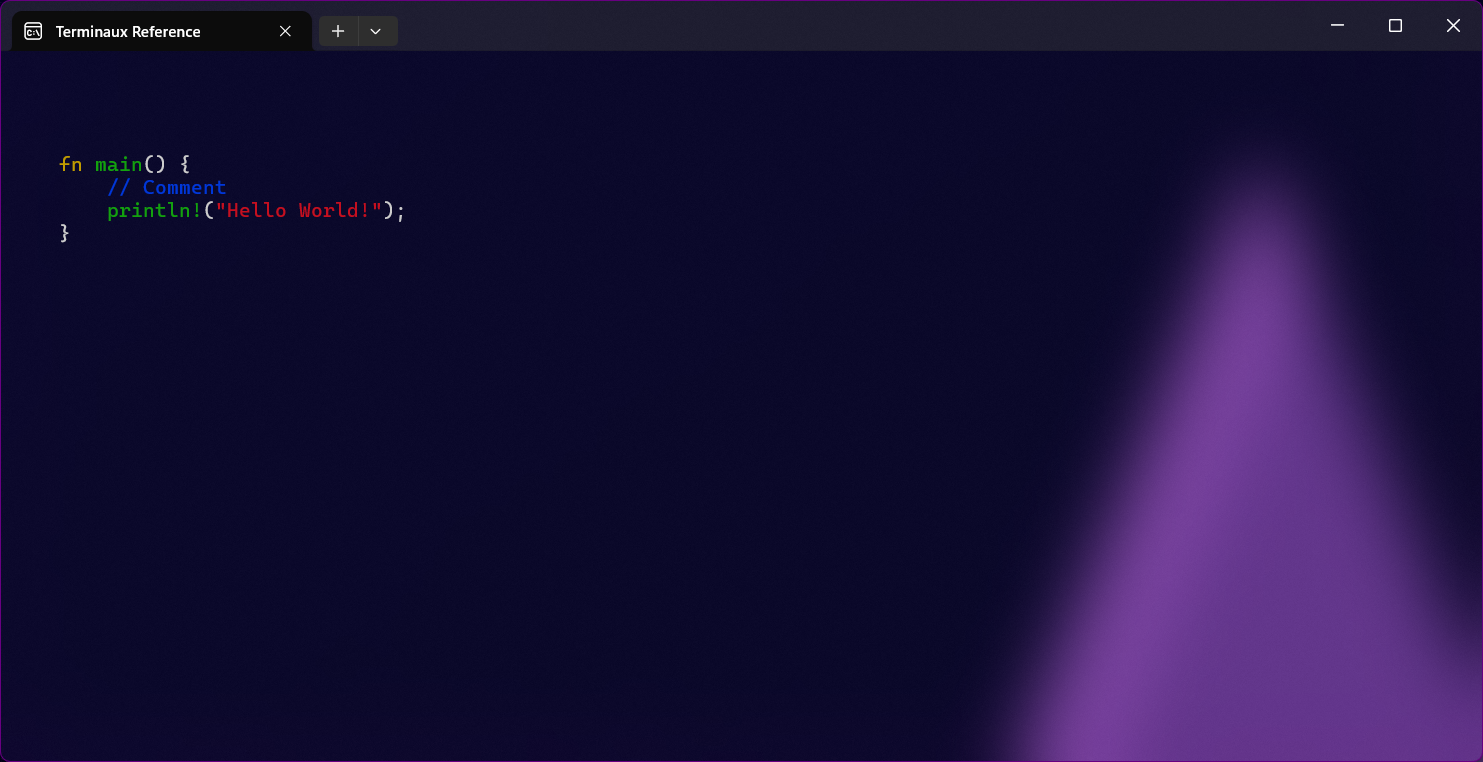
You can render a syntax highlighted snippet of code using this renderable.
Please note that you must have the highlight app installed.
Text path
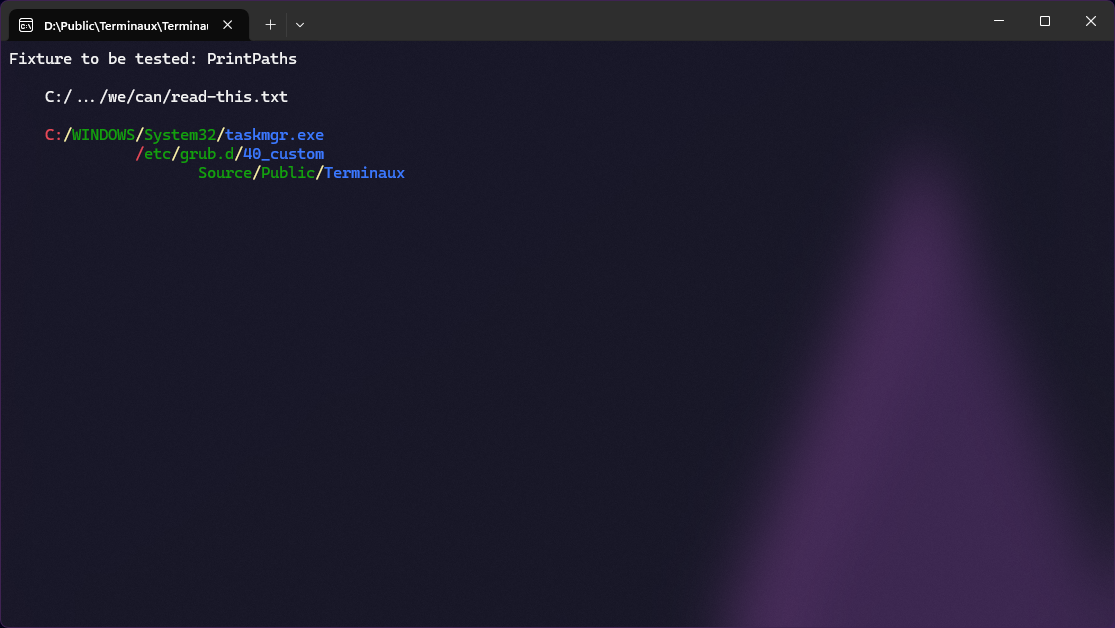
You can render the decorated text path with this renderable so that the paths appear more elegant and simplified.
Artistic
This allows you to draw artistic stuff into the console so that you can build your own interactive console applications easily.
Border
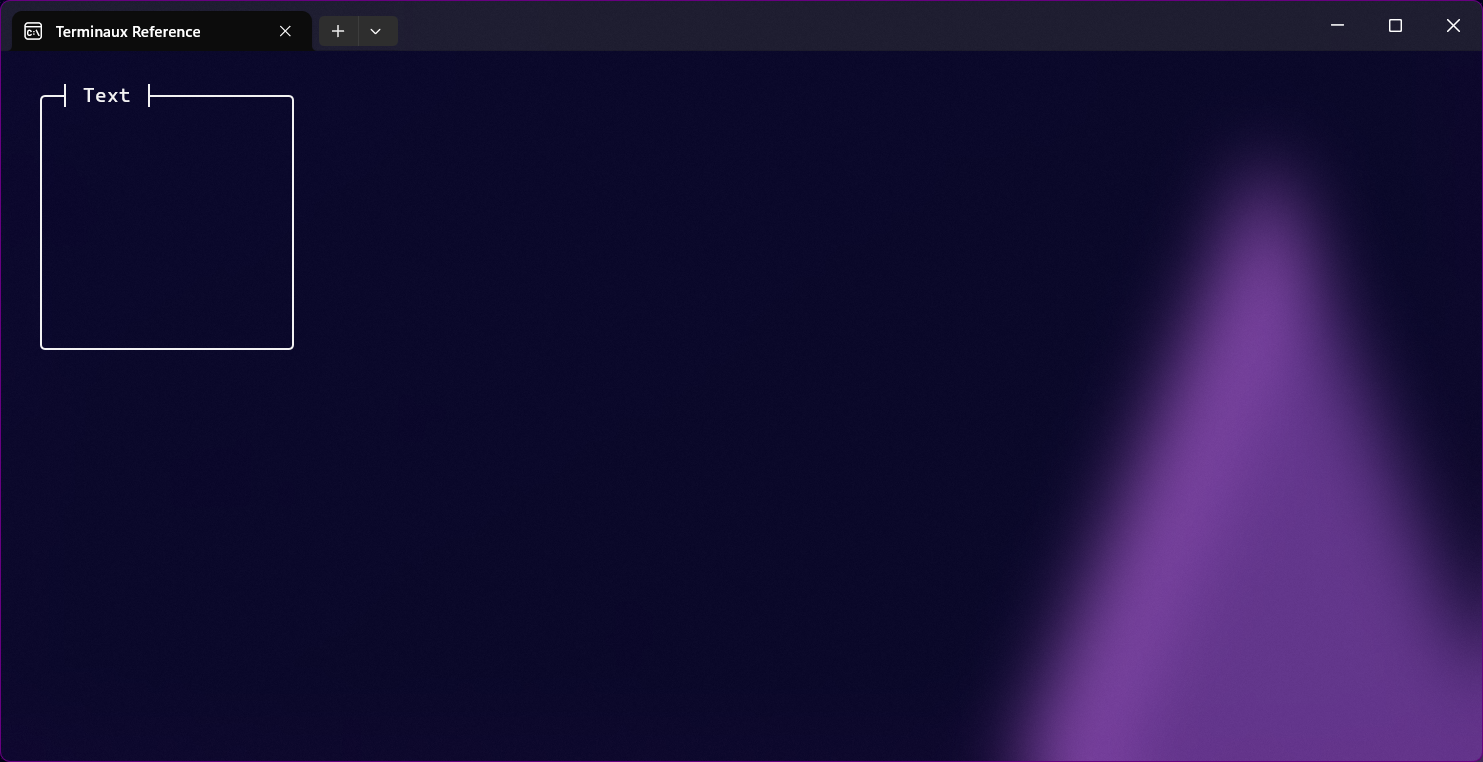
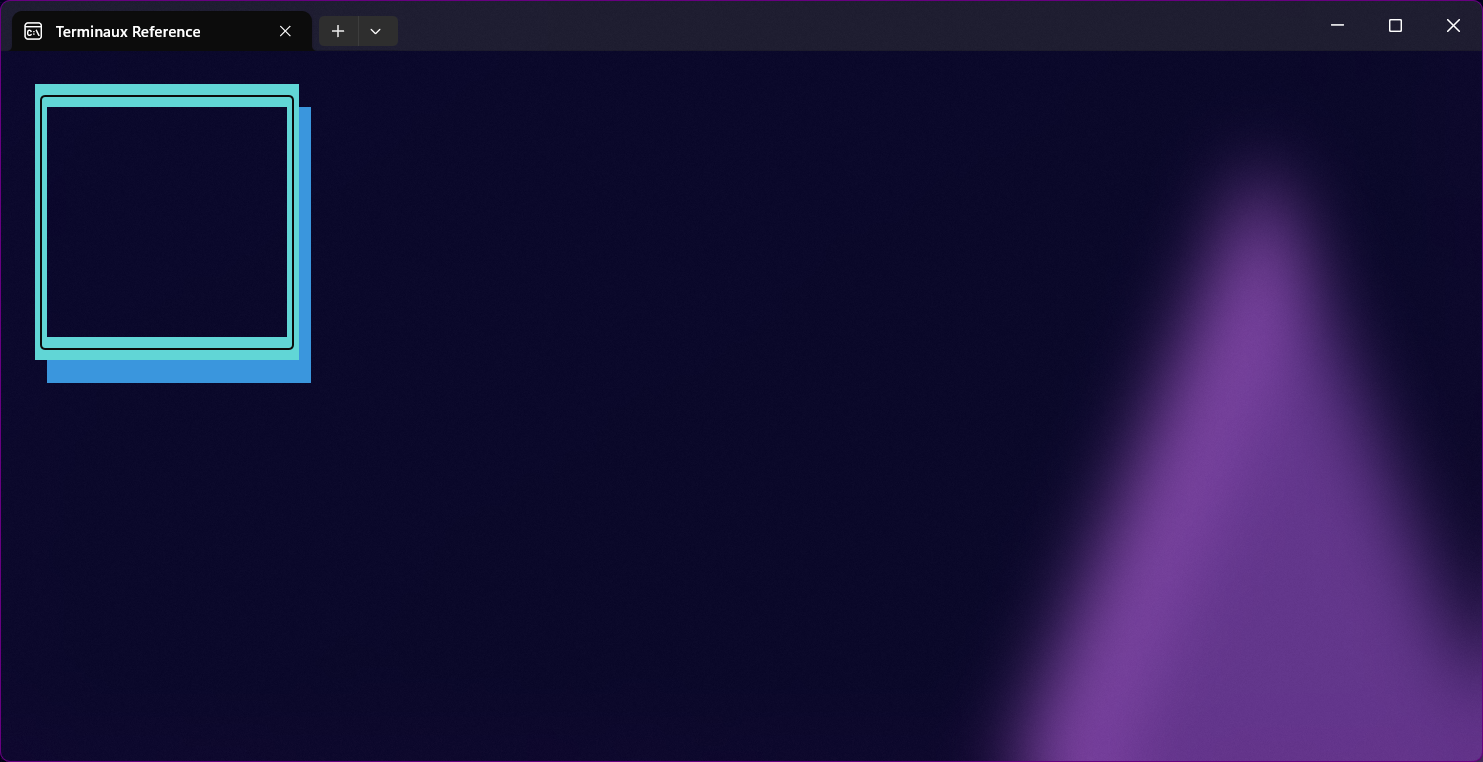
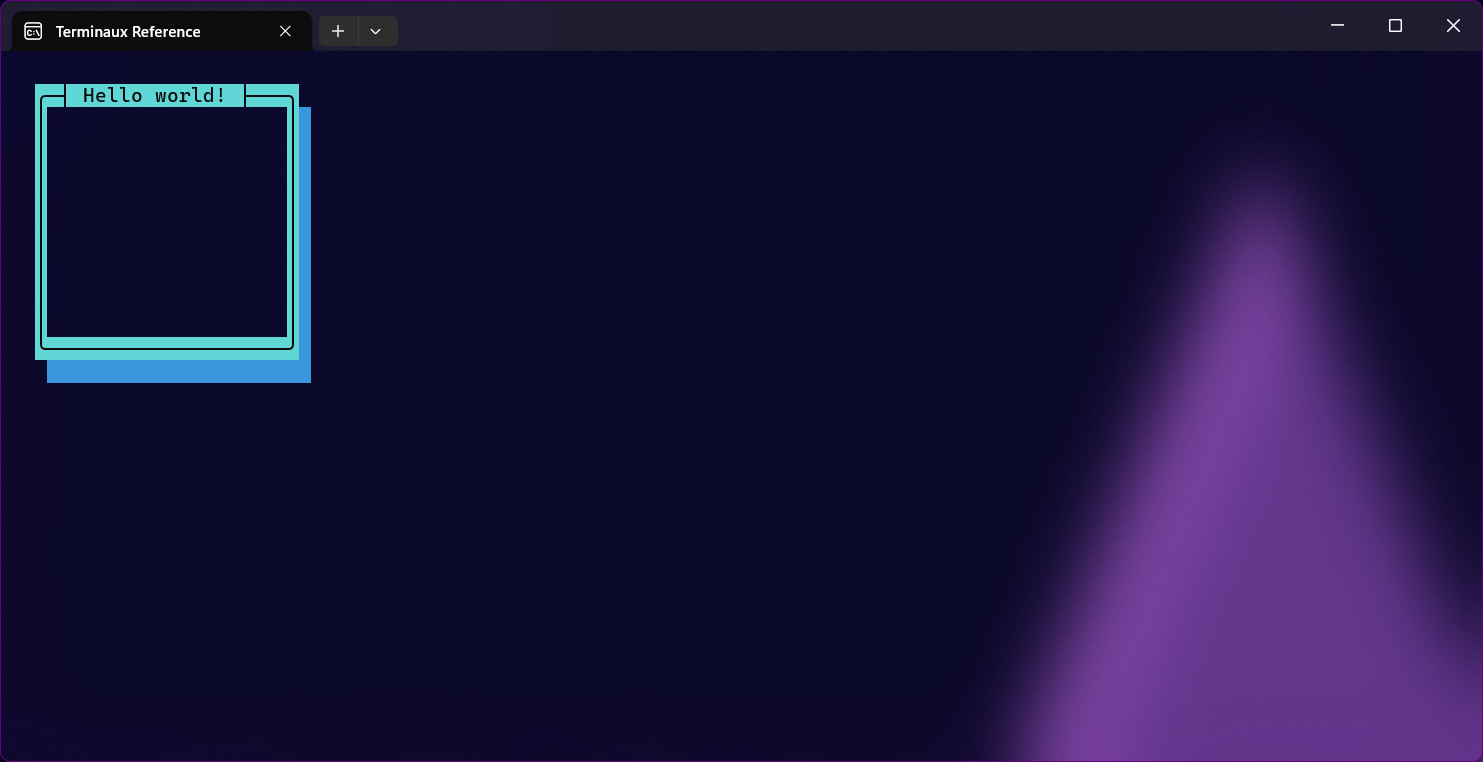
You can render a nice border to the console either without any text, just a title, a text, or box title and text. You can also customize the borders, such as drop shadows which we'll showcase in the BoxFrame renderable.
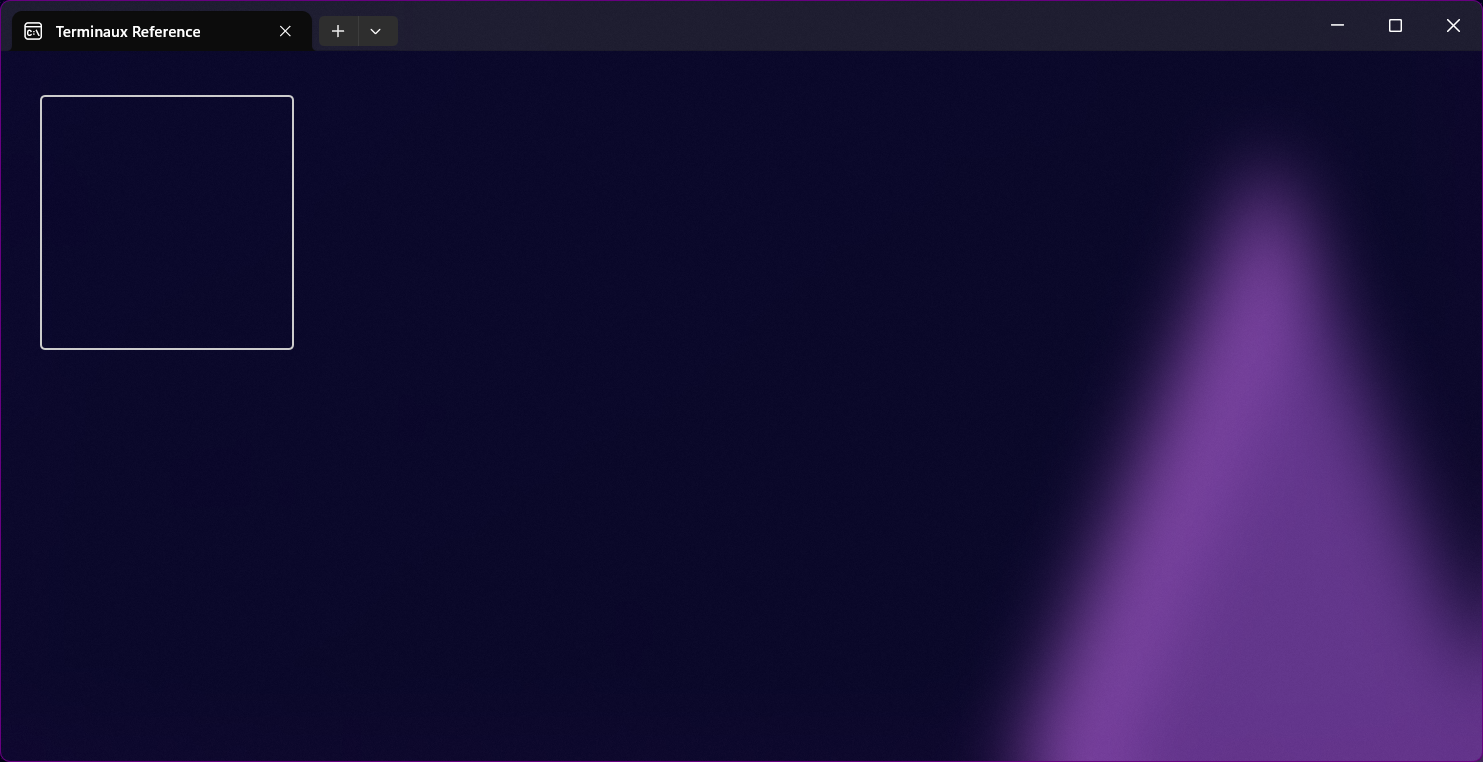
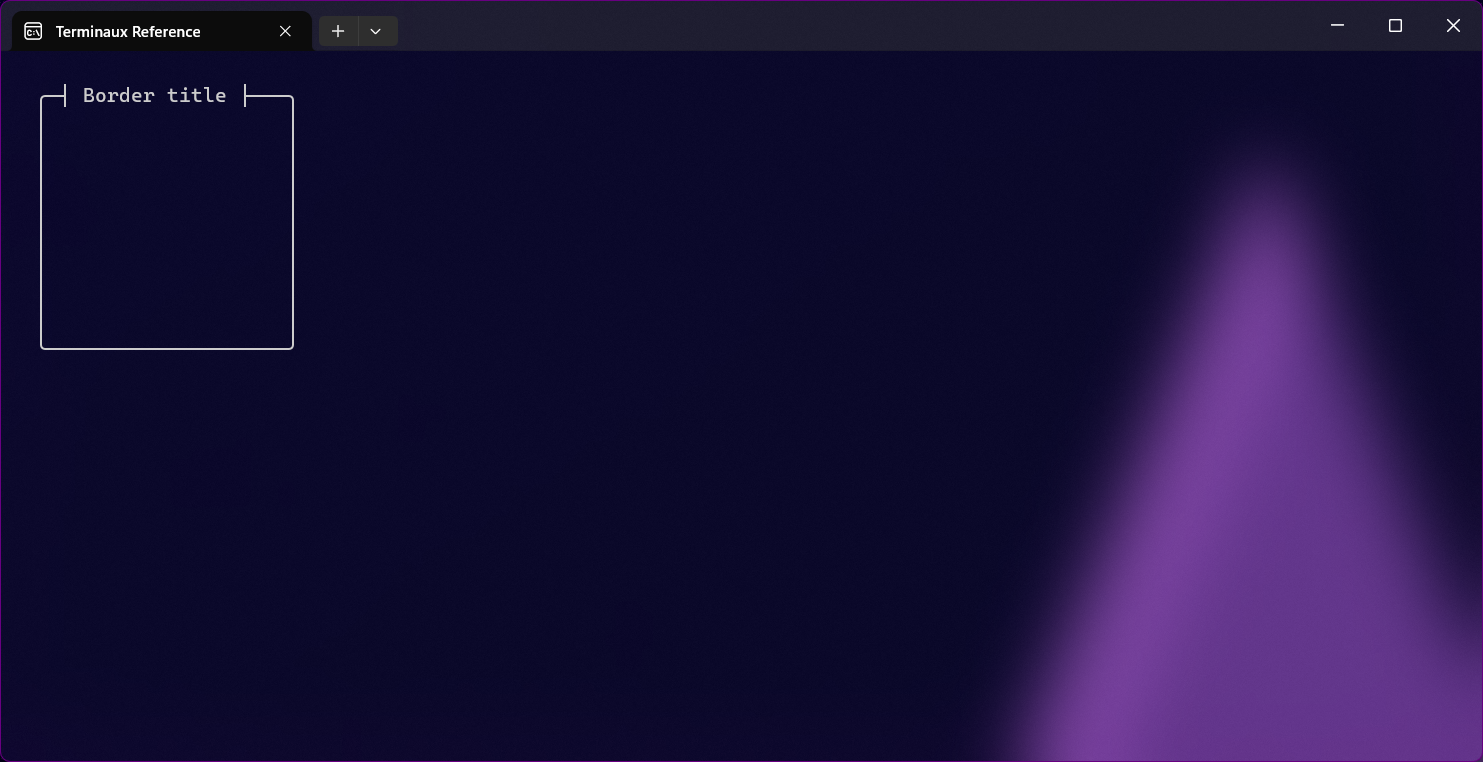
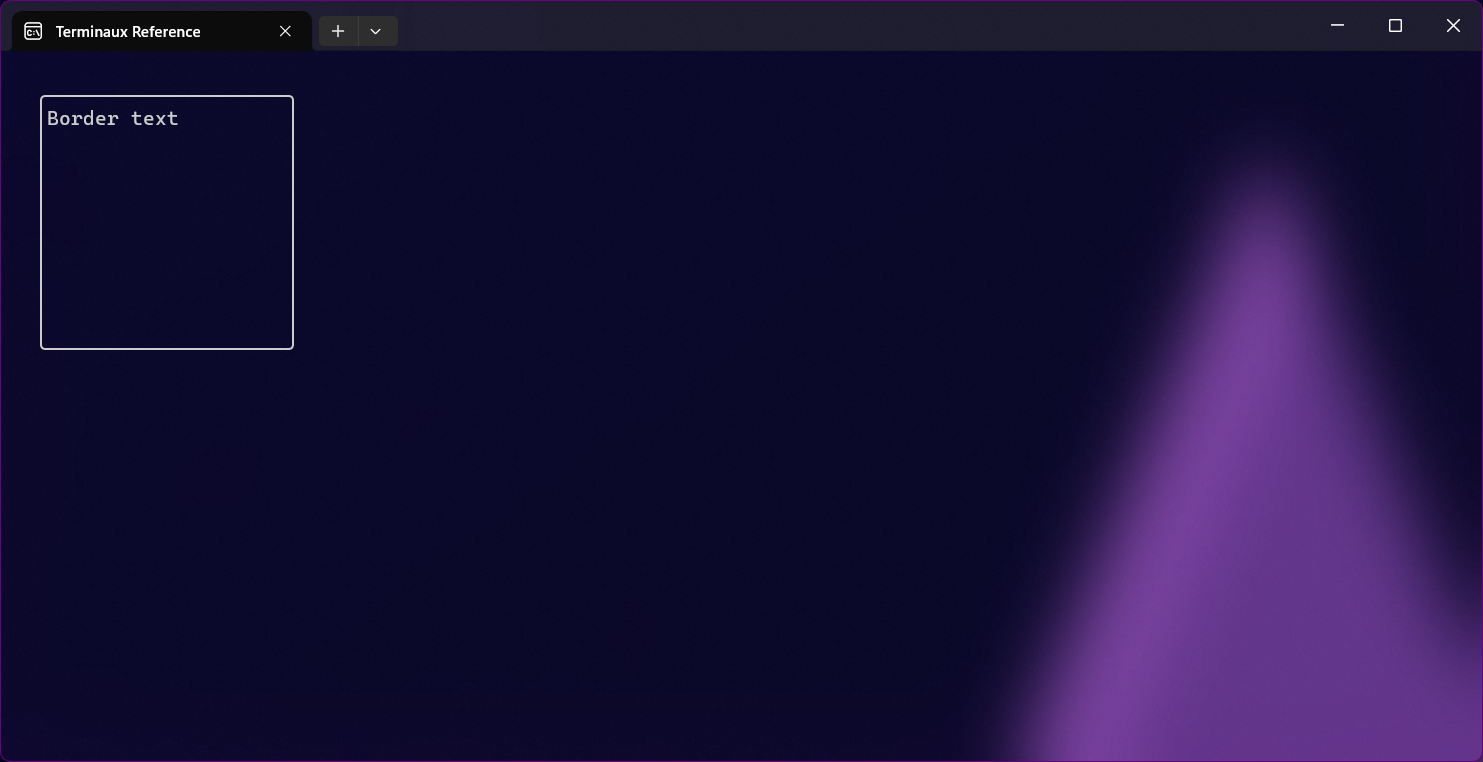
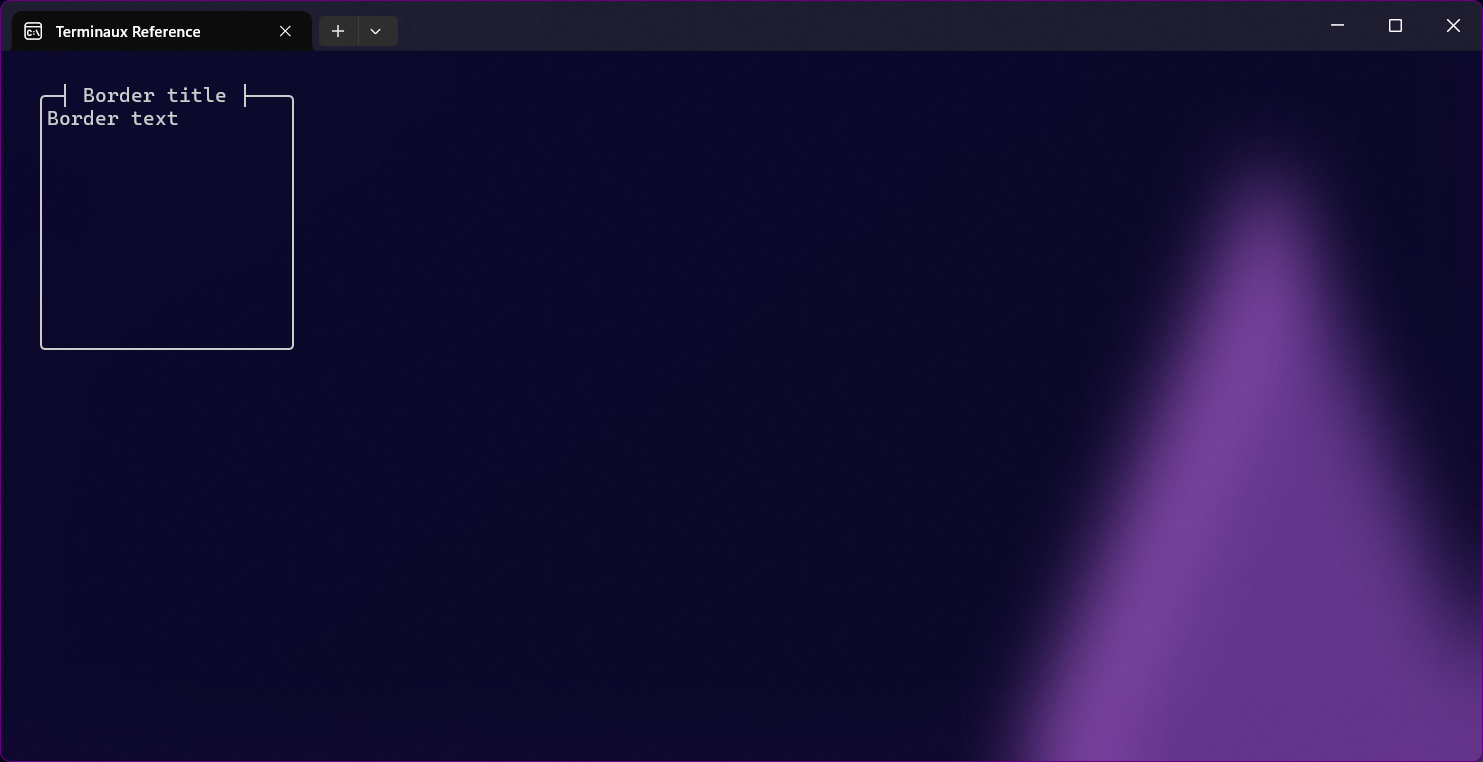
You can use the border settings to change the color of the border and to determine whether to display the entire border or not using a set of properties. For example, if you don't want to render the right edge, you can set BorderRightFrameEnabled to false.
Box
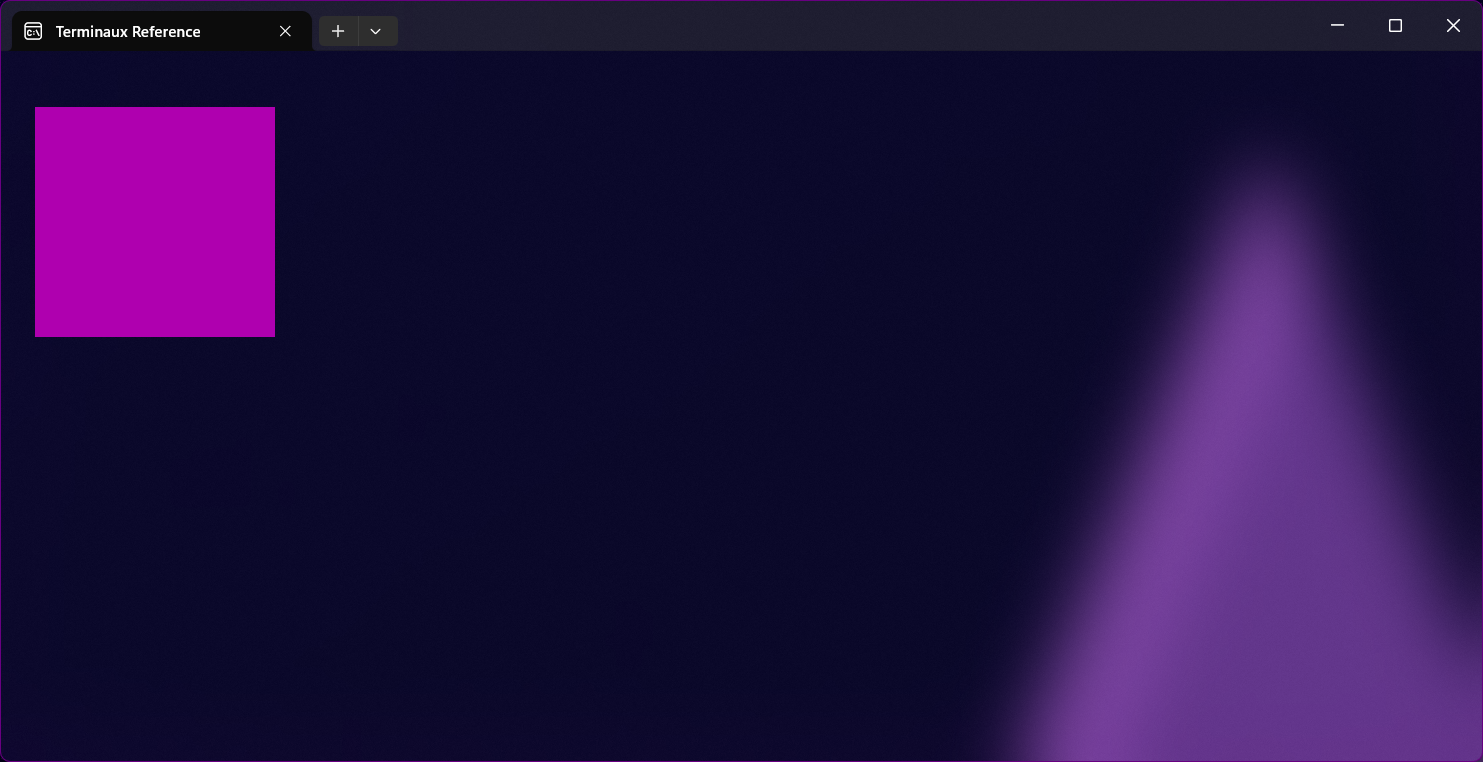
You can render a box to the terminal easily.
Box frame
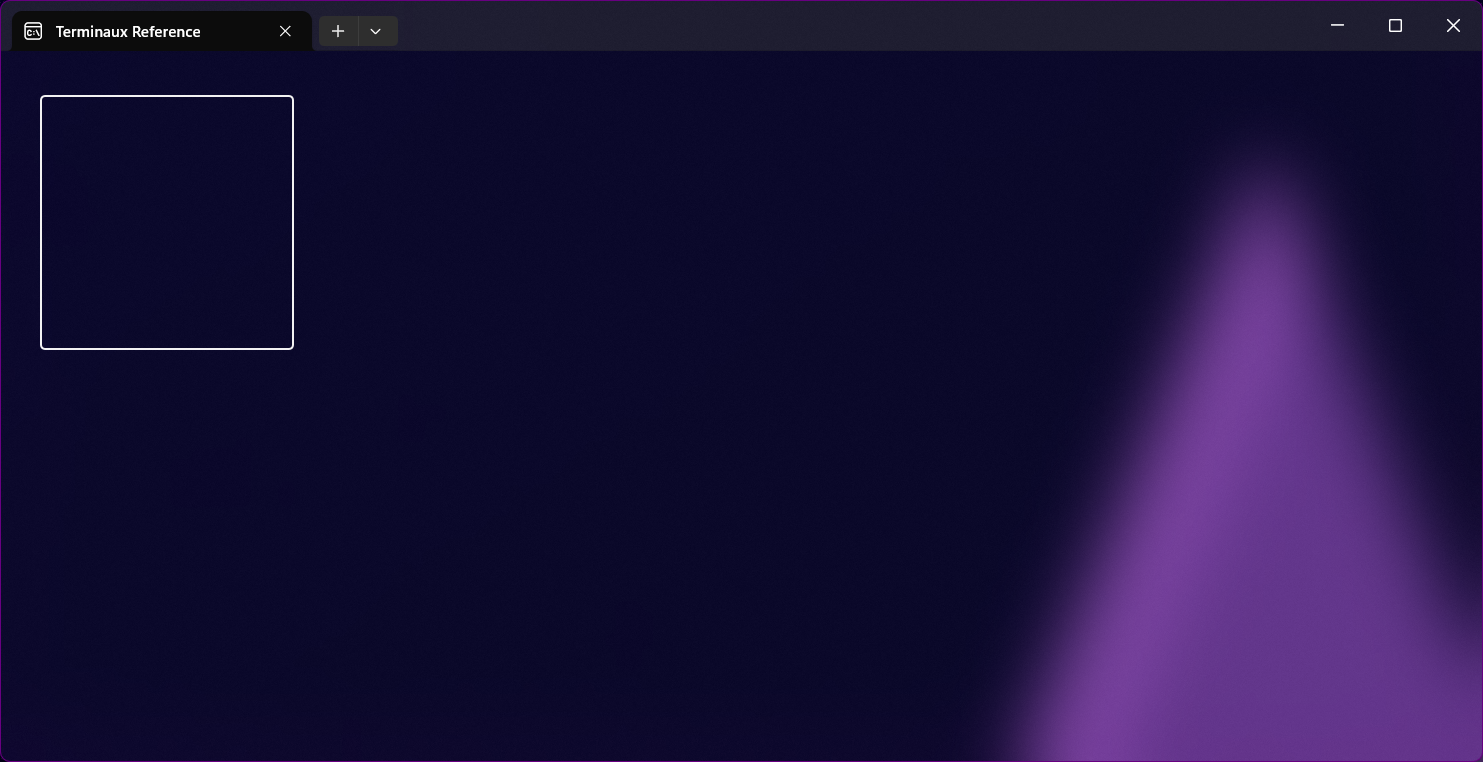
It's basically the same as a border, but without text support and without filling inside the box
Canvas
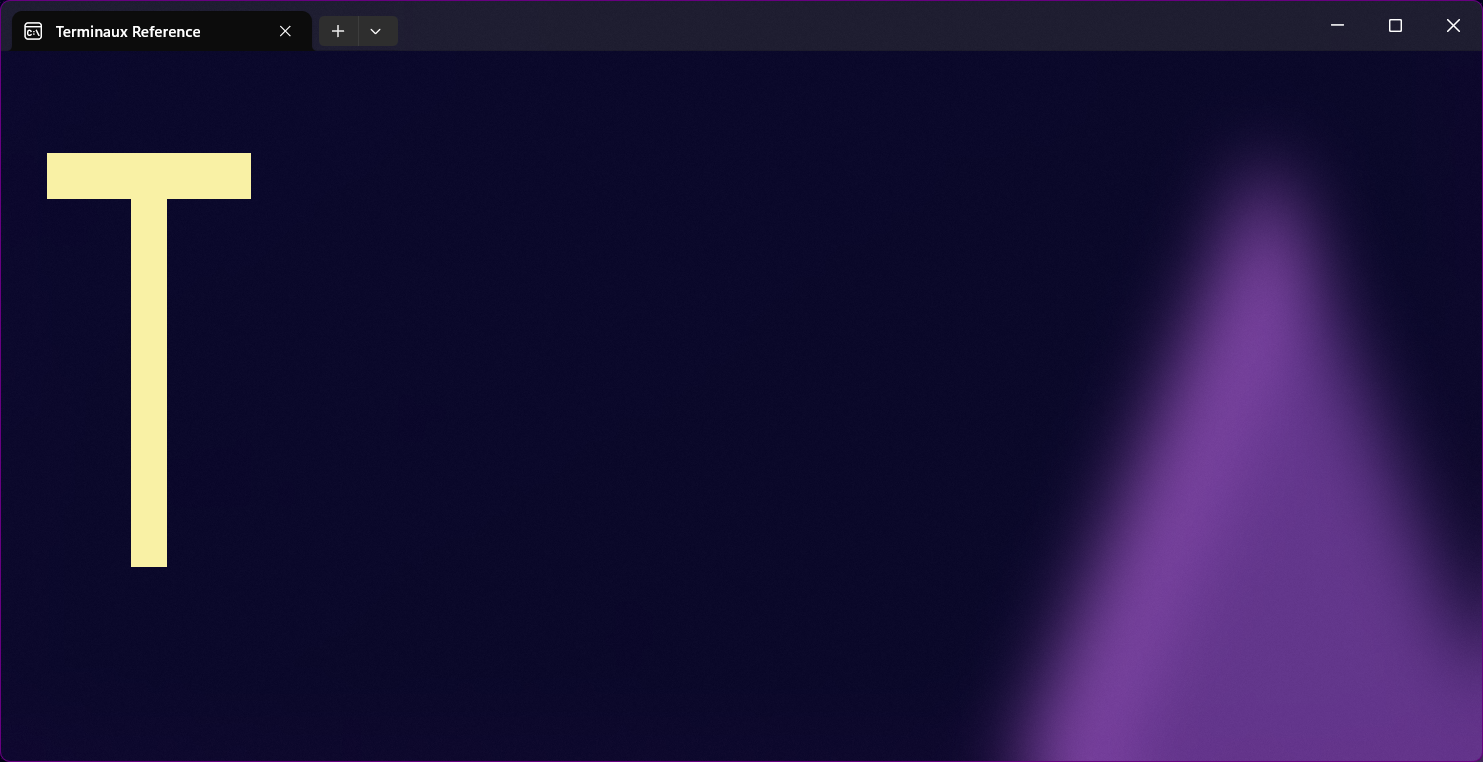
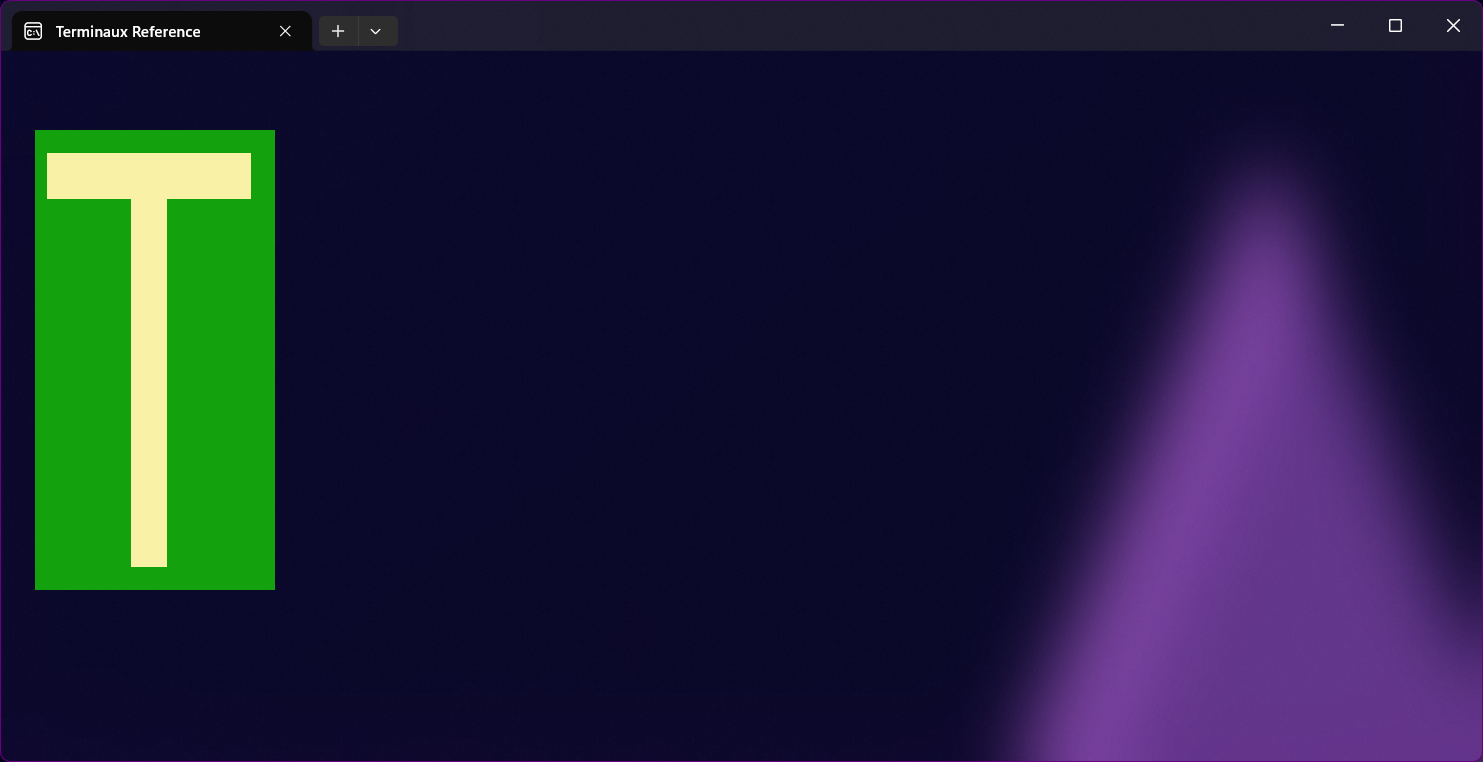
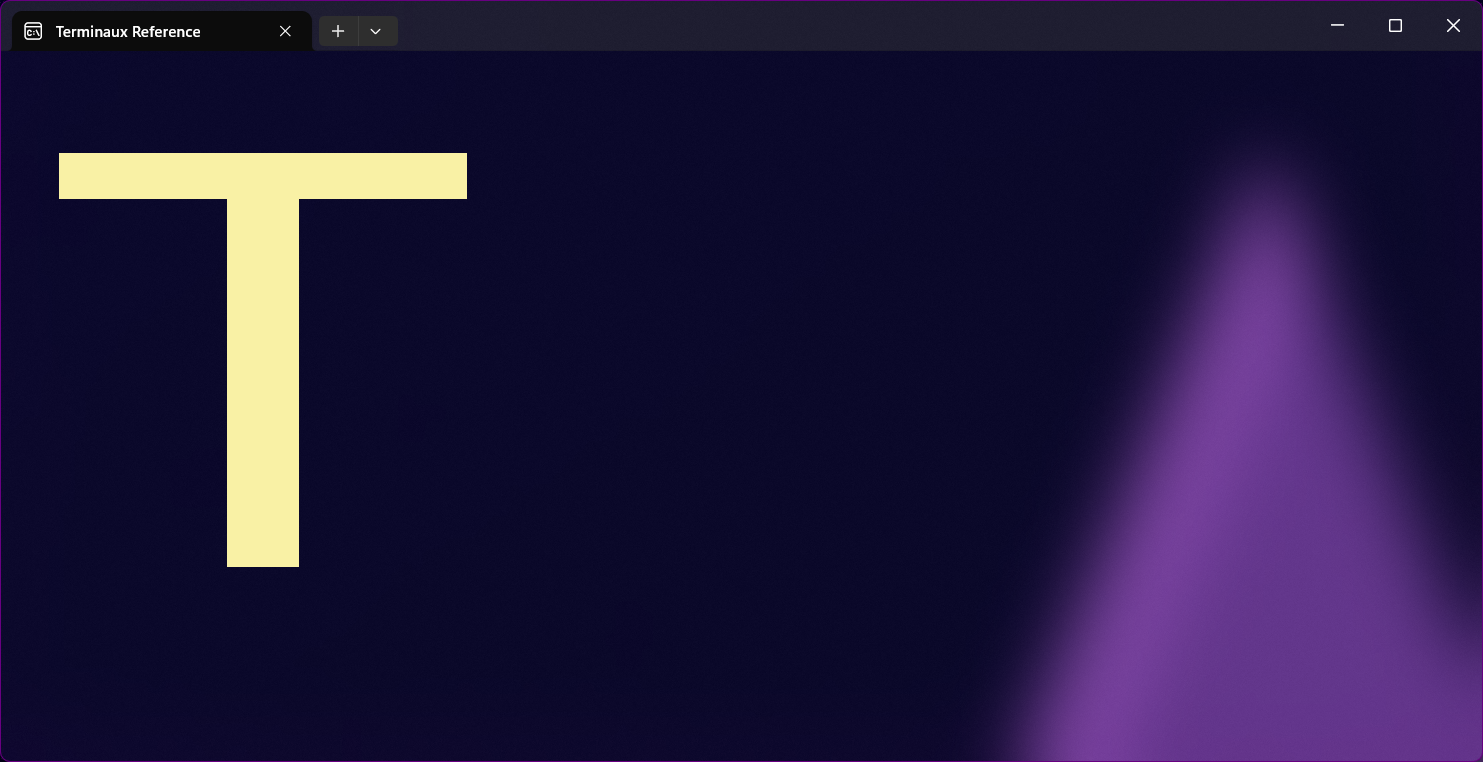
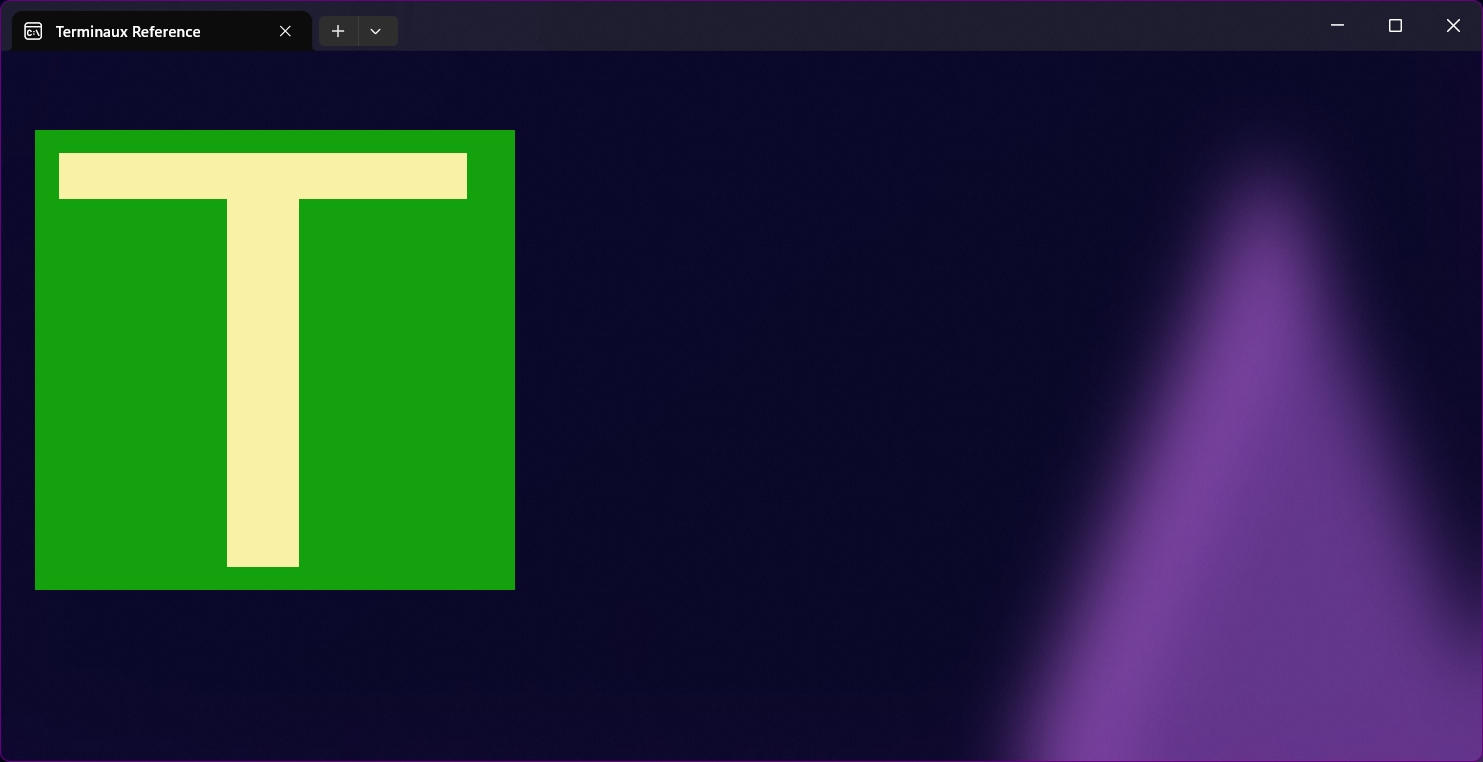
This is your sandbox for your awesome creations. This is done by coloring individual pixels with a color of your choice.
Animated canvases
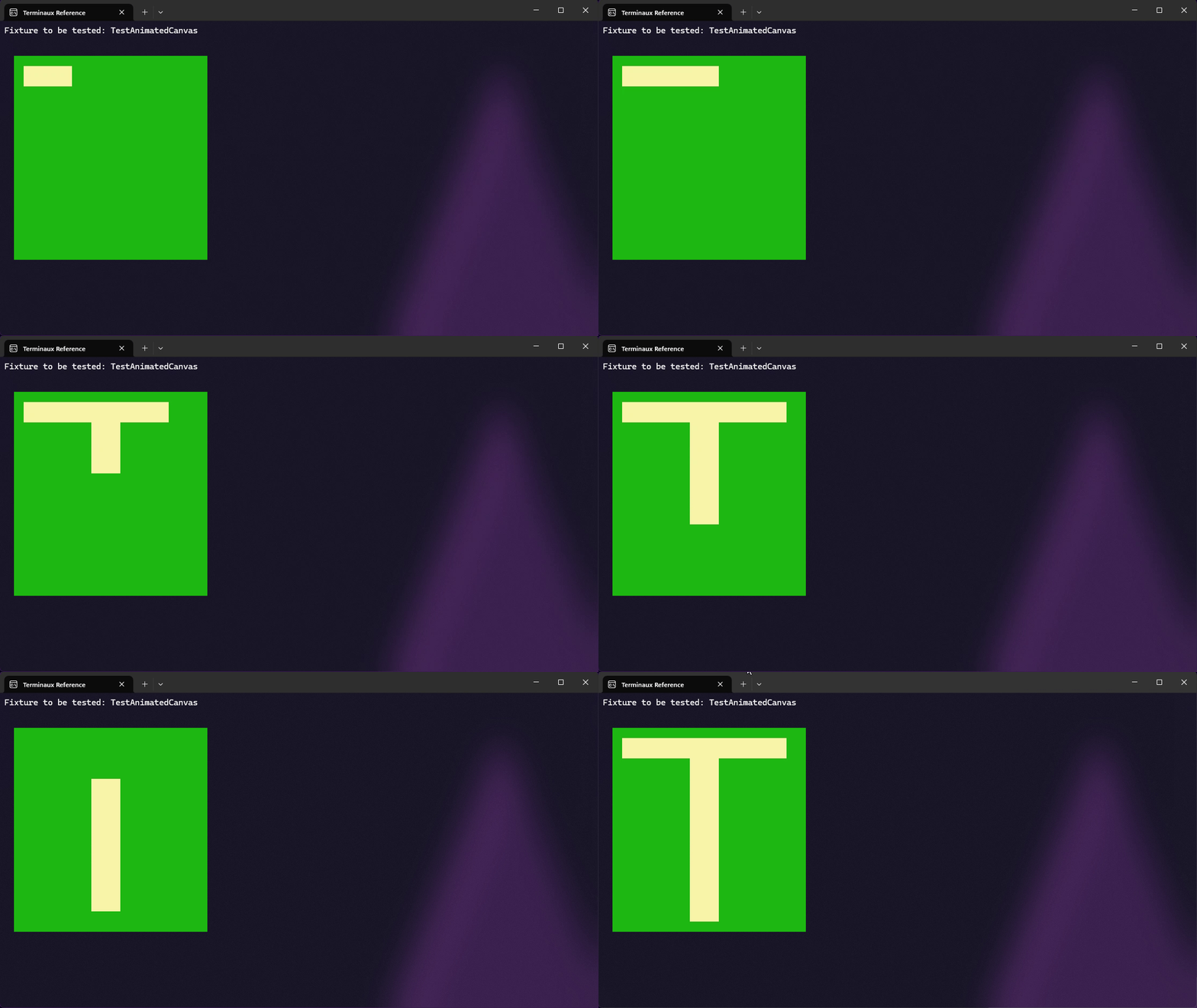
You can make animated canvases using the AnimatedCanvas class. It allows you to define canvas frames that describe a group of arrays of cell properties. They are changed sequentially to form an animated canvas. The example below is taken from this file.
Misc
This category contains all other cyclic writers that don't fit in the above categories.
Asciinema
This cyclic writer allows you to render a recorded Asciinema cast file to the terminal.
This feature is work in progress.
Progress bar
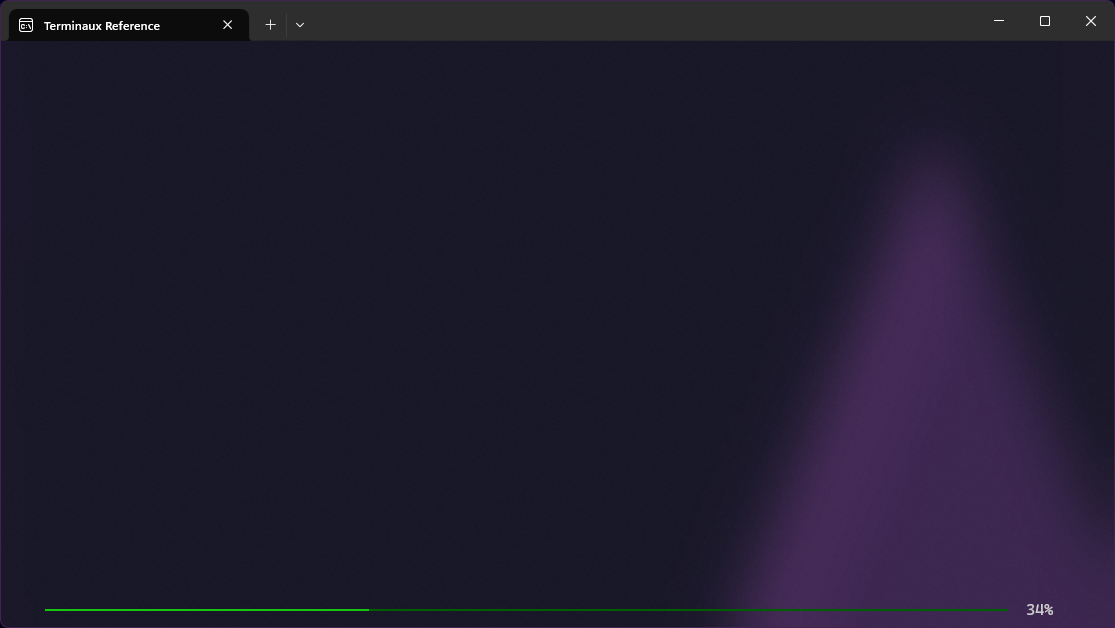
Progress bars describe how much of a progress was done for the current task. You can make the progress bar either with text or without text. Progress bars can either be determinate (at which you can know the progress) or indeterminate (at which the process is not determined)
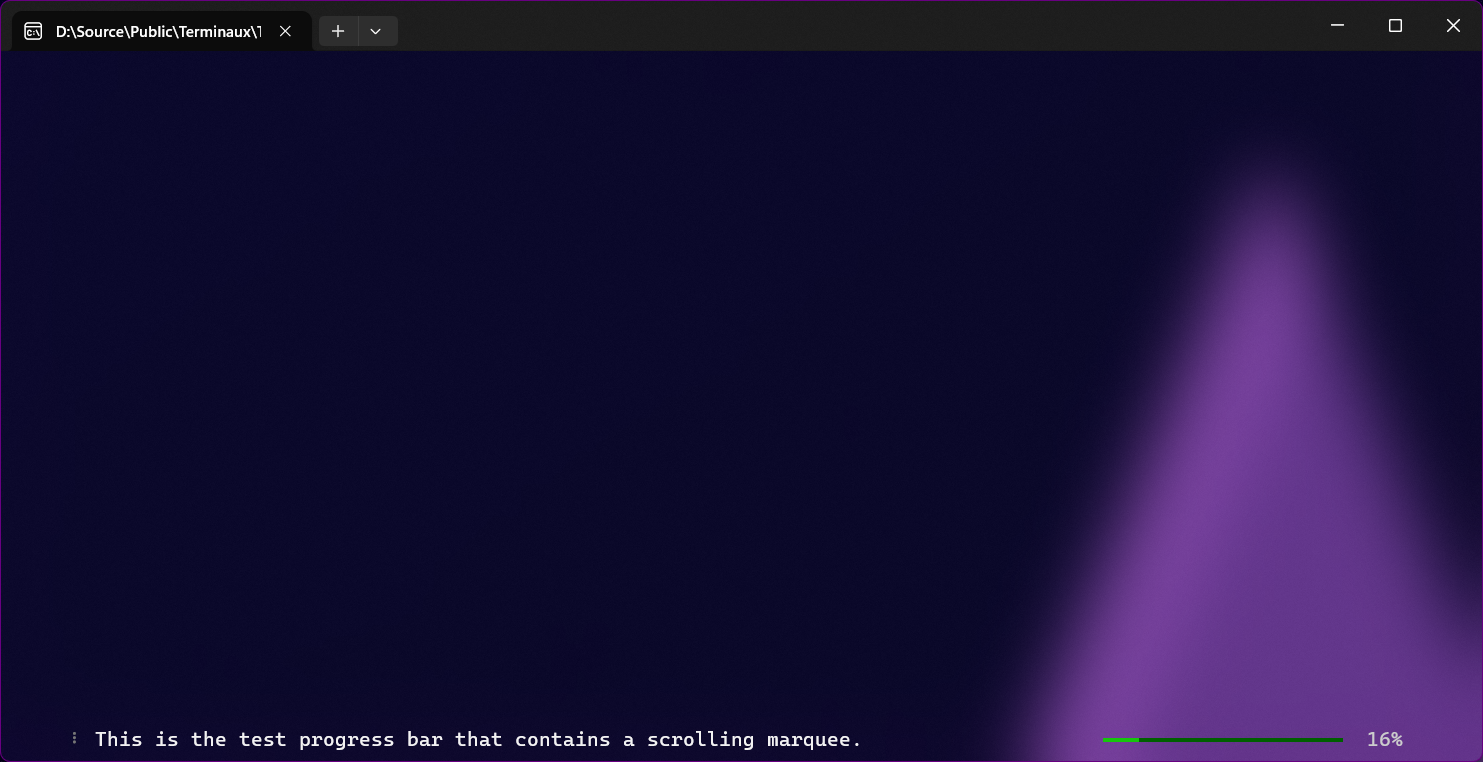
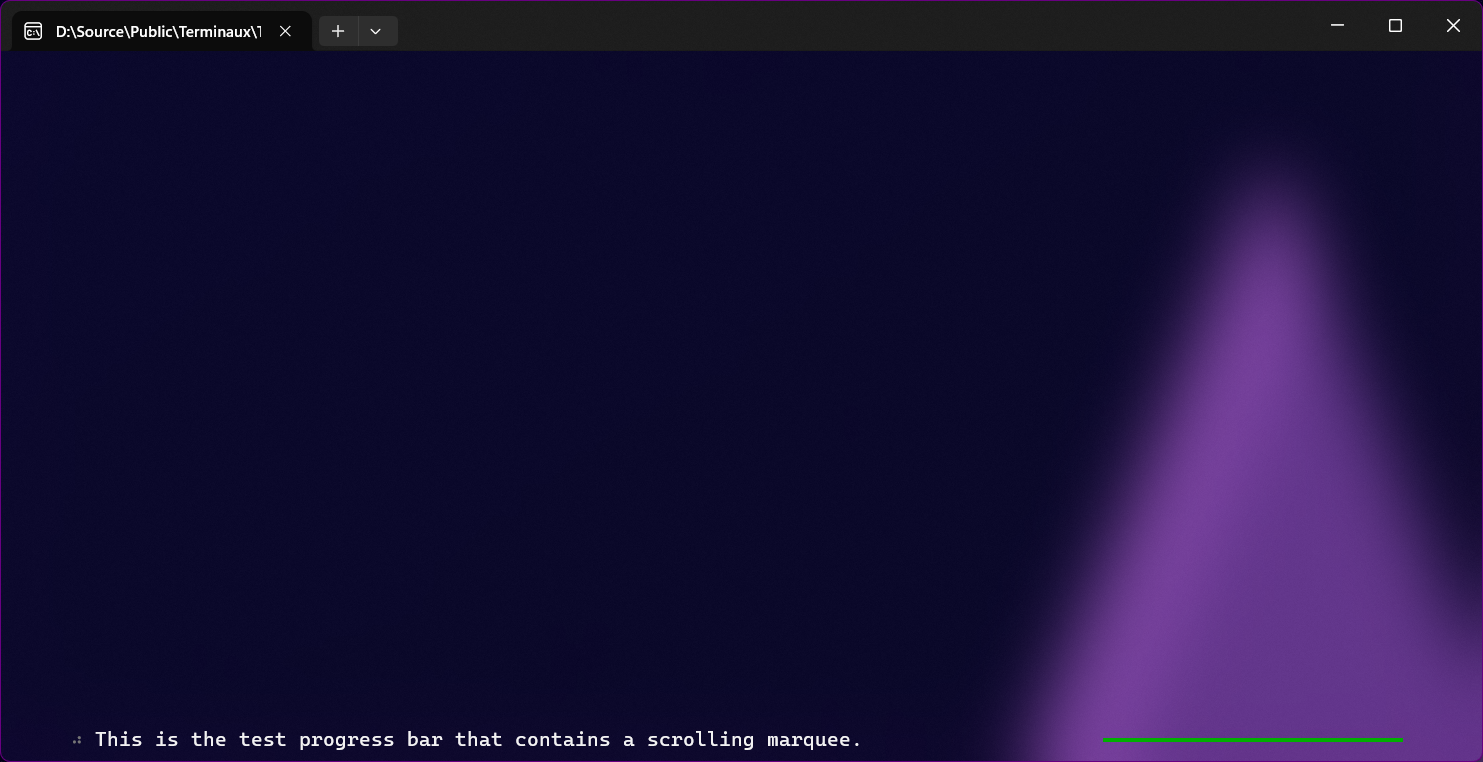
Progress bar with text
This writer allows you to show a progress bar while allowing you to describe what is going on during the process.
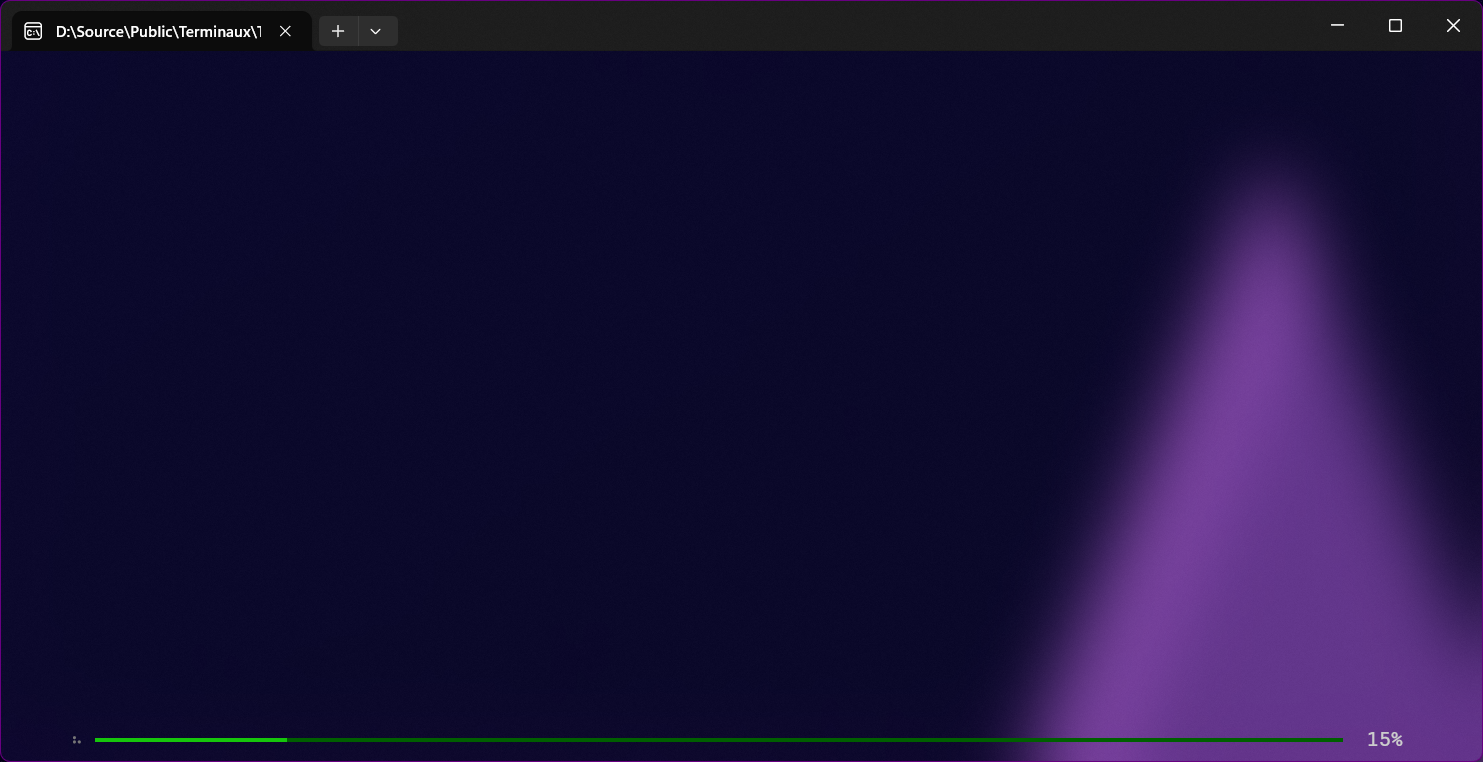
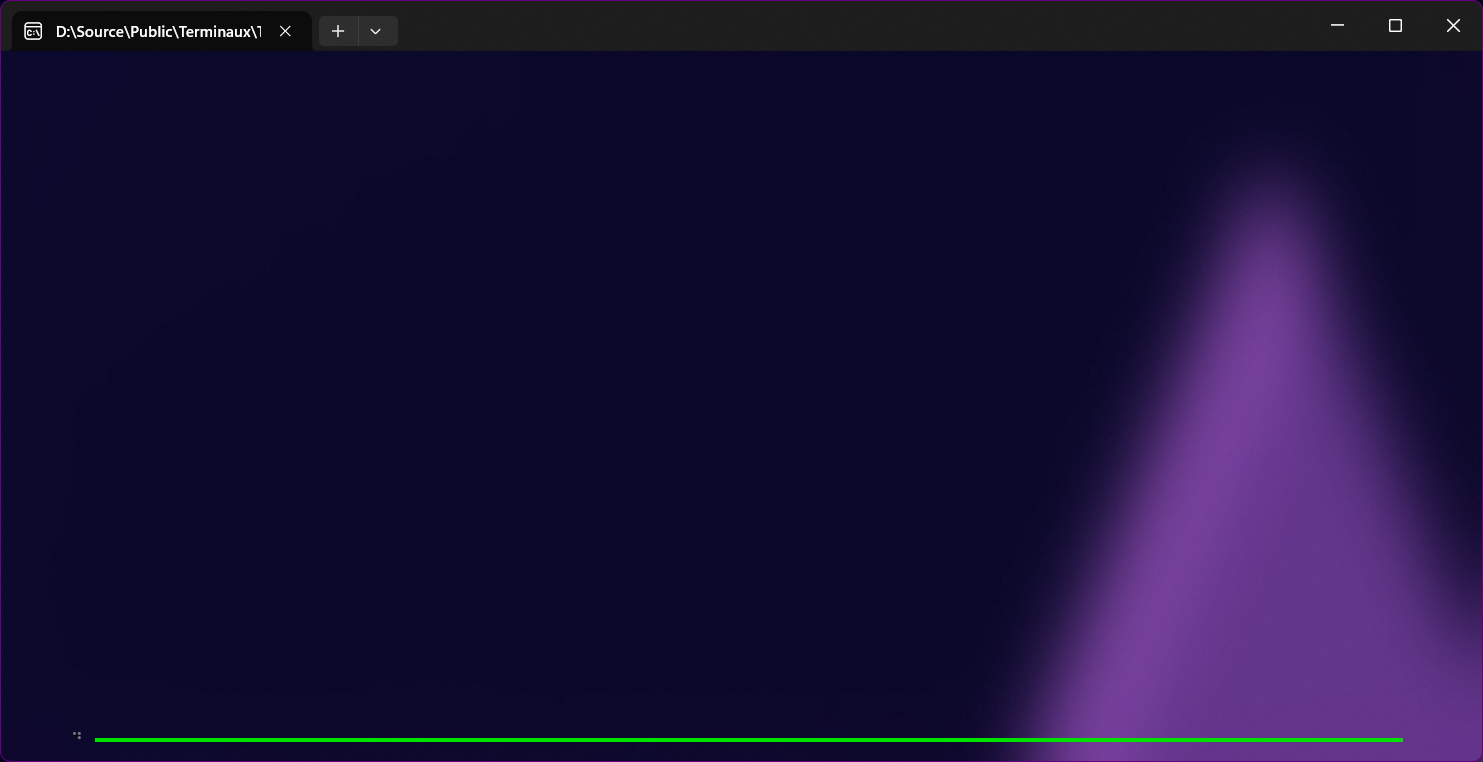
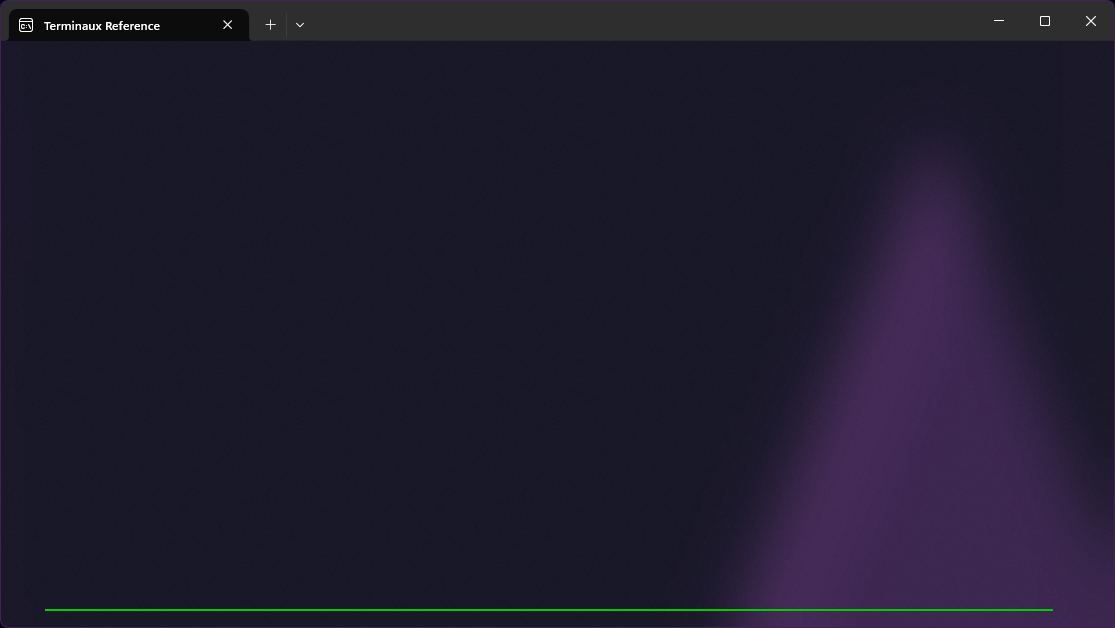
Progress bar without text
This writer allows you to show a progress bar without any text.
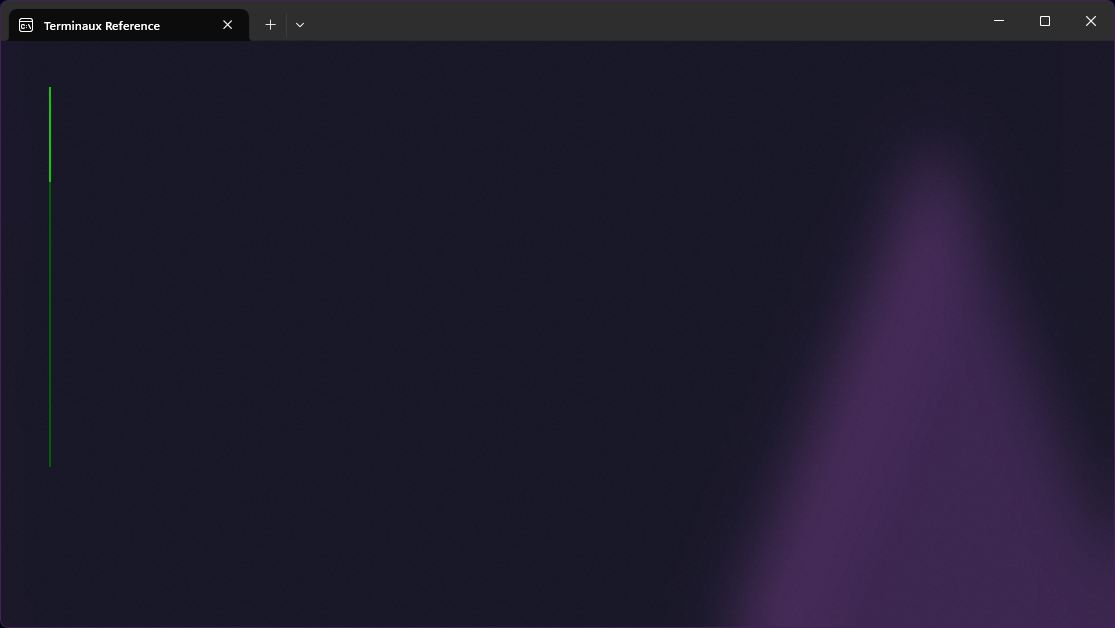
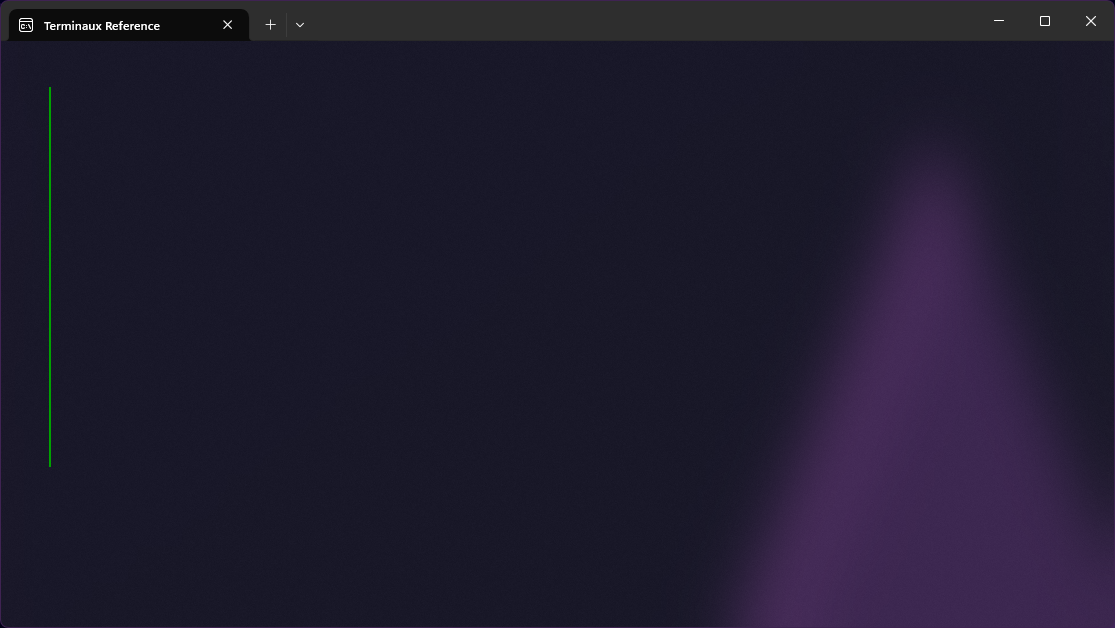
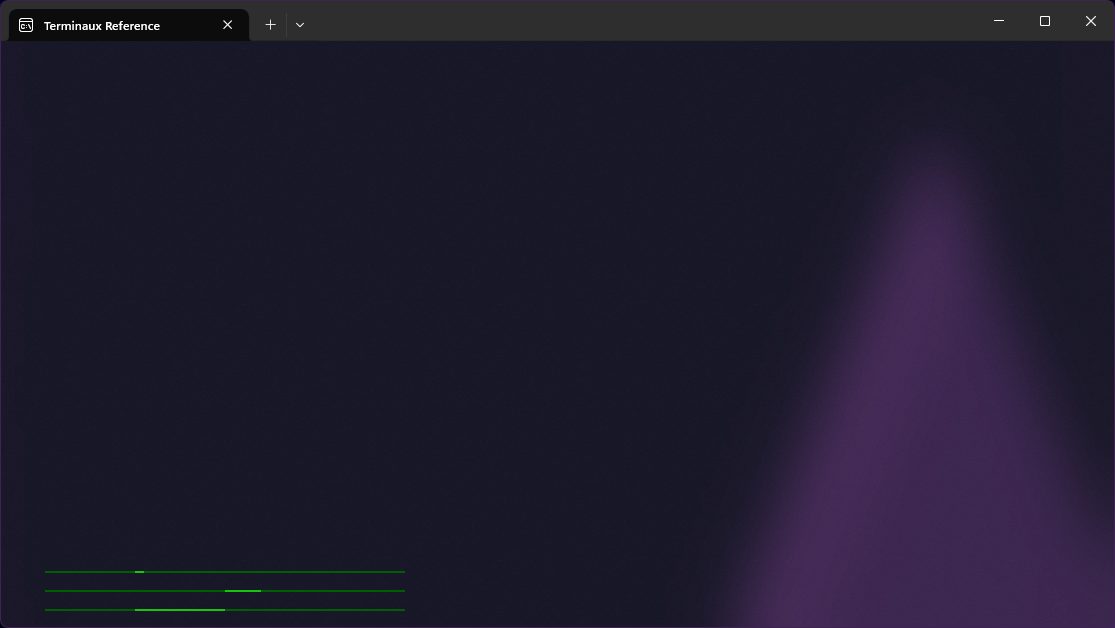
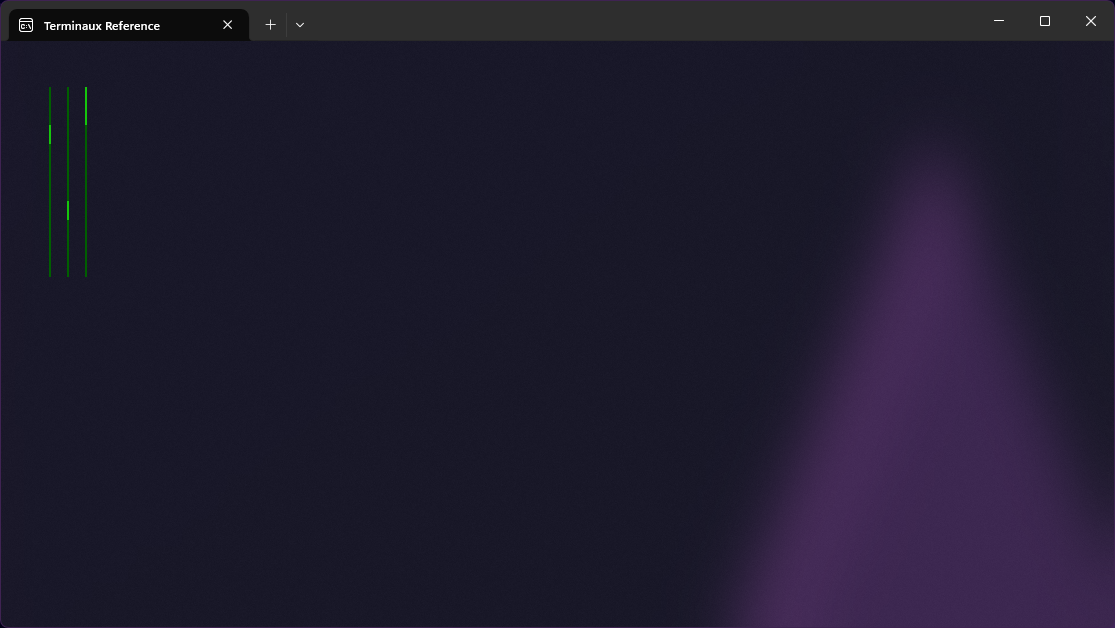
Simple progress bars
If you want to just print a progress bar either horizontally or vertically without any extra elements, you can use the SimpleProgress renderable.
Slider
This writer allows you to write a slider that moves according to the minimum position, the current position, and the maximum position. This is useful for slider bars.
Spinner
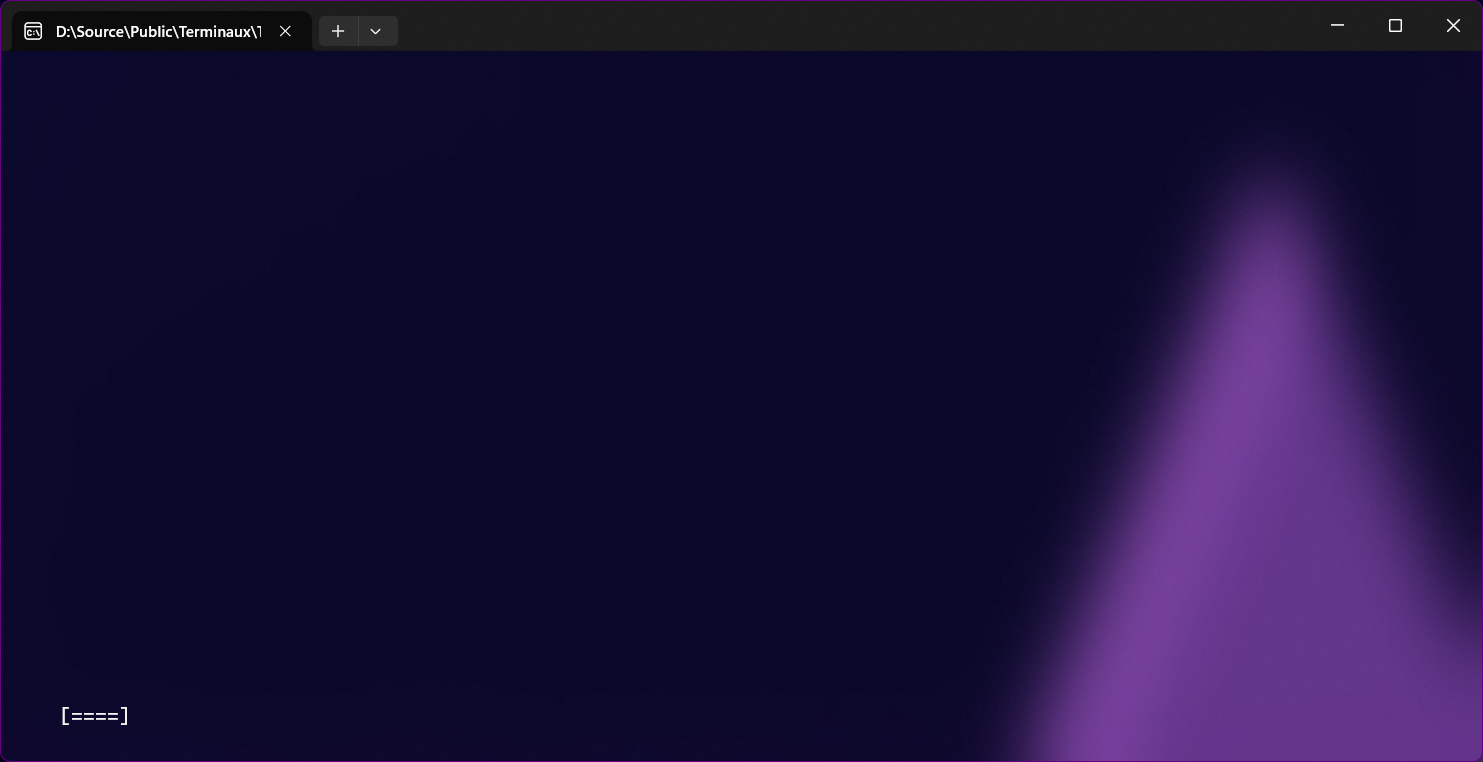
This writer allows you to write a spinner that moves according to the number of times that the spinner has rendered. This is useful for progress bars and others.
Table
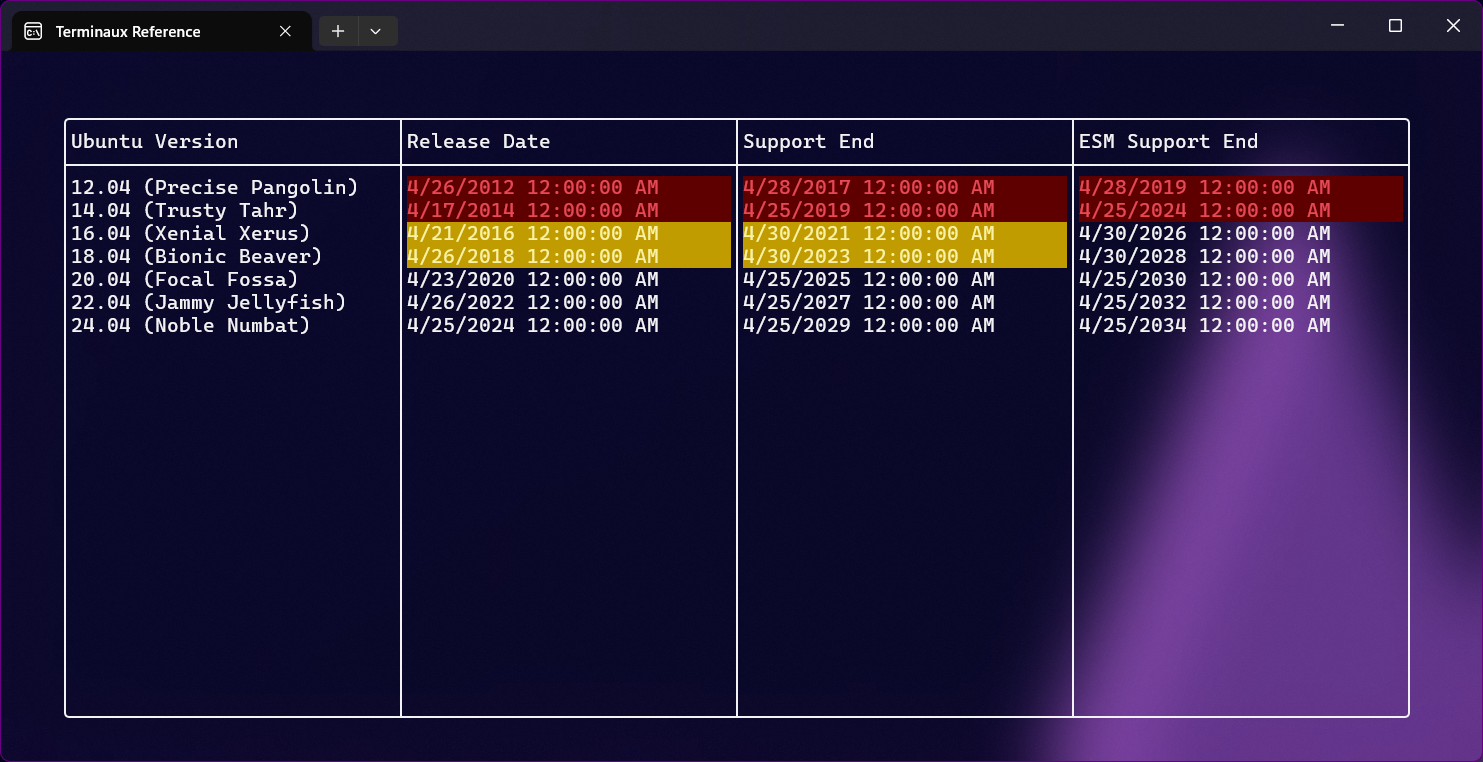
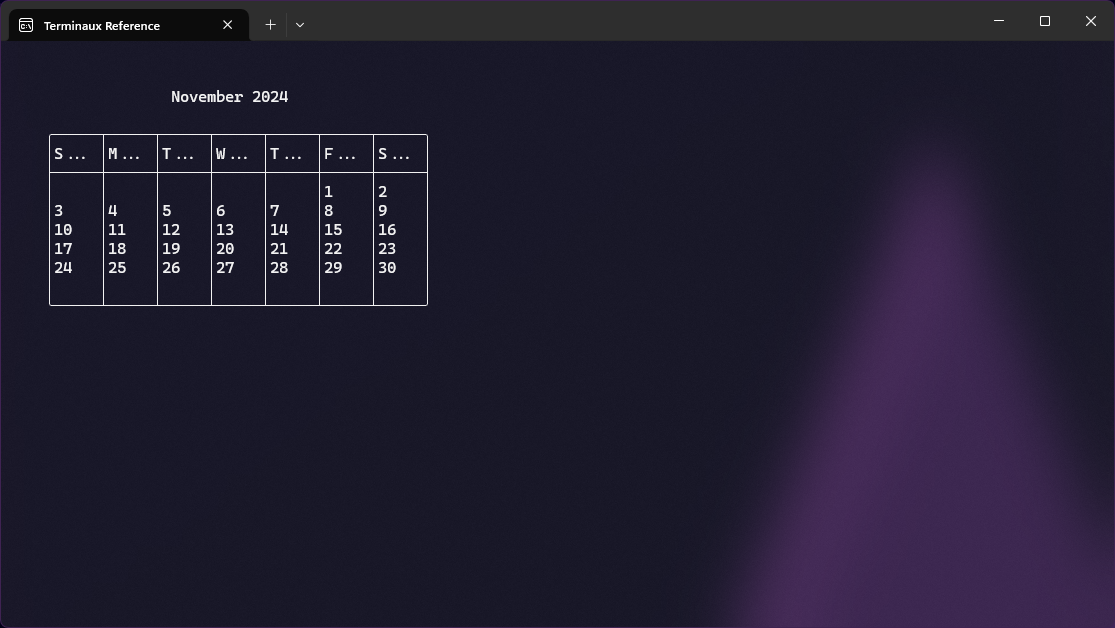
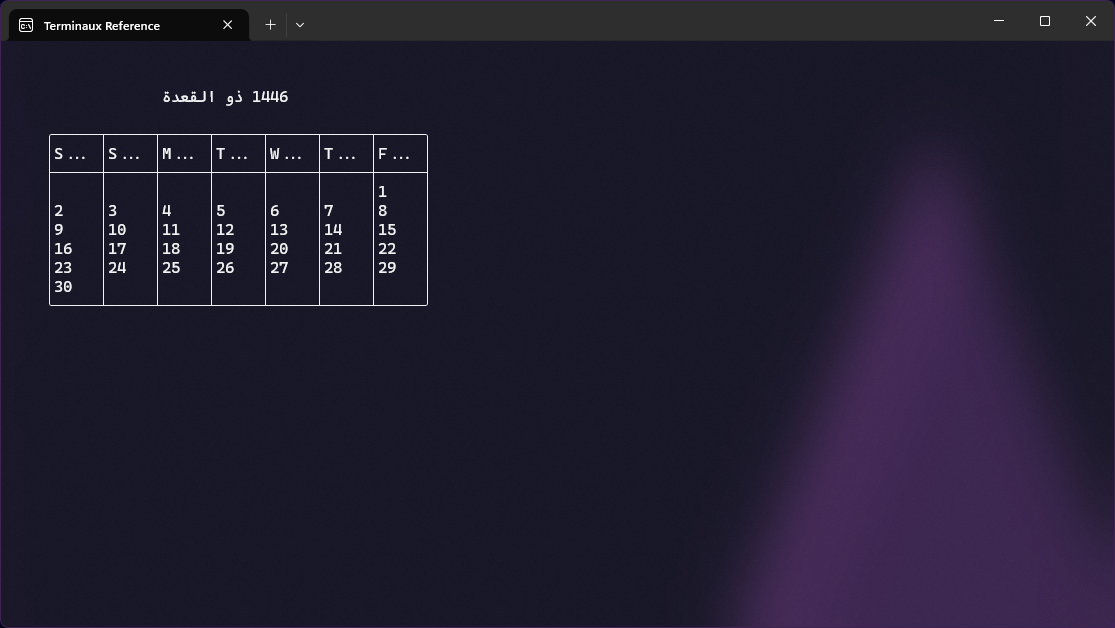
This allows you to render a table that consists of rows and columns to the terminal. You can use the cell options variable to configure various cells, such as colors. Calendars internally use the table renderer to render the core elements of a calendar, and they support non-Gregorian calendars.
Eraser
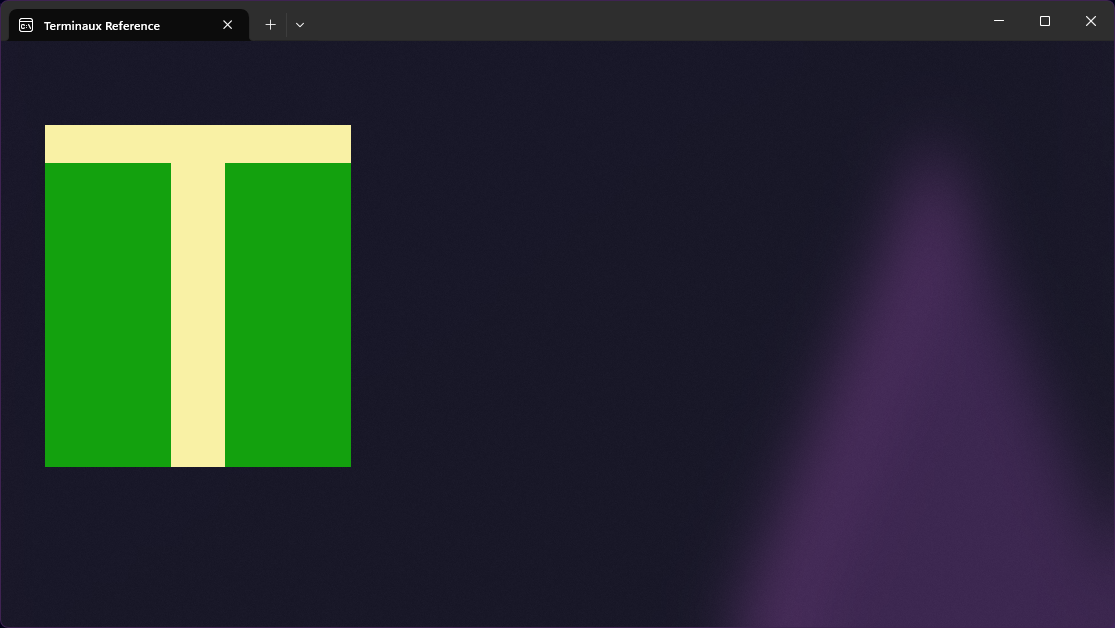
This renderable allows you to erase either the entire screen or a part of the screen.
For example, this is used to erase edges from a canvas without modifying the canvas instance itself:
Keybindings
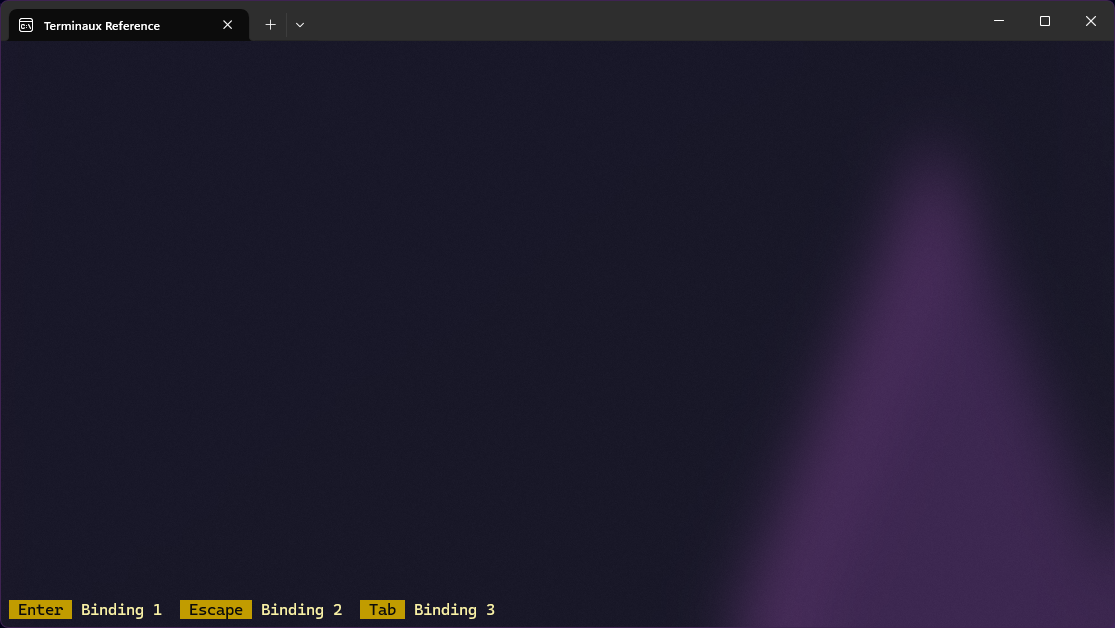
This renderable allows you to write a list of keybindings similar to that of old text-based applications to the terminal.
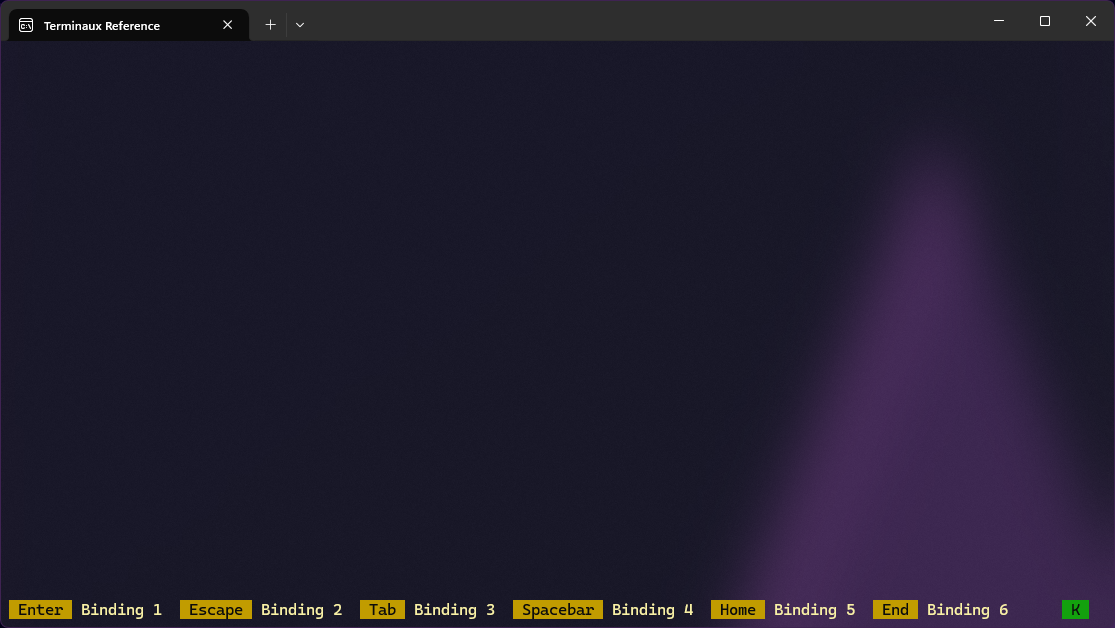
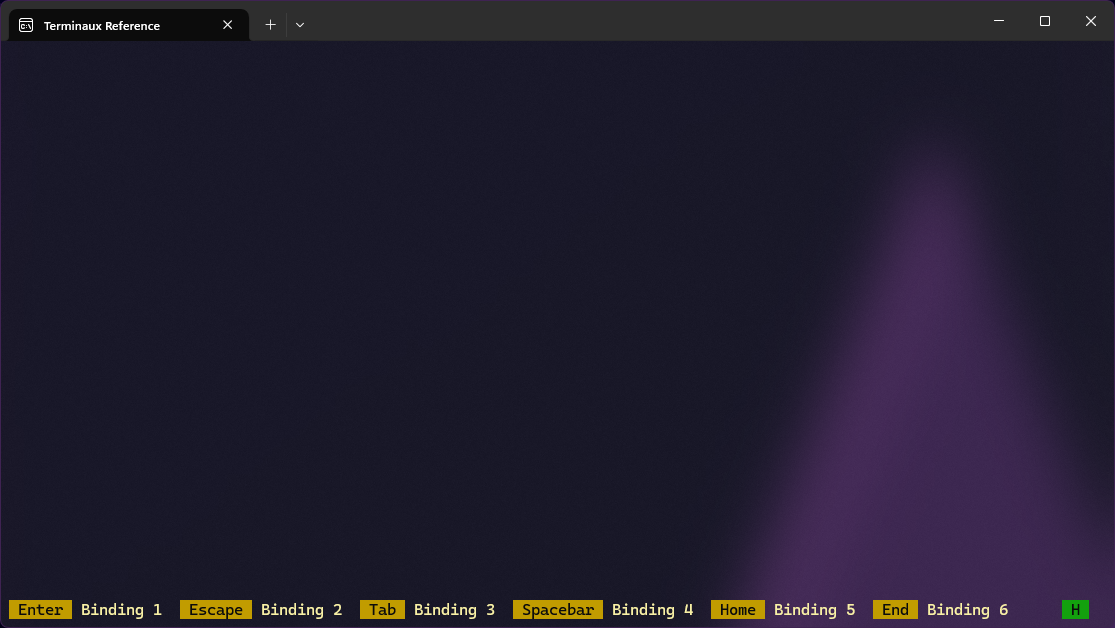
KeyShortcut
This renderable allows you to write a keybinding shortcut descriptor, which the Keybindings renderable internally uses, similar to that of old text-based applications to the terminal.
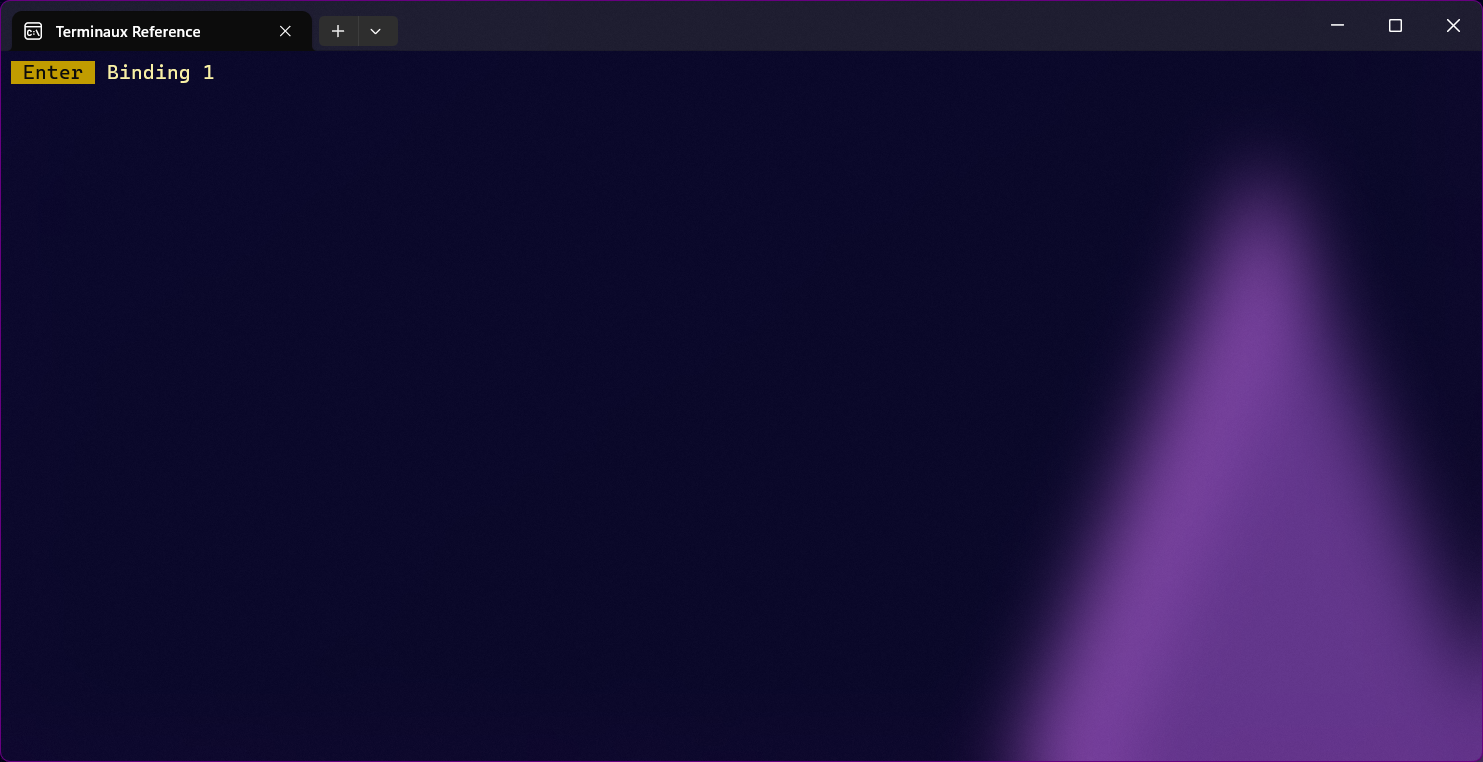
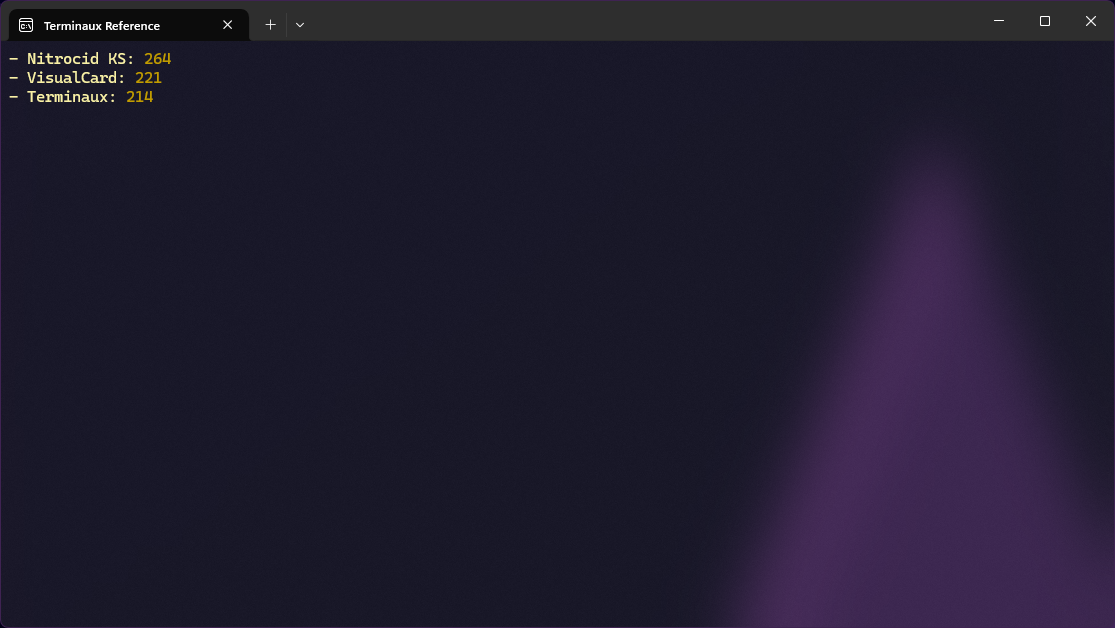
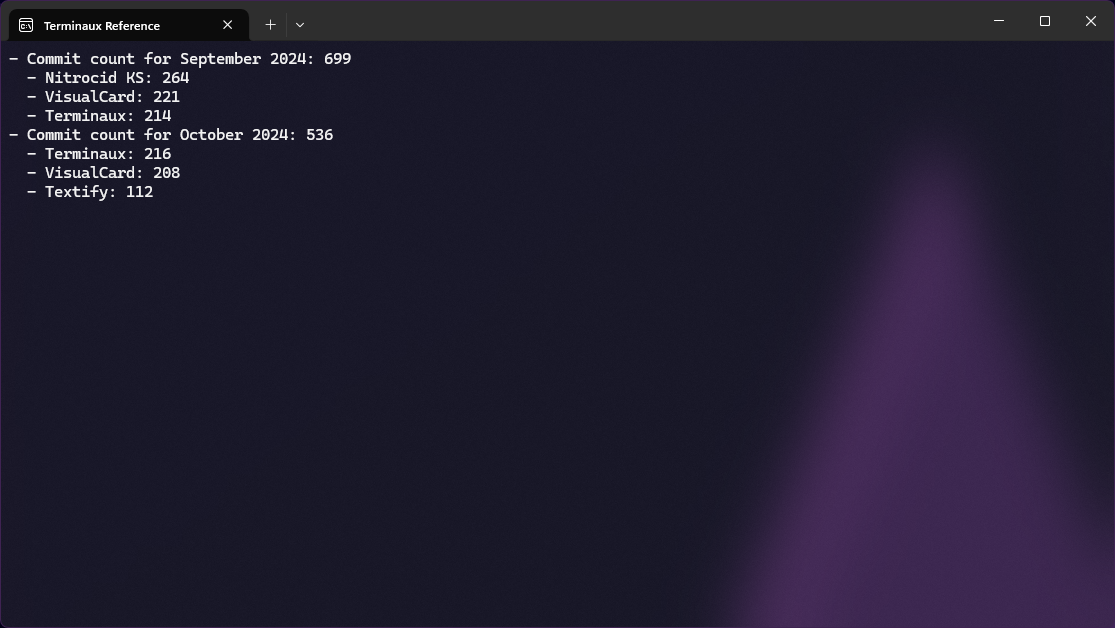
ListEntry and Listing
ListEntry and ListingThese renderables help you create a rendered list of items easily. Listing accepts any enumerable with optional functions that convert individual items to string representations, while ListEntry is used to render a single entry in the key and the value form.
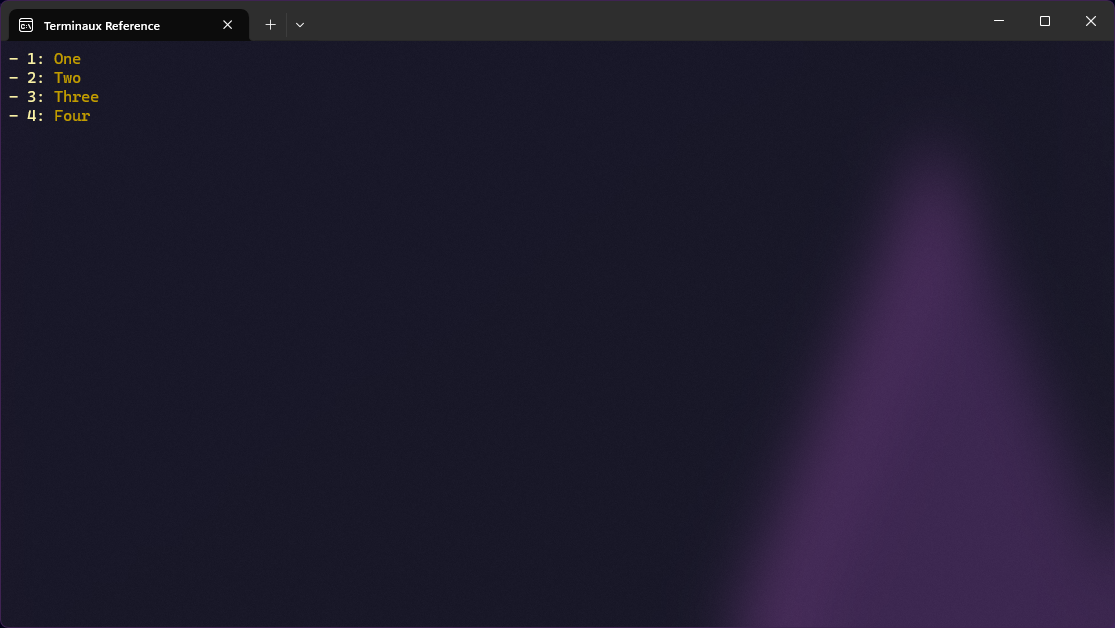
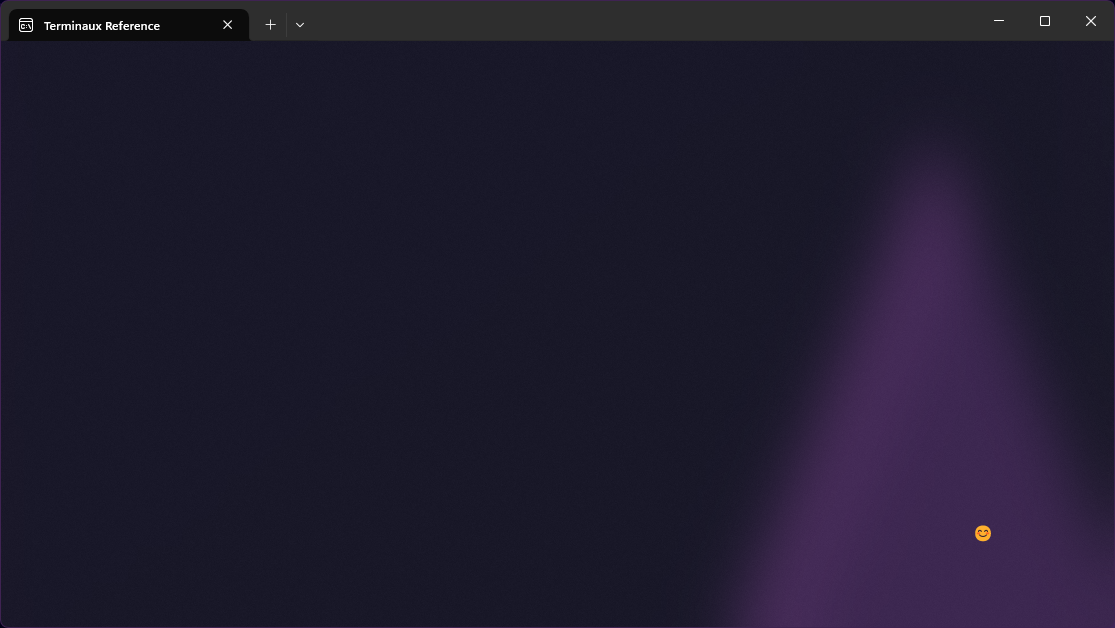
Emoji
You can use this renderer to render an emoji within a rendered container.
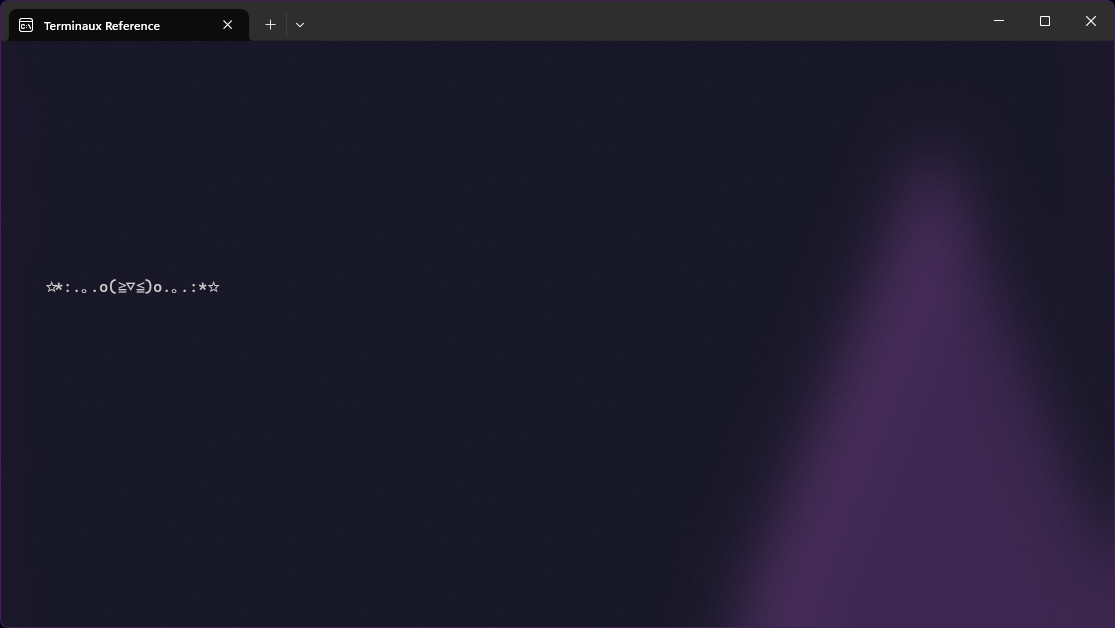
Kaomoji
You can use this renderer to render a Kaomoji within a rendered container.
NerdFonts
This renderable allows you to render a Nerd Fonts glyph to the console.
Selection
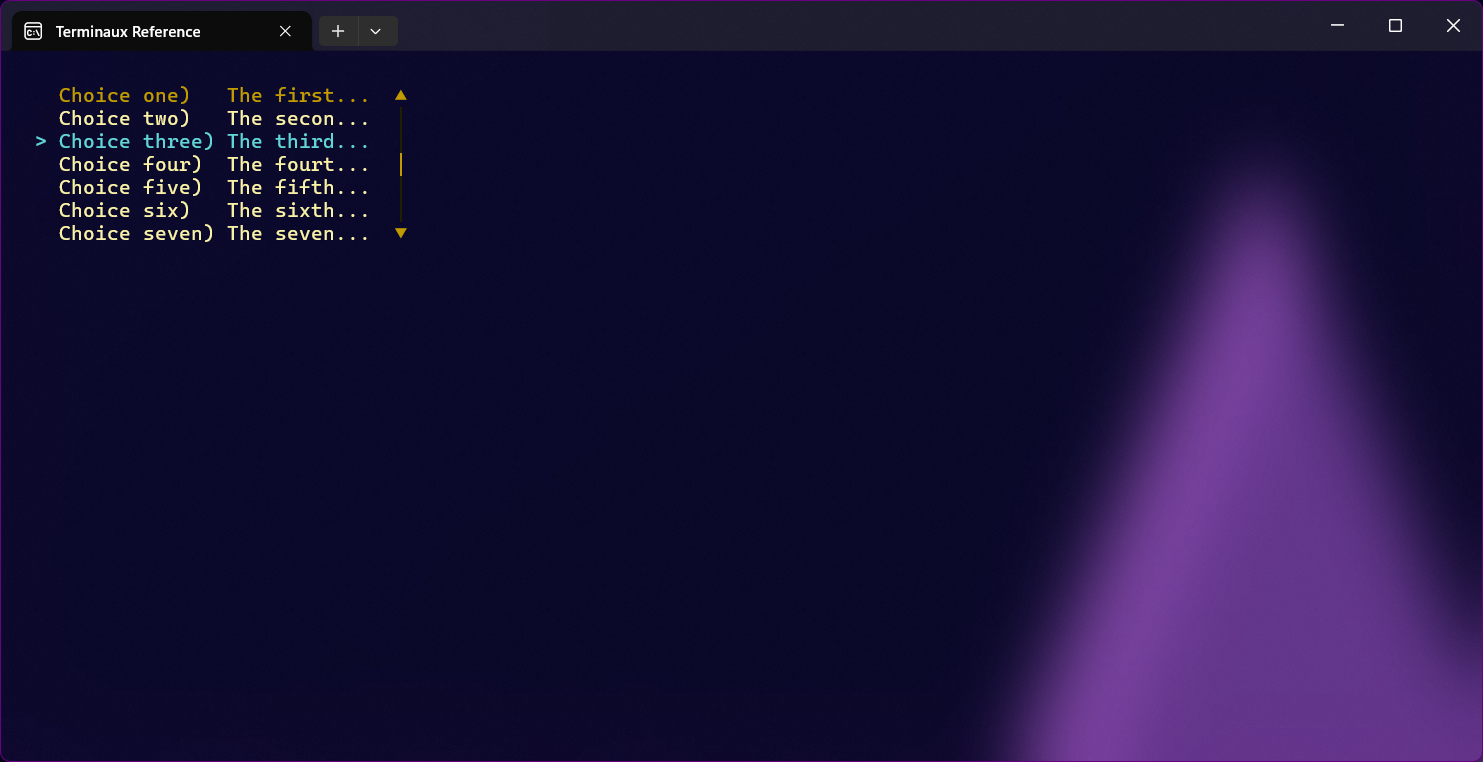
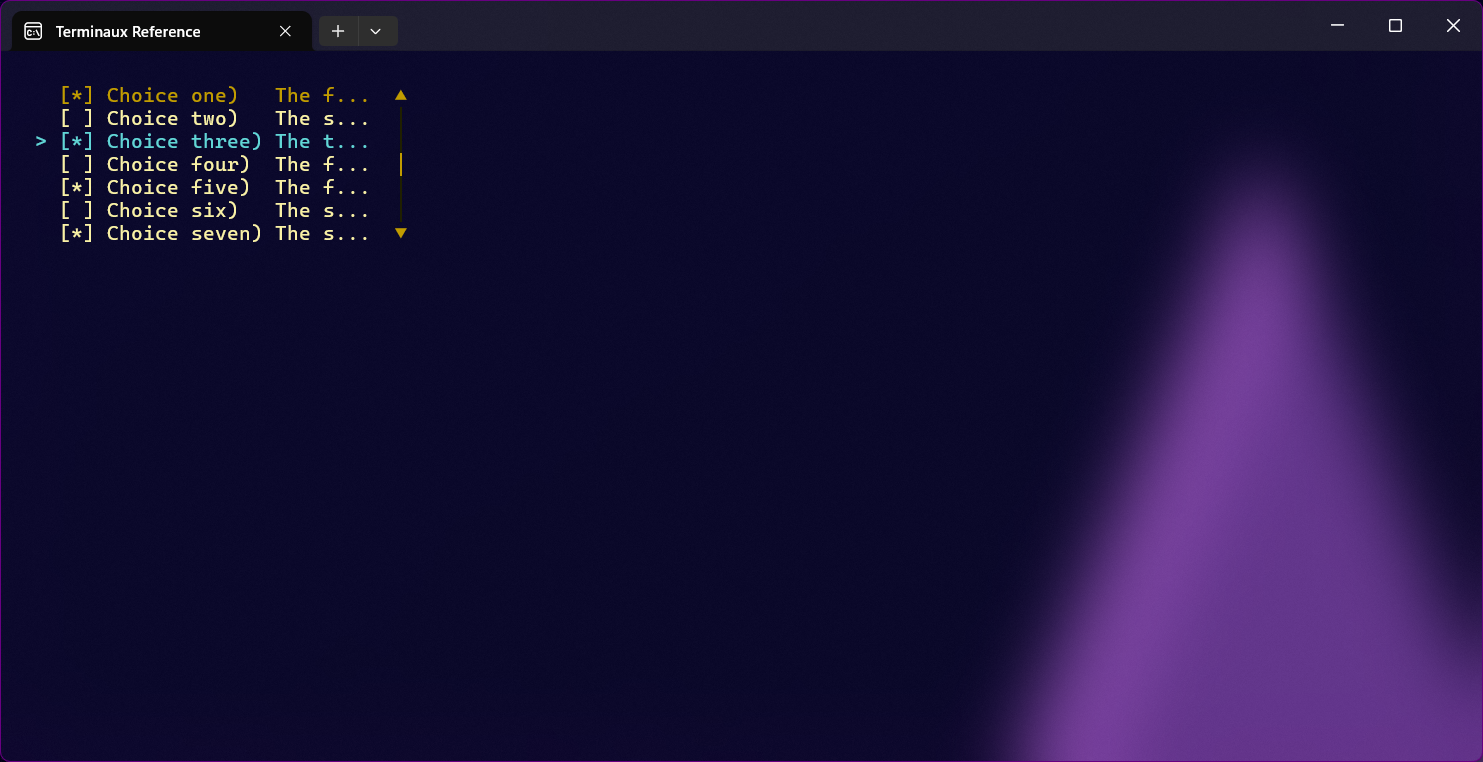
You can render a list of selection elements using this renderable. This uses a part of the selection style renderer code.