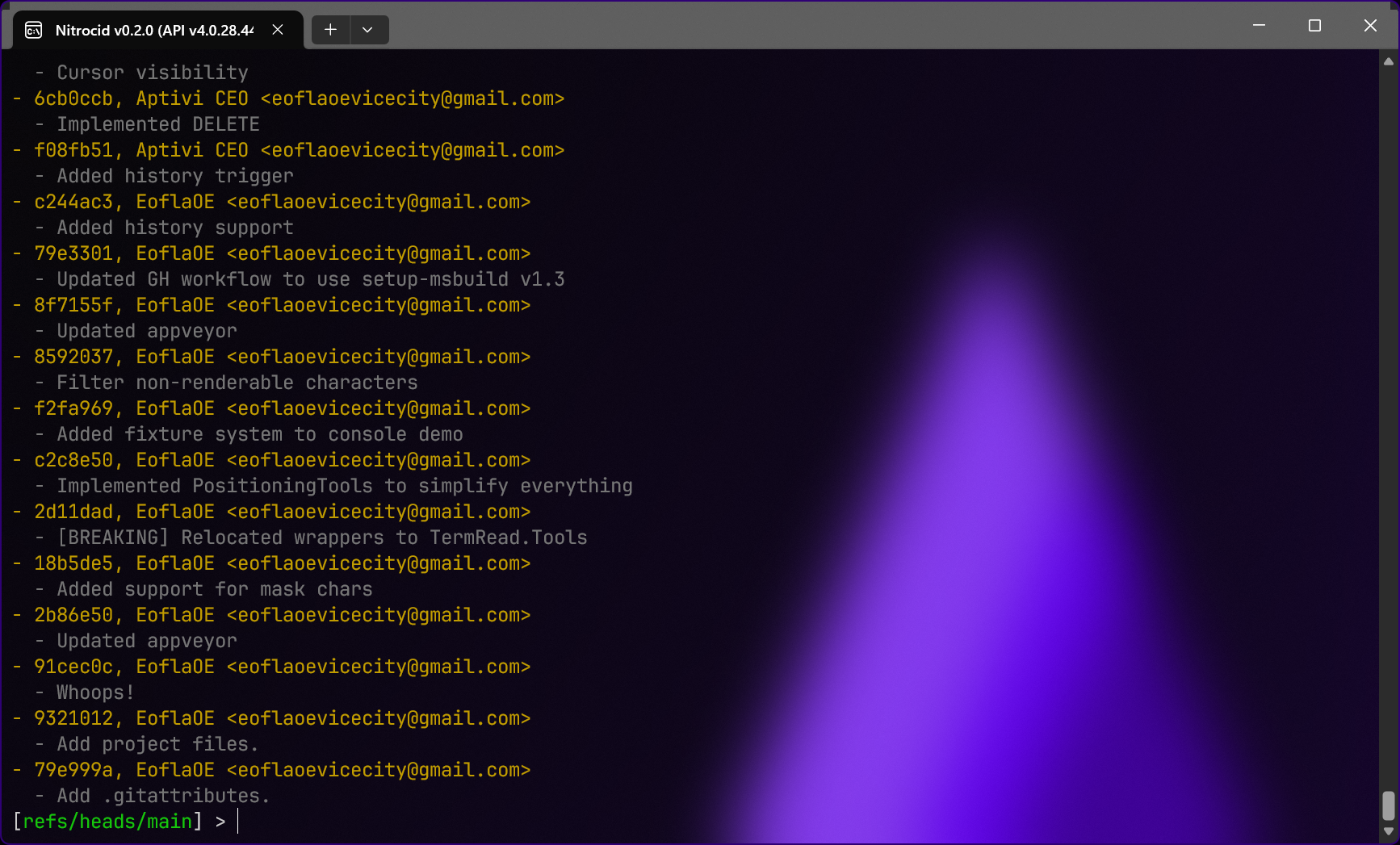
# Git Shell
{% hint style="info" %}
Nitrocid KS provides this feature as an addon.
{% endhint %}
Git is a version controlling system that allows you to manage your project source code with ease. Changes to the source code are done in batches, known as commits, which store the file changes, including their content, whether they're moved; copied; deleted; or created, their attributes, and more.
Nitrocid KS provides an add-on that allows you to use the Git shell. This is so that you can experience the Git version control system as a shell. Additionally, if you have Git installed on your system, you can run `git` or `exec git` in the UESH shell.
{% hint style="info" %}
If you have `Extras.GitShell` installed, you can launch the shell using the `gitsh` command.
Command usage:
```
gitsh
```
{% endhint %}
### How it works
When `gitsh` is executed, it first verifies that the `.git` folder found inside the repository folder exists. Then, it creates a new repository instance that allows all of the Git operations to be done.
Once it's done, it sets the branch name to the default branch from the repository's `HEAD`.
{% hint style="info" %}
You can check out a specific branch using the `checkout` command.
{% endhint %}
### Available commands
You can consult the below page for the list of available commands.
{% content-ref url="../../shells/commands-list" %}
[commands-list](https://aptivi.gitbook.io/deprecated/nitrocid-ks-v0.2.0-release-candidate-manual/fundamentals/simulated-kernel-features/shells/commands-list)
{% endcontent-ref %}