# Text Editor
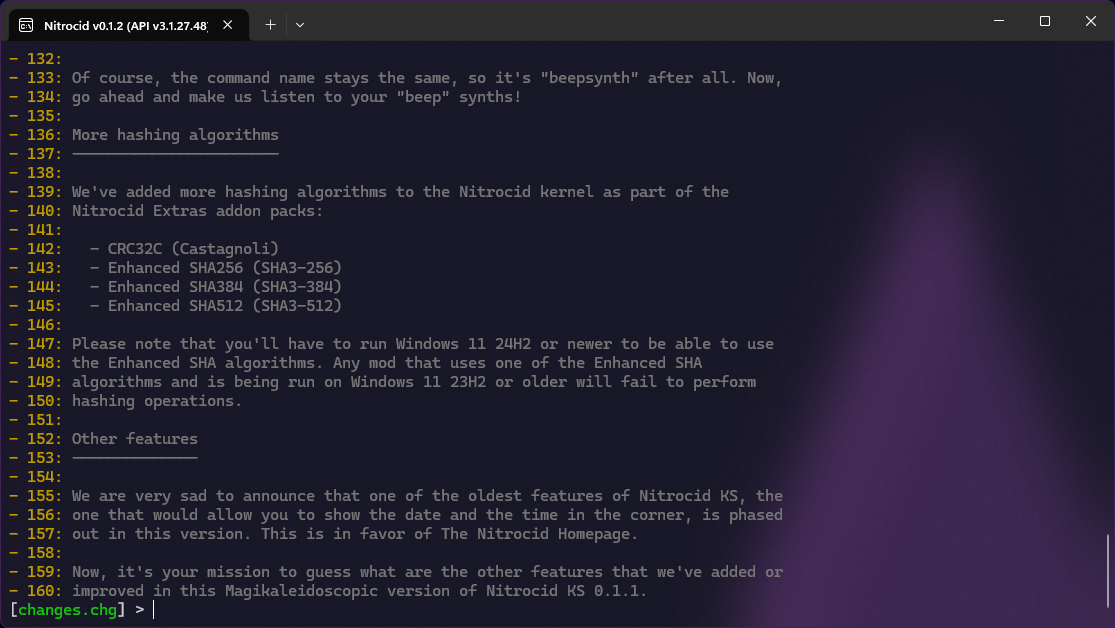
This text editor shell provides you an ability to edit any and all the text files. The `edit` command infers the file type whether it's the text file, the JSON file, or the binary file. It contains many editing tools described in the below section by invoking its commands.
## Commands
You can consult the below page for the list of text editor commands.
{% content-ref url="../shells/commands-list" %}
[commands-list](https://aptivi.gitbook.io/deprecated/nitrocid-ks-v0.1.2-service-pack-1/fundamentals/simulated-kernel-features/shells/commands-list)
{% endcontent-ref %}
## Interactive TUI
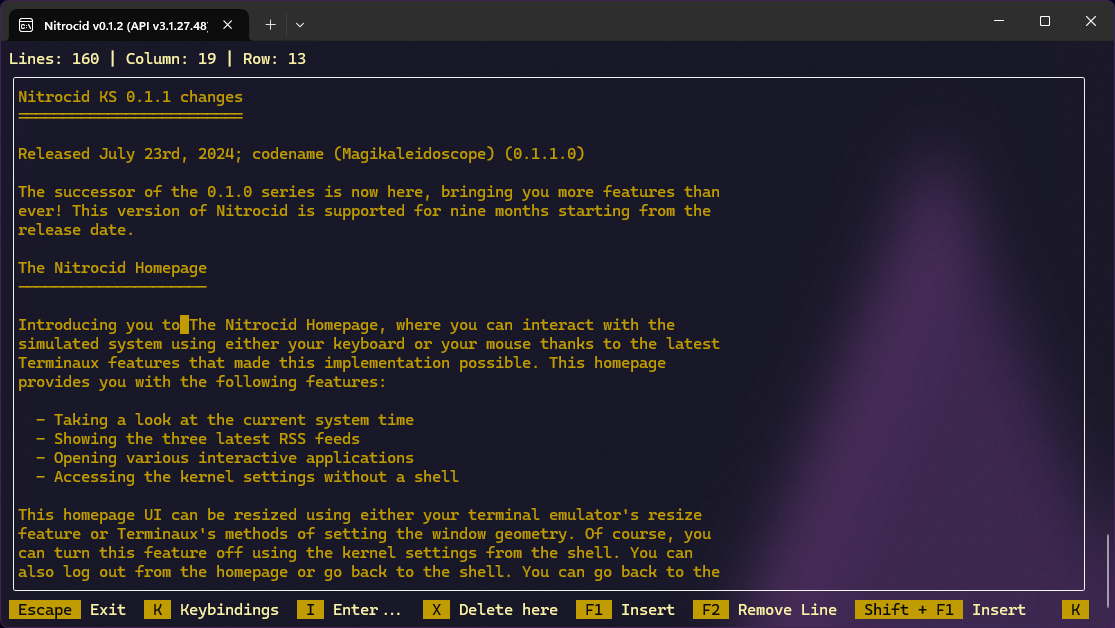
In addition to the text editor being a shell, you can switch to an alternative mode when you're in the shell by executing the `tui` command. This way, you'll get access to the fully interactive text editor.
The interactive text editor works like any other interactive text editor, especially the well-known text editing utility available on Unix systems, [vi](https://en.m.wikipedia.org/wiki/Vi) and [vim](https://www.vim.org/). However, it's just that it's different in terms of how it operates.
* To exit, press `ESC`.
* To get a list of available keybindings, press `K`.
The currently selected character in the current line is highlighted with the green color, depending on your kernel theme. Here are some of the common controls:
| Key | Action |
| ------------- | -------------------------------------------------------- |
| `X` | Delete current character |
| `F1` | Inserts a new line after the current line and moves down |
| `F2` | Removes a current line and moves up |
| `Shift + F1` | Inserts a new line after the current line |
| `Shift + F2` | Removes a current line |
| `F3` | Replaces the text in the current line with another text |
| `Shift + F3` | Replaces the text in all the lines with another text |
| `I` | Enters the insertion (enter) mode |
| `Left Arrow` | Advances one byte backward |
| `Right Arrow` | Advances one byte forward |
| `Up Arrow` | Advances one line backward |
| `Down Arrow` | Advances one line forward |
| `Page Up` | Goes to the previous page |
| `Page Down` | Goes to the next page |
| `Home` | Goes to the beginning of the text file |
| `End` | Goes to the end of the text file |
When insertion mode is on, you can input any text, erase unnecessary text, and so on. This gives you an ability to edit text interactively. Here are the available controls for you to use:
| Key | Action |
| ------------- | -------------------------------------------------------- |
| `Enter` | Inserts a new line after the current line and moves down |
| `Esc` | Goes back to the viewer mode |
| `Left Arrow` | Advances one byte backward |
| `Right Arrow` | Advances one byte forward |
| `Up Arrow` | Advances one line backward |
| `Down Arrow` | Advances one line forward |
| `Page Up` | Goes to the previous page |
| `Page Down` | Goes to the next page |
| `Home` | Goes to the beginning of the text file |
| `End` | Goes to the end of the text file |