# Contacts
{% hint style="info" %}
Nitrocid KS provides this feature as an addon.
{% endhint %}
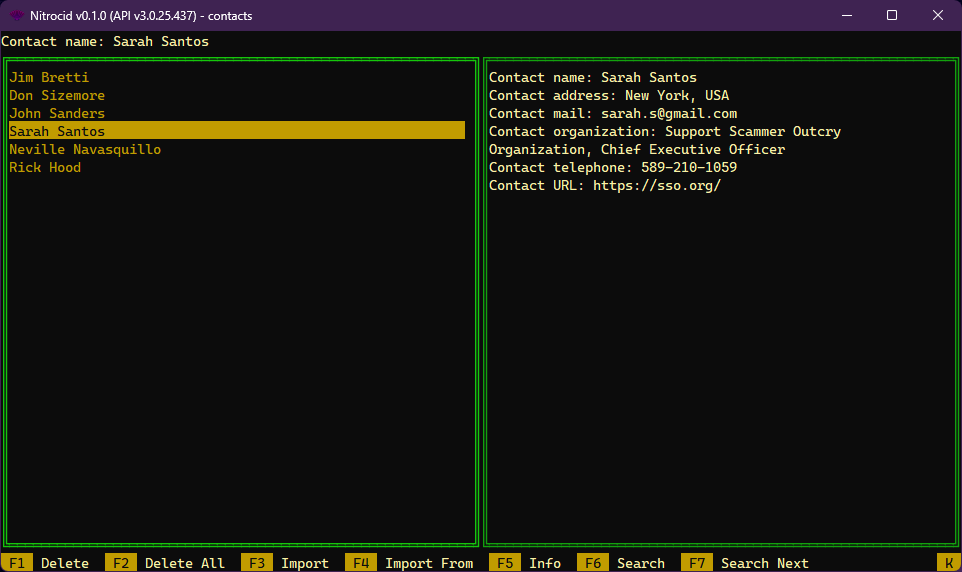
The contacts application lets you list your contacts that are imported from the contacts folder found under the `KSContactsImport` folder. It shows you basic information about your contacts.
The contacts application is usually found in your computer under the form of a feature in your favorite mail client or under the form of a standalone application. It's also found in your smartphone in which you can make phone calls and send SMS messages.
Nitrocid KS, however, has this application as a standalone application and can be executed by invoking the `contacts` command. You can also perform contact management without the contacts interactive TUI by using one of the following four commands:
* `contactinfo`: Shows you contact information
* `importcontacts`: Imports the contacts from either a MeCard string or a vCard file
* `listcontacts`: Lists all the contacts
* `loadcontacts`: Loads all the contacts
{% hint style="info" %}
Please note that Nitrocid KS is unable to make phone calls and send SMS messages to your contacts as it requires a special device, such as Voice over IP (VoIP) phones, to be able to make calls from your computer, and we don't intend to simulate that.
{% endhint %}
This application currently supports the following keystrokes:
* `F1`: Deletes a selected contact
* `F2`: Deletes all contacts
* `F3`: Imports contacts from your exported contact files found under the `KSContactsImport` folder
* `F4`: Imports contacts from a selected path to your contact file
* `F5`: Shows extra information about your contacts
* `F6`: Searches the contact list for a specified name
* `F7`: Searches the contact list for a next occurrence of a name
* `F8`: Searches the contact list for a previous occurrence of a name
* `F9`: Gets raw information about a selected contact's card based on the saved VCard data generated by VisualCard
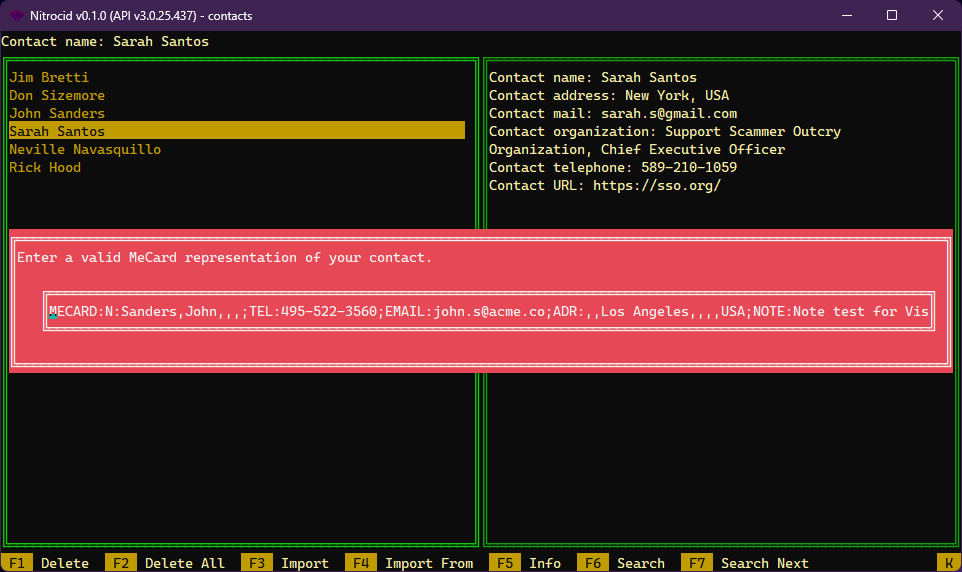
* `F10`: Imports contacts from MeCard
* `Esc`: Exits the application
The contact application can import your contacts from the `KSContactsImport` folder if your contacts file is one of the supported formats by the powerful VisualCard library:
* VCF contact files holding a single contact (version 2.1, 3.0, 4.0)
* VCF contact files holding multiple contacts (same version, mixed versions)
* Android contacts database file (`contacts2.db`)
The contact application can also import your contact through a short MeCard syntax given to you by a QR code behind it. Below is an example of a complete MeCard syntax:
```
MECARD:N:Sanders,John,,,;TEL:495-522-3560;EMAIL:john.s@acme.co;ADR:,,Los Angeles,,,,USA;NOTE:Note test for VisualCard;;
```
{% hint style="info" %}
To learn more about how VisualCard works, consult the below link named `How it works` and it'll take you to the VisualCard manual.
{% endhint %}
{% content-ref url="broken-reference" %}
[Broken link](https://aptivi.gitbook.io/deprecated/nitrocid-ks-v0.1.1-service-pack-2/fundamentals/simulated-kernel-features/extra-features/common-programs/broken-reference)
{% endcontent-ref %}