# Windows
Installing Nitrocid KS on Windows is pretty easy, but we recommend installing the simulator using the Chocolatey package manager.
{% hint style="info" %}
Extra kernel add-ons may require additional hardware on your computer to work. For example, the BassBoom addon requires that you have audio drivers installed on your computer.
{% endhint %}
To run Nitrocid KS in the absolute minimum requirements, your computer needs to have the following installed:
| System | Framework | Terminal |
| ---------- | ------------------------------------------------------------------ | --------------------------------------------------------- |
| Windows 7+ | [.NET 8.0](https://dotnet.microsoft.com/en-us/download/dotnet/8.0) | [ConEmu](https://conemu.github.io/) or Windows 10 cmd.exe |
However, we recommend that you have the below software installed on your computer to get the best out of the kernel:
| System | Framework | Terminal |
| ----------- | ------------------------------------------------------------------ | ------------------ |
| Windows 10+ | [.NET 8.0](https://dotnet.microsoft.com/en-us/download/dotnet/8.0) | Windows 10 cmd.exe |
## Installation
There are several ways to install Nitrocid KS on Windows systems. We recommend installing KS using the Chocolatey package manager for simplicity.
### Method 1: Windows Installer
The Windows Installer method allows you to easily install Nitrocid KS.
1. Download the latest Windows Installer EXE file from [this page](https://github.com/Aptivi/Kernel-Simulator/releases)
2. Double-click on a single EXE file, and follow the instructions
3. Double-click on `Nitrocid KS` in your desktop.
### Method 2: Chocolatey
This step-by-step guide shows you how to install Nitrocid KS using the package manager, [Chocolatey](https://chocolatey.org/install), assuming that you already have it on your system.
1. Ensure that Chocolatey is installed to your system PATH
2. Open your favorite terminal emulator, like ConEmu, and execute the following command: `choco install ks`
3. Start Nitrocid KS using `ks`
### Method 3: Manual unpack
If you like to manually unpack the Nitrocid KS packages, follow these steps:
1. Ensure that you have all the required software installed
2. Download the latest release ZIP file from [this page](https://github.com/Aptivi/Kernel-Simulator/releases).
3. Unpack the ZIP archive to any folder of your choice using [7-Zip](https://7-zip.org/)
4. Open your favorite terminal emulator, like ConEmu, and change the working directory to a folder containing the Nitrocid KS executable
5. Execute `ks` or `Nitrocid.exe` to start the kernel
## Bleeding-edge
Bleeding-edge builds usually come from building the development branch of the kernel, and they usually contain bugs and other untested features.
If you're a tester to such software, please follow the steps on your Windows machine. Please be sure that you're signed in to your GitHub account.
1. Open the [canary release preparation workflow](https://github.com/Aptivi/Nitrocid/actions/workflows/release-canary.yml)
2. Select the most recent build
3. Scroll down to Artifacts and click on the `nks-build` button to download the ZIP file or one of the `installer-ARCH-msi` files for the installer version, where `ARCH` is either `x64` or `arm64`.
4. Extract the file. Be sure that you have the latest version of 7-Zip or your favorite archive manager installed. After that, follow the steps:
1. If you've used the `nks-build` output, follow the last two steps in the [Manual unpack](https://aptivi.gitbook.io/aptivi/nitrocid-ks-manual/installation-and-maintenance/installing-the-kernel/windows#method-3-manual-unpack) section.
2. If you've used the installer output, follow the last two steps in the [Windows Installer](https://aptivi.gitbook.io/aptivi/nitrocid-ks-manual/installation-and-maintenance/installing-the-kernel/windows#method-1-windows-installer) section.
## Notice for SmartScreen
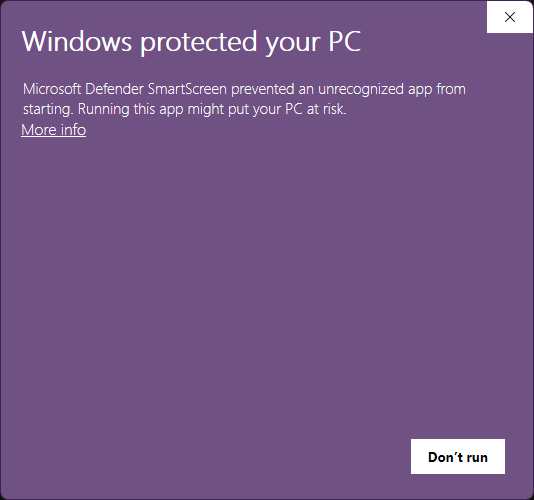
SmartScreen may detect that the Nitrocid and its associated executables may not pass the SmartScreen attestation. If this happens, you'll see the below page:
Nitrocid KS will not put your PC at risk (except if you downloaded a copy from an unofficial software distributor, or from an unofficial source other than our official GitHub releases found [here](https://github.com/Aptivi/NitrocidKS/releases), our Chocolatey page found [here](https://community.chocolatey.org/packages/KS), and our NuGet page found [here](https://www.nuget.org/packages/KS/)). Click on `More Info`, then click on `Run anyways`.