> For the complete documentation index, see [llms.txt](https://aptivi.gitbook.io/aptivi/llms.txt). Markdown versions of documentation pages are available by appending `.md` to page URLs; this page is available as [Markdown](https://aptivi.gitbook.io/aptivi/nitrocid-ks-v0.2.1-rolling-manual/fundamentals/simulated-kernel-features/shells.md).
# Shells
What are the shells?
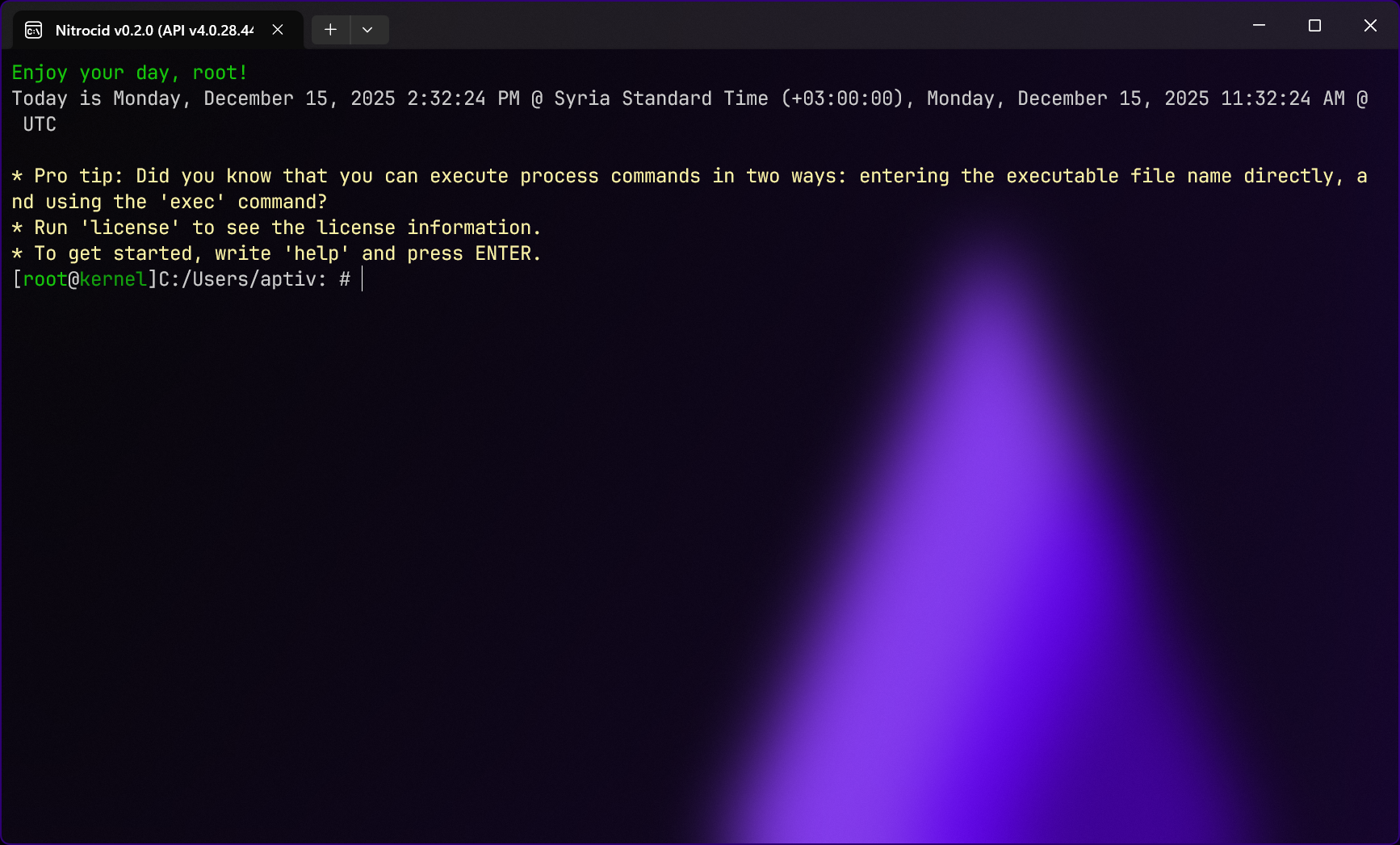
Operating systems contain their shells that listen to user input and execute any command – either built-in or custom – to perform operations that the users plan or need to do. Shells usually contain the prompt indicator to tell the user where is the current working directory, the user name, the host name, or anything that is set up to show.
In Linux systems, the shell is initiated with the help of both the log-in handler and the system initialization program, usually found in `/sbin/init`. Linux shells are numerous, like `zsh`, `dash`, and `bash`. In Windows, it has only two shells, which is PowerShell and Command Prompt (simulates the MS-DOS command prompt).
Each shell contain their own built-in commands and their usage and purpose that are hard-coded to the shell, and they're usually not distributed in a binary form. External commands are just programs or scripts that you would execute, but found in your system drive or any of the drives.
***
## Unified Extensible SHell (UESH)
In the simulated kernel, the kernel initialization system only runs one shell, which is Unified Extensible SHell (UESH), that Terminaux's shell manager, MESH, runs. This shell manager allows you to manage commands and shells.
For more information about its inner workings and how you can build your own commands and shells, consult the below page.
{% content-ref url="/spaces/G0KrE9Uk2AiblqjWtpAo/pages/Uj4qtugl7VXlSQzN62fZ" %}
[Shells](/aptivi/terminaux-manual/usage/input-reader/shells.md)
{% endcontent-ref %}
***
## Commands
All of the shells contain their own commands that you can review on either the help command list (depending on the mode used, such as `-addon` for addon commands) or the below page (just for Nitrocid shells, base shell, and Addon commands):
{% content-ref url="/pages/WgR1oiPZ3LM3B1GloPdz" %}
[Commands List](/aptivi/nitrocid-ks-v0.2.1-rolling-manual/fundamentals/simulated-kernel-features/shells/commands-list.md)
{% endcontent-ref %}
{% content-ref url="/pages/jvqReJdSLVOOj60V23io" %}
[Addon Commands List](/aptivi/nitrocid-ks-v0.2.1-rolling-manual/fundamentals/simulated-kernel-features/shells/addon-commands-list.md)
{% endcontent-ref %}
{% hint style="info" %}
You can also use `findcmds` to quickly find commands by regular expressions as demonstrated below.

{% endhint %}