> For the complete documentation index, see [llms.txt](https://aptivi.gitbook.io/aptivi/llms.txt). Markdown versions of documentation pages are available by appending `.md` to page URLs; this page is available as [Markdown](https://aptivi.gitbook.io/aptivi/nitrocid-ks-v0.2.1-rolling-manual/fundamentals/simulated-kernel-features/extra-features/more-networking/chatbot-ai.md).
# Chatbot AI
AI on your console
Nitrocid 0.2.0 provides an addon that allows you to talk to an AI chatbot using the latest ChatGPT models provided by OpenAI. This uses an official OpenAI package found in [NuGet](https://www.nuget.org/packages/OpenAI) which utilizes the ChatGPT REST API.
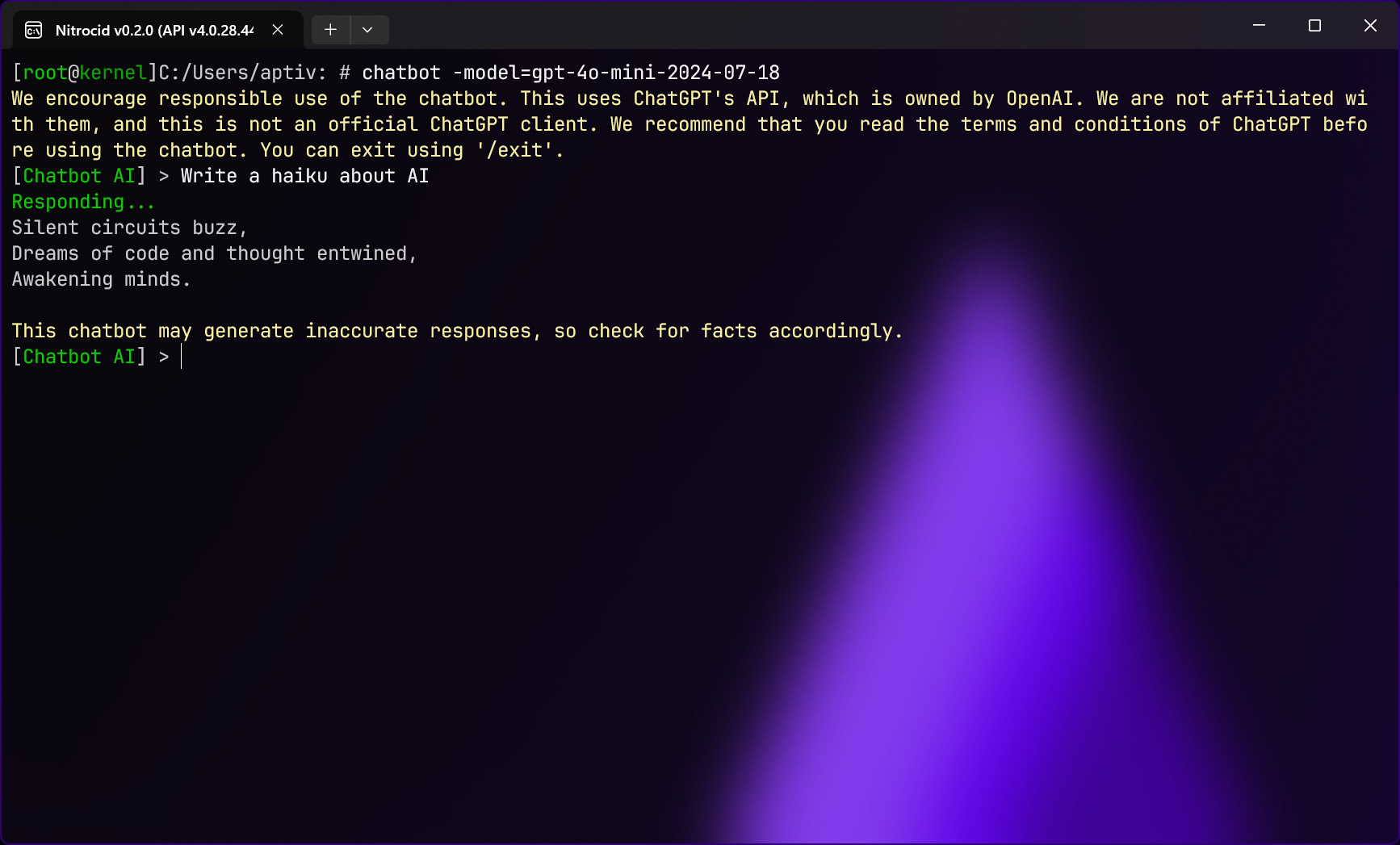
Nitrocid provides you with this chatbot to help you perform tasks on the go, such as writing a haiku, assisting in writing code, and much more. It uses Terminaux's implementation of the shell to ensure that you have a seamless chatting experience, complete with commands that you can execute using the slash command.
{% hint style="info" %}
We encourage responsible use of the chatbot. This uses ChatGPT's API, which is owned by OpenAI. We are not affiliated with them, and this is not an official ChatGPT client. We recommend that you read the terms and conditions of ChatGPT before using the chatbot. You can exit using `/exit`.
{% endhint %}
***
## Getting started
To get started, you'll need to obtain your ChatGPT API key by visiting the below site.
OpenAI API Keys
Afterwards, press **Create new secret key** in the upper right corner of your screen. Then, write the name and select an organization. Press **Create secret key**. Then, copy the secret key and save it somewhere prior to using it, because you won't be able to see it again.
Afterwards, run the `chatbot` command, and provide the API key associated with your account. After that, write your prompt.
{% hint style="info" %}
You can store the API key in the chatbot settings, but you must be aware that the configuration system stores everything in plain text.
{% endhint %}
***
## Specifying models
You can also specify the model used using the `-model` switch or from the chatbot settings. To obtain a list of models, consult the page below.
OpenAI Models